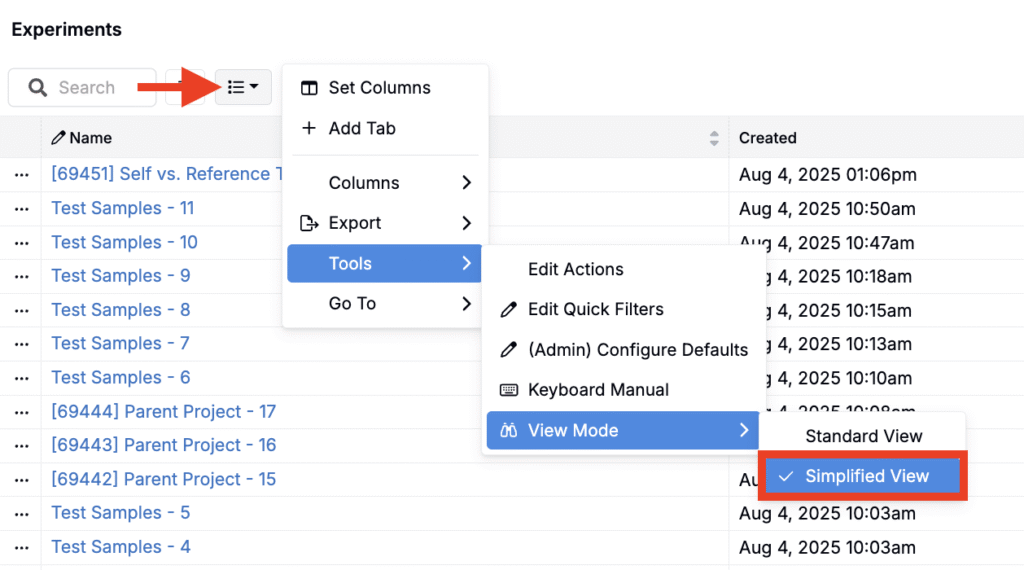
Listings in Uncountable can be displayed in two modes: Standard View and Simplified View. These modes help adapt the interface to your needs, whether you’re working on a desktop, viewing listings on mobile, or embedding listings in a form.
Standard View
The Standard View is the full-featured listing interface, best suited for users who need maximum control over their data.
Features of Standard View
- Full toolbar with:
- Filters
- Search
- AI Assistant
- Create Entity
- Barcode Scanner
- “Rows to Export” counter
- List dropdown
- Quick Filters at the top of the listing
- Inline display of all active filters and filter logic

Simplified View
The Simplified View offers a cleaner, more focused interface. It’s automatically or manually used in contexts where screen space or attention is limited, such as:
- When viewing a listing within a form (e.g. lab requests, notebooks, approvals)
- When using Uncountable on a mobile device
- When manually enabled it on for a cleaner look, even on a standard listing page
Features of Simplified View
- Many controls are hidden or collapsed:
- Filters, Search, and AI Assistant are not shown
- Quick Filters are not displayed
- “Rows to Export” counter removed
- List button simplified by removing text
- More space is devoted to the listing content itself
- Optimized for mobile or touch input

Switching Between Views
You can toggle between view modes at any time:
- Open any listing (e.g., Experiments, Ingredients).
- Click on List > Tools > View Mode.
- Choose Standard View or Simplified View based on your needs.
Your selected view mode applies per listing tab and can be changed back at any time.