
Complex R&D workflows often require organizing diverse sets of data, files, and analyses in one place. With recent upgrades to the Uncountable Notebook feature, teams can now build and manage multi-page notebooks more effectively than ever.
These changes were introduced to simplify page navigation, enable users to embed supporting files, and allow for switching between individual page views and a unified page layout.
Notebook Pages Tab Bar
When a notebook contains multiple pages, a new tab bar now appears at the bottom of the screen, making it easier to navigate between pages with a single click.
Previously, users relied on the pages legend on the left side of the notebook to switch views. The new tab interface offers a cleaner, more intuitive experience for organizing content and move between pages, similar to familiar spreadsheet applications.

Add Files Directly as Notebook Pages
You can also now add files as pages directly from the new tab bar. This allows you embed PDFs, images, spreadsheets, or documents as their own pages within a notebook or report.
This is especially useful for bringing in supporting materials while keeping everything in one place. Embedded files are read-only, but remain linked to the original source and can be opened for editing as needed.
To add a file as a notebook page:
- In the tab bar, access the + button menu.
- Select Add File as Page.
- Click Add File and use the modal to drag in or import a file.
- You can also create a new Word, Excel, or Powerpoint files as pages by selecting Add File > Create New.

Files added as pages in a notebook are displayed in a read-only view. To edit them, select Edit > Edit File or Edit in Desktop.

Notebook Pages Combined View
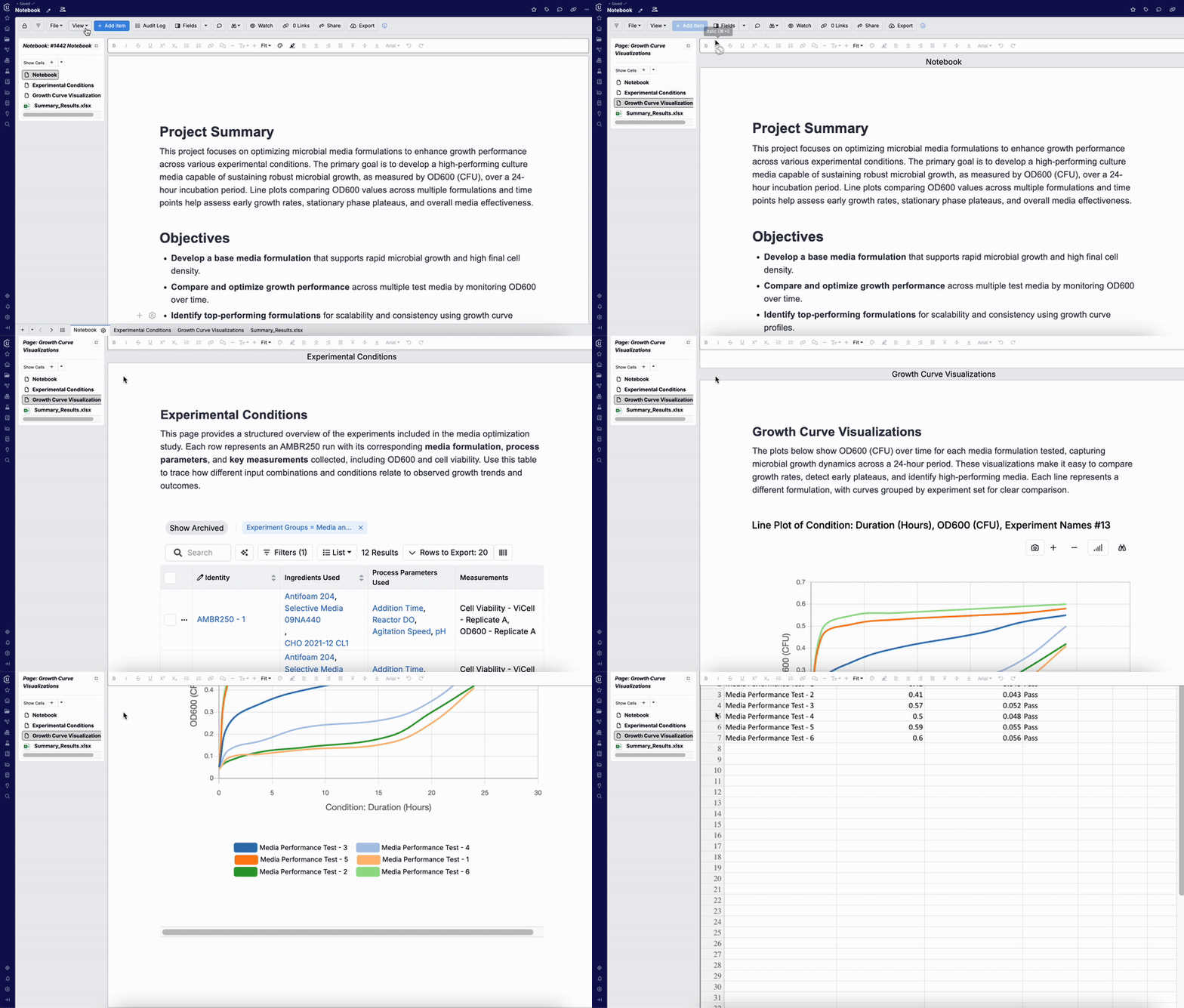
A new Combined View also now allows you to view all notebook pages at the same level in a single, continuous layout. This is setting is helpful for final reviews, sharing content with stakeholders, or simply scanning across your entire notebook without flipping between tabs.
To switch to a combined view of notebook pages:
- Select View > Display Combined Pages.
To switch back to a separate page view:
- Select View > Display Separate Pages
Why this helps
These updates make the Uncountable Notebook a more organized and flexible workspace. Teams can better structure their content across pages, bring in supporting files, and review everything in one place—making it easier to document and share your work.