Workflows organize complex scientific processes into discrete, configurable steps. Rather than treating an experiment as a single flat record, workflows let you define exactly how a process is structured — which steps occur, in what order, and how material flows between them. That structure can then be reused across many experiments and tailored per project through workflow variants.
Accessing the Workflow Editor
You can open the Workflow Editor from two places:
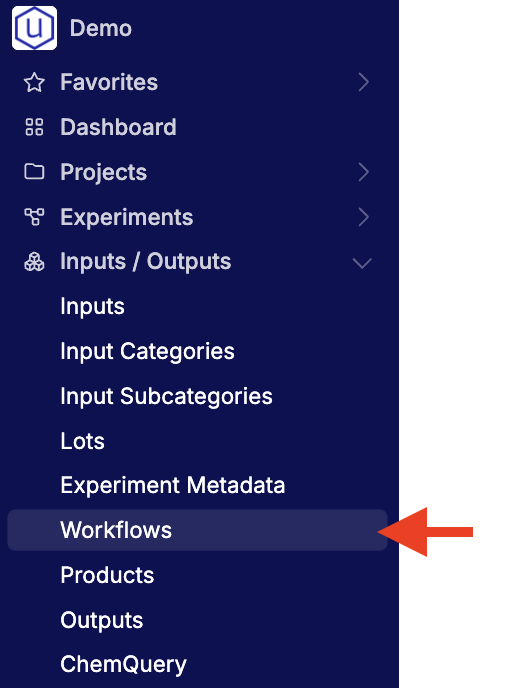
- Navigation bar — Go to Inputs/Outputs → Workflows.
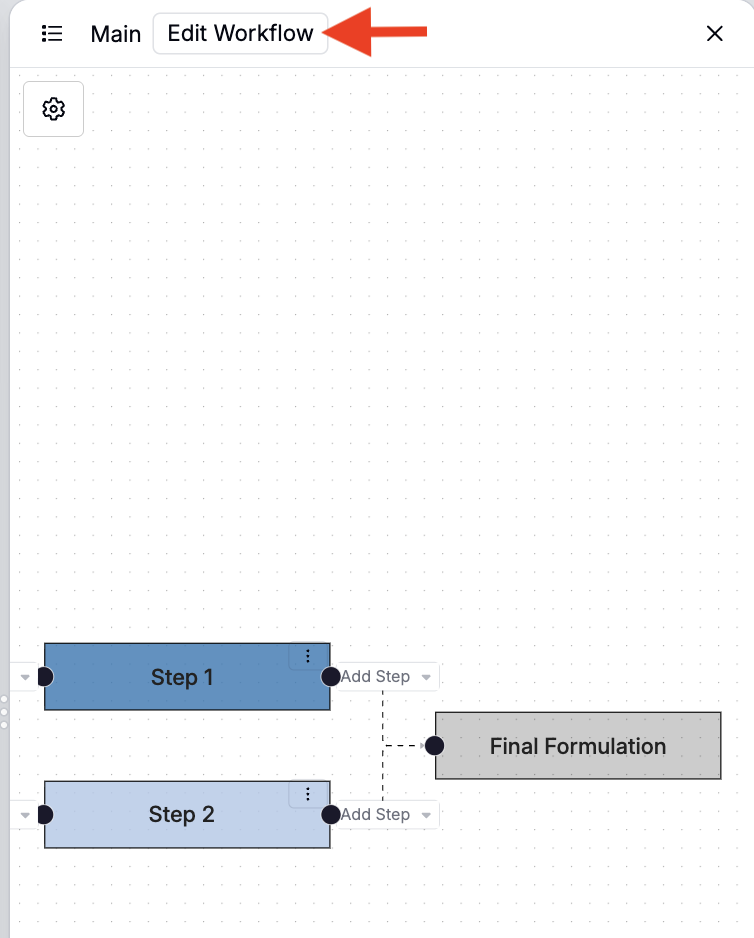
- From an experiment — Open the Recipe Workflow sidepanel or the Set Experiment Workflow modal, then click Edit Workflow.
Creating a workflow
To create a new workflow:
- Access the Workflow Editor (Inputs/Outputs > Workflows).
- In the Workflow Editor, click + Create New Workflow.
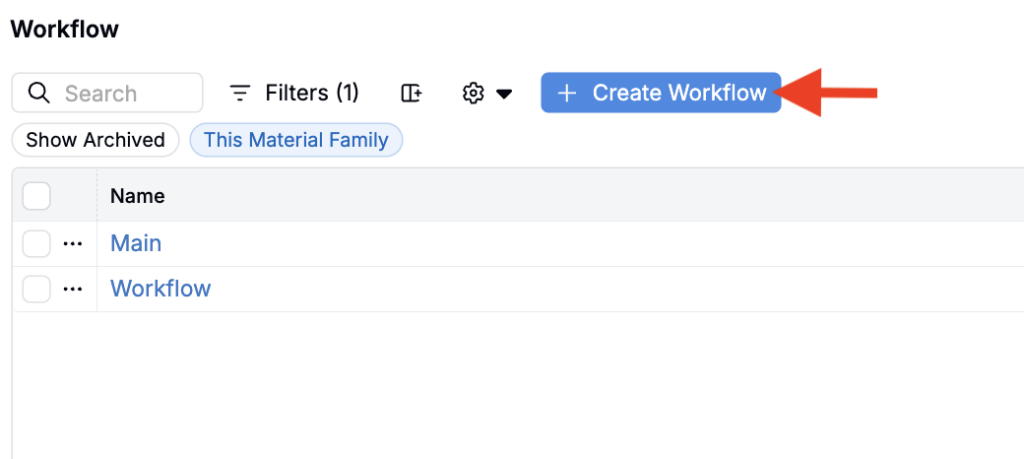
- Add workflow steps using + Add Step and rename them to reflect your process stages.
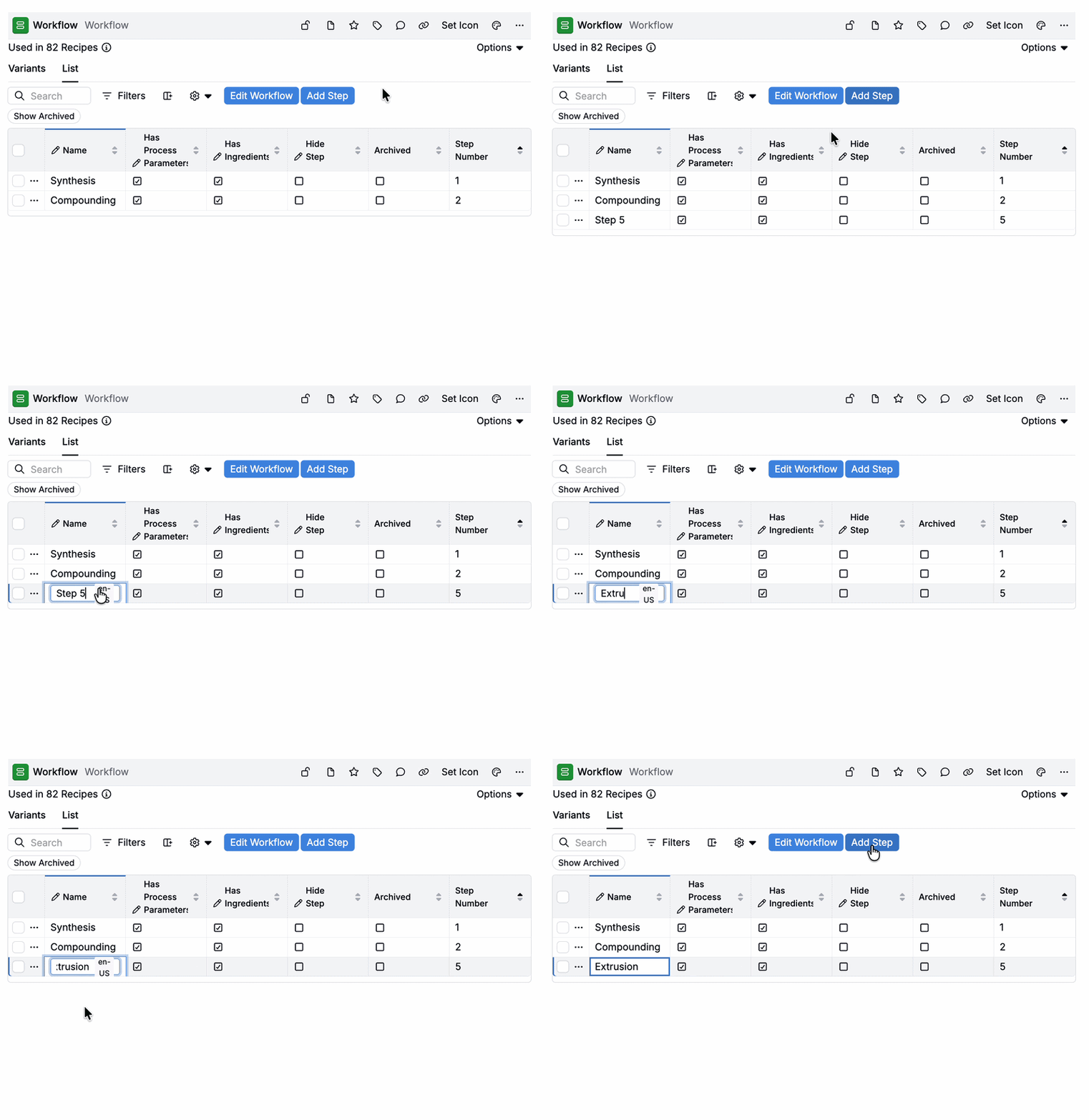
Workflow settings
Workflow-level settings control default behavior across all experiments that use the workflow. These can be accessed from the workflow settings panel in the Workflow Editor. To access these settings, click Edit Workflow.
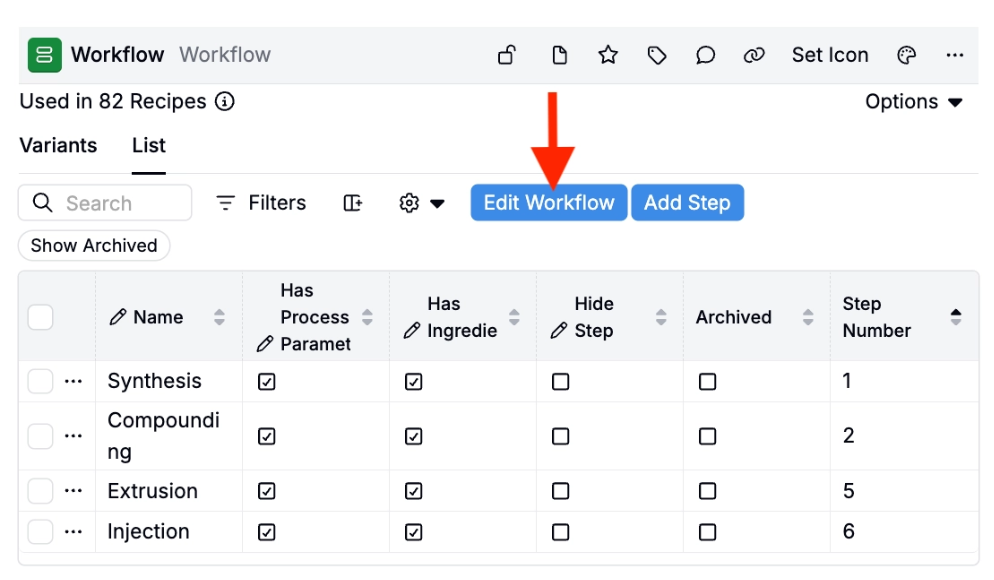
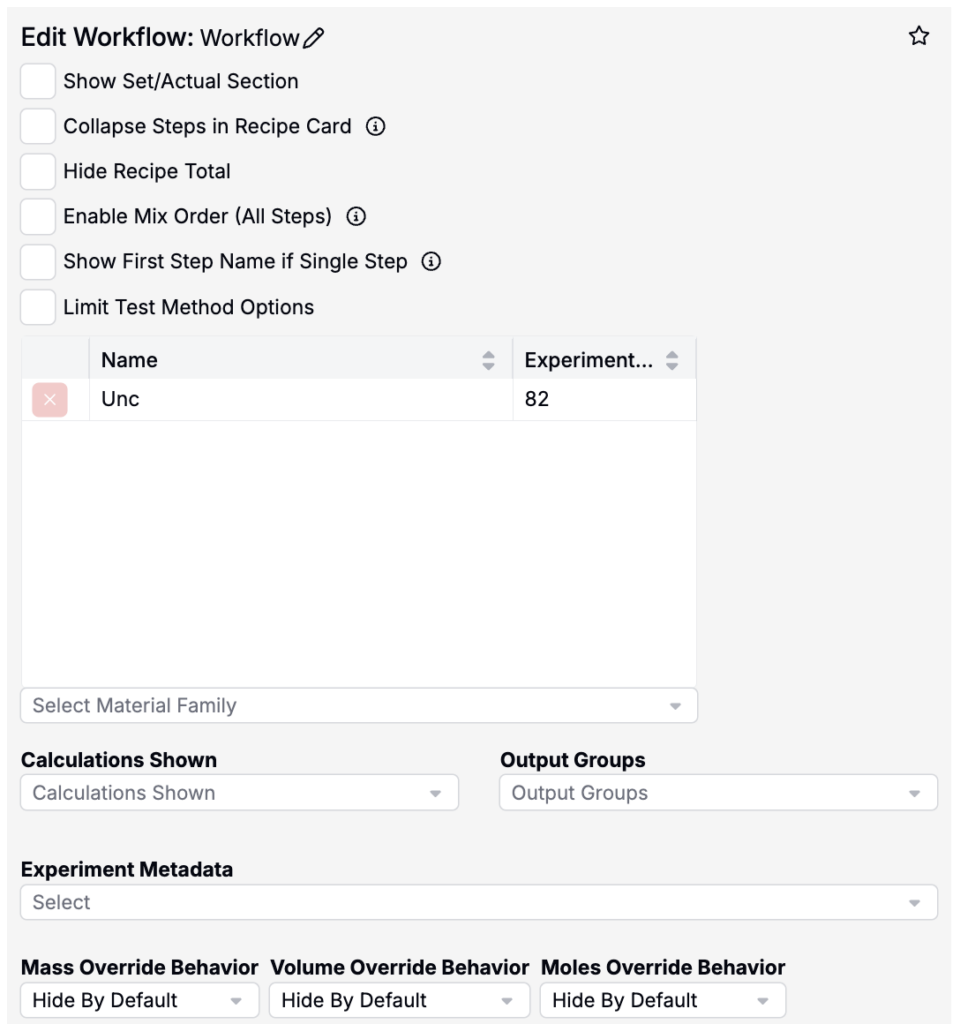
- Show Set/Actual — Displays both target and actual input values on the recipe card.
- Collapse Steps in Recipe Card — Combines all step inputs into a single block.
- Hide Recipe Total — Removes totals from the recipe display.
- Enable Mix Order — Allows you to define the order of addition for ingredients.
- Limit Test Method Options — Restricts which templates are available when adding test samples.
- Show First Step Name if Single Step — When unchecked, single step recipes show a generic header instead of the step name.
- Calculations Shown / Output Groups / Metadata — Sets which calculations, output groups, and metadata fields are displayed by default.
- Mass/Volume/Moles Overrides — Sets whether mass/volume/moles fields are hidden by default, prompted, or shown by default across experiments using this workflow.
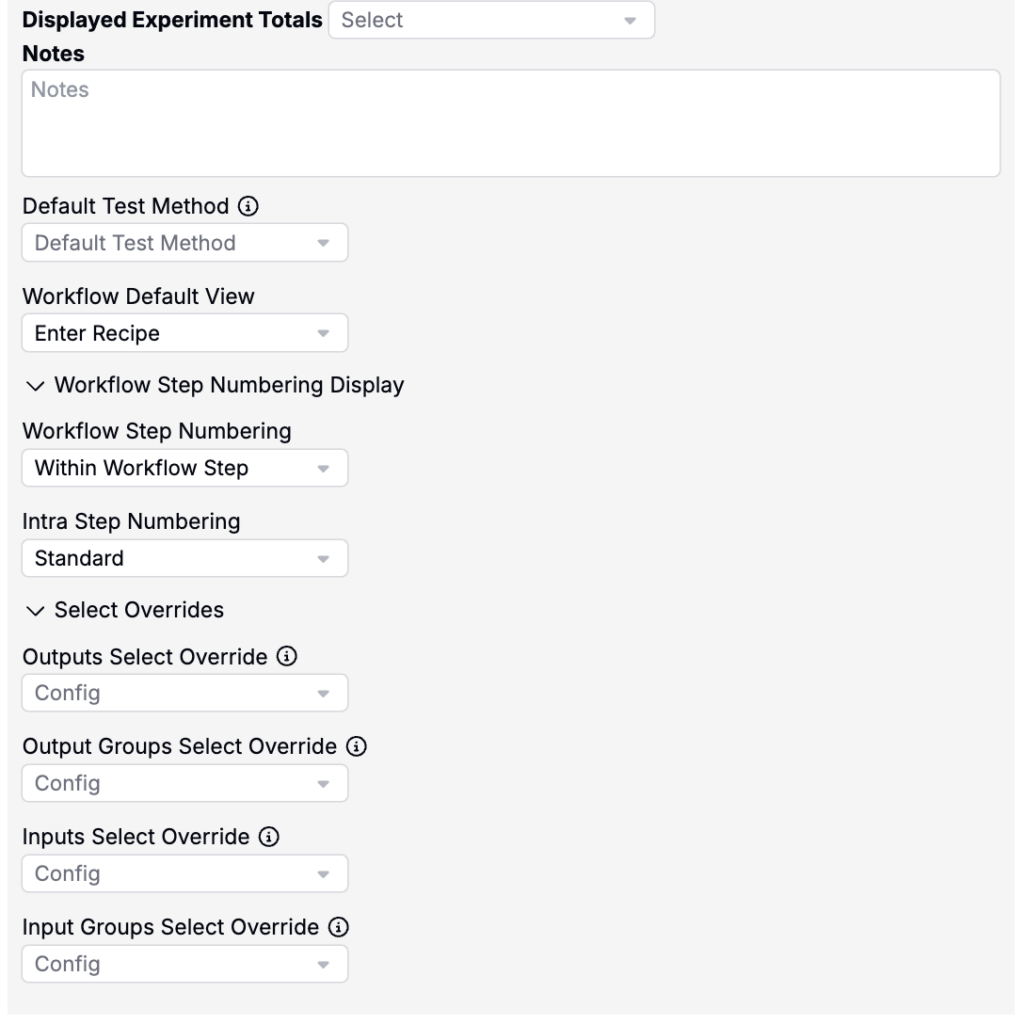
- Displayed Experiment Totals — Sets which total rows (mass/volume/moles) show in the experiment totals section. If none are chosen, totals are inferred from the step totals shown in the workflow.
- Notes — Add notes to the workflow.
- Default Test Method — Pre-selects a test method when creating a test sample from this workflow step. Users can change it when creating the test sample.
- Workflow Default View — Sets the default landing page for experiments using this workflow (Enter Recipe vs Enter Measurements).
- Workflow Step Numbering — Controls whether mix-order numbering resets per workflow step or continues across steps.
- Intra Step Numbering — Controls which row types count toward numbering within a workflow step (e.g., optionally skipping instructions).
- Outputs Select Override — Create or select a listing configuration which outputs can be added/selected for experiments using this workflow.
- Output Groups Select Override — Create or select a listing configuration which output groups can be added/selected for experiments using this workflow.
- Inputs Select Override — Create or select a listing configuration which inputs/ingredients can be added/selected on a given workflow step.
- Input Groups Select Override — Create or select a listing configuration which input groups can be added/selected on a given workflow step.
Workflow step settings
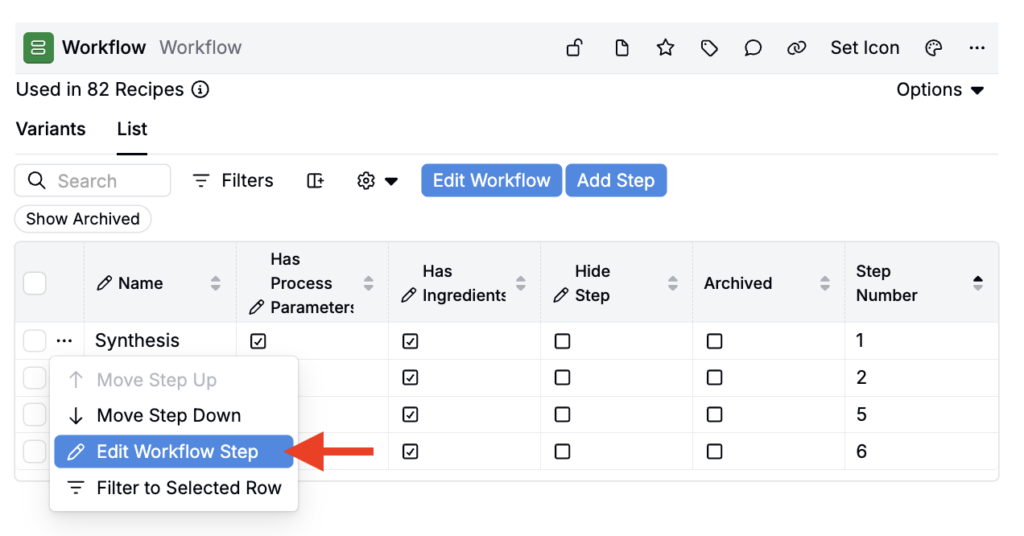
Workflow step-level settings control the default behavior for that step across all experiments using the workflow. To edit a specific workflow step, click … → Edit Workflow Step on the step in the Workflow Editor.
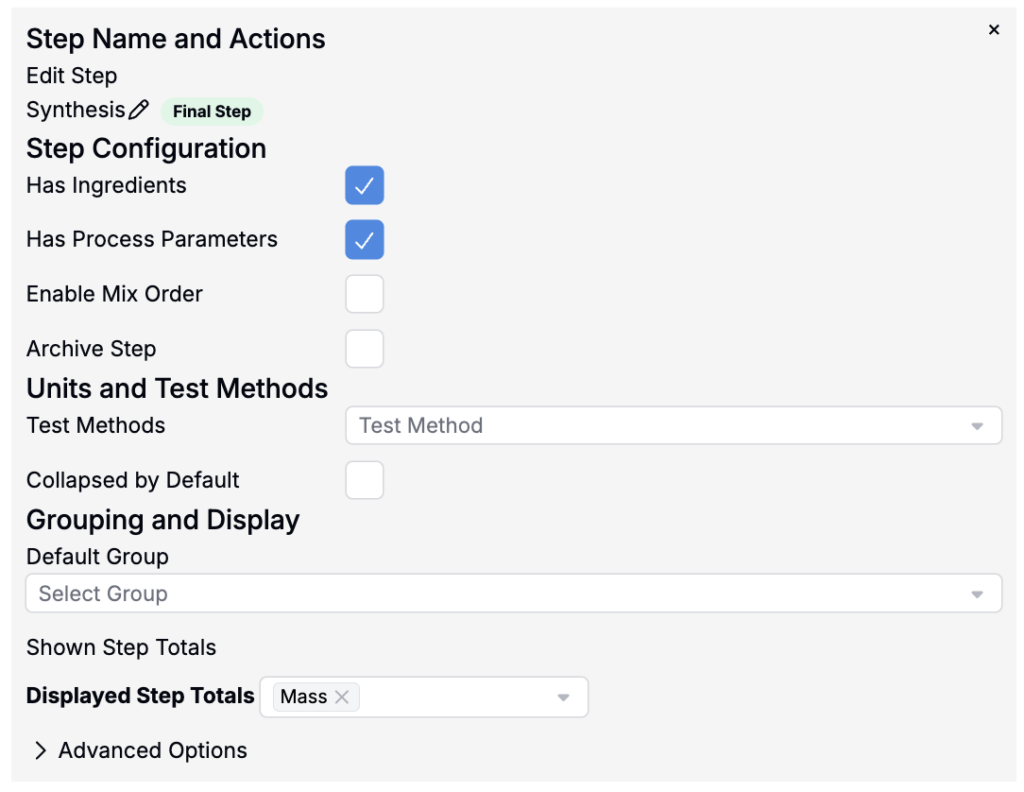
- Has Ingredients — Enables ingredients to be added to the step.
- Has Process Parameters — Enables process parameters to be included.
- Enable Mix Order — Enables ordering for ingredients and process parameters within the step.
- Archive Step — Hides the step from experiments without permanently removing it. Archived steps remain part of the workflow configuration and can be unarchived at any time.=
- Test Methods — Assigns test methods to record outputs specific to this step.
- Collapsed by Default — When enabled, this step loads collapsed on the recipe card. Useful when a workflow has many steps and you want to keep the view clean on load.
- Default Group — Sets the default input group for the step. This can be overridden at the variant level.
- Displayed Step Totals — Sets which units (mass, volume, moles) are shown in step totals.
Advanced options
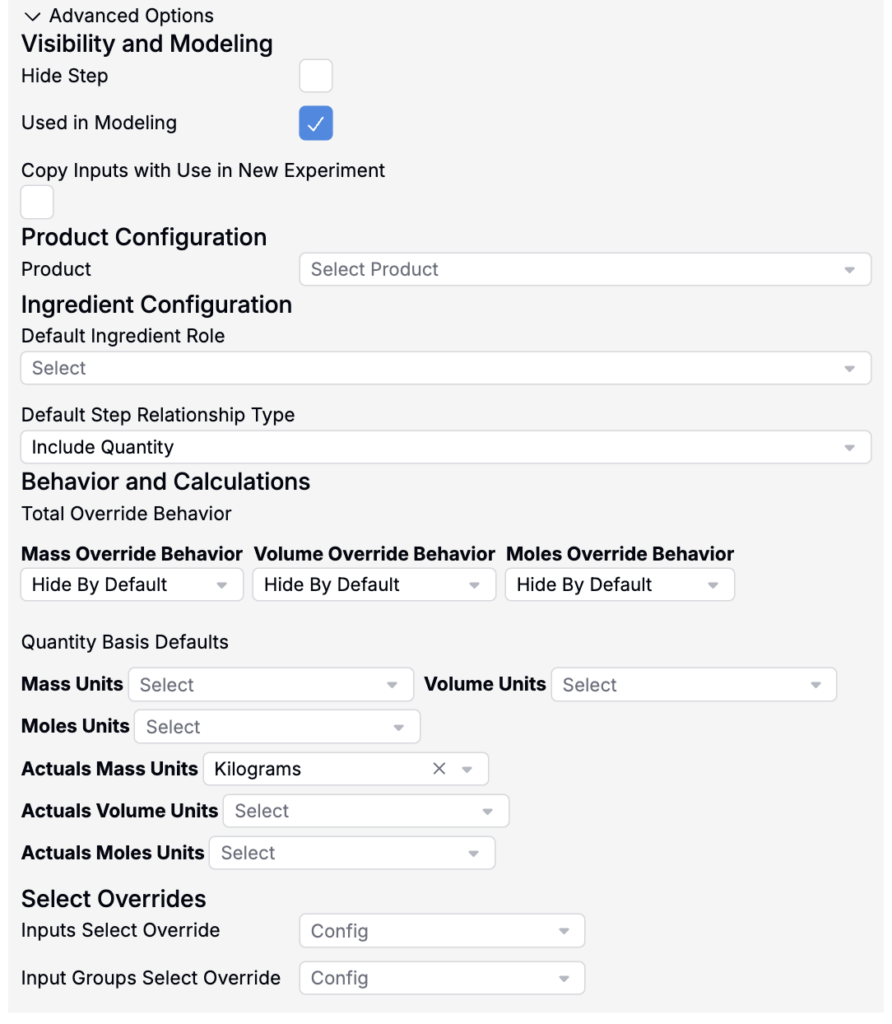
Under Advanced Options, additional settings include:
- Hide Step — Hides the step on the recipe card preview entirely.
- Used in Modeling — Includes the step in advanced modeling features.
- Copy Inputs with Use in New Experiment — Ensures inputs from this step are carried into new experiments created from it.
- Product — Links a product to this step with configurable behavior (copy inputs, include as a component).
- Default Ingredient Role — Sets a default role for ingredients added to this step (e.g., solvent, base, catalyst).
- Default Step Relationship Type — Sets the default relationship type used when this step’s output is carried into a downstream step. See Step relationships below for a description of the available types.
- Mass/Volume/Moles Override Behavior — Controls whether mass, volume, or moles values are hidden by default, prompted, or shown for this step.
- Mass/Volume/Moles Units — Sets the default units for ingredients based on the selected basis.
- Actuals Mass/Volume/Moles Units — Sets the units displayed for actual measurements.
- Inputs Select Override / Input Groups Select Override — Allows a listing configuration to be applied to the ingredient or input group selector for this step, restricting which options are shown to users.
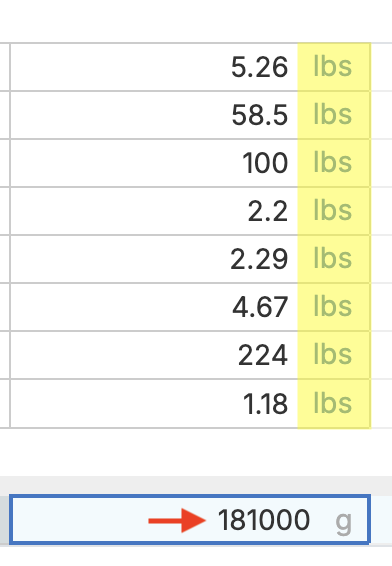
Tip: If experiment totals don’t align with basis units, adjust Mass/Volume/Moles Units in step options.
Workflow variants
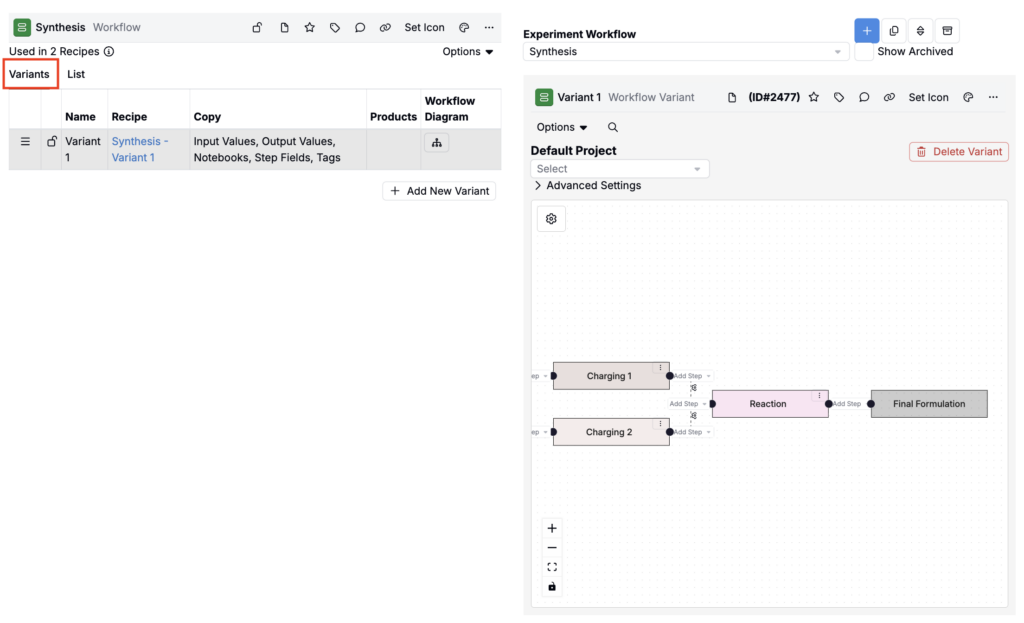
Each workflow can have multiple variants — saved configurations that define a specific arrangement of steps and optional template data, which scientists can select when creating experiments. Variants let teams maintain a curated library of process templates without needing to build from scratch each time.
Variants are created within the Variants tab in the Workflow Editor. For full details on creating and managing variants, see Workflow Variants.
Using workflows in experiments
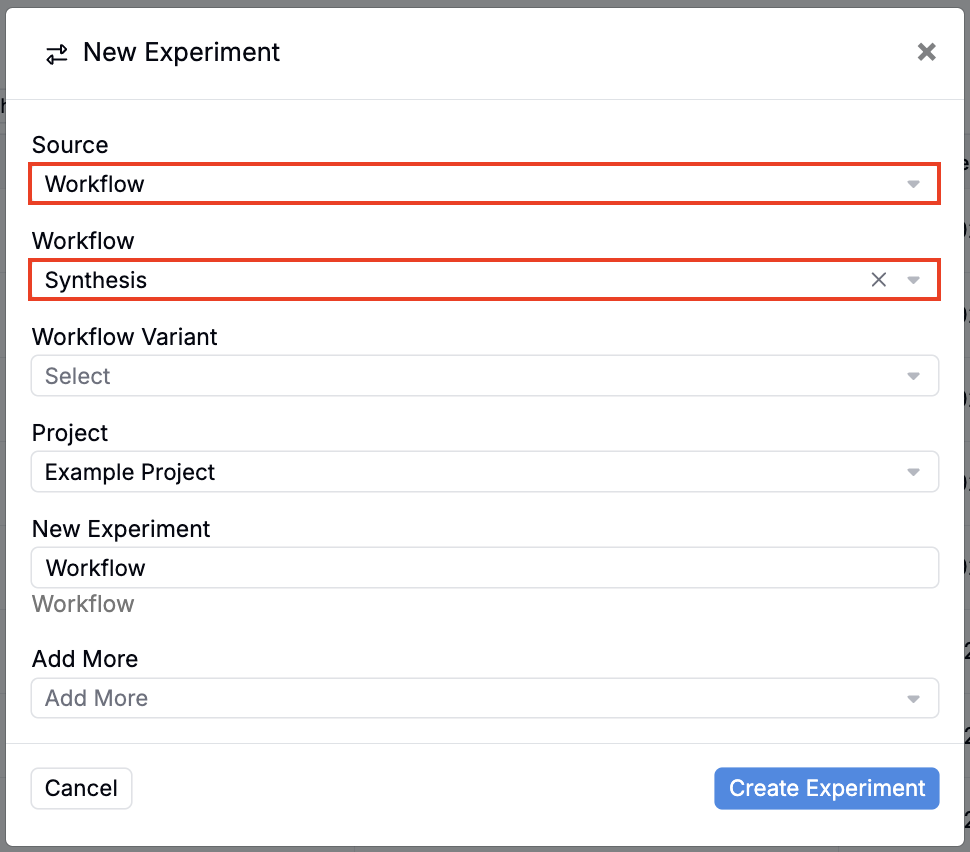
Once a workflow is configured, scientists interact with it directly on experiments. When creating a new experiment, you select which workflow (and optionally, which variant) it should use. This determines which steps appear and how the experiment is structured.
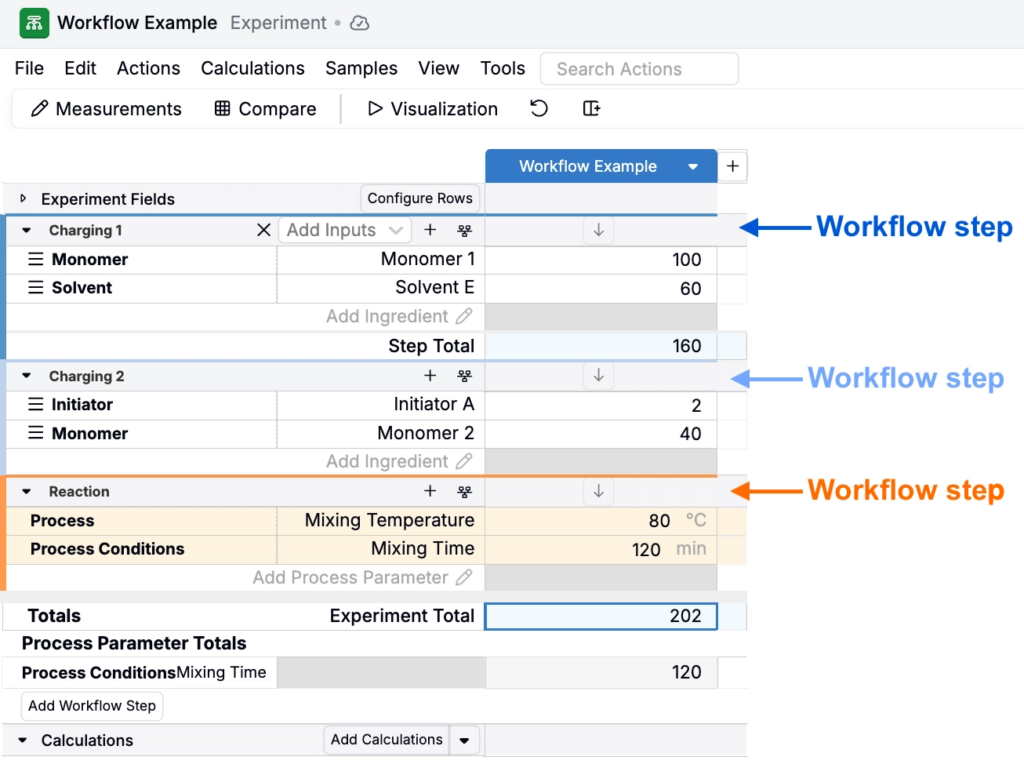
On the experiment, each workflow step appears as its own section in the data grid on the Recipe view, with ingredients and process parameters entered per step.
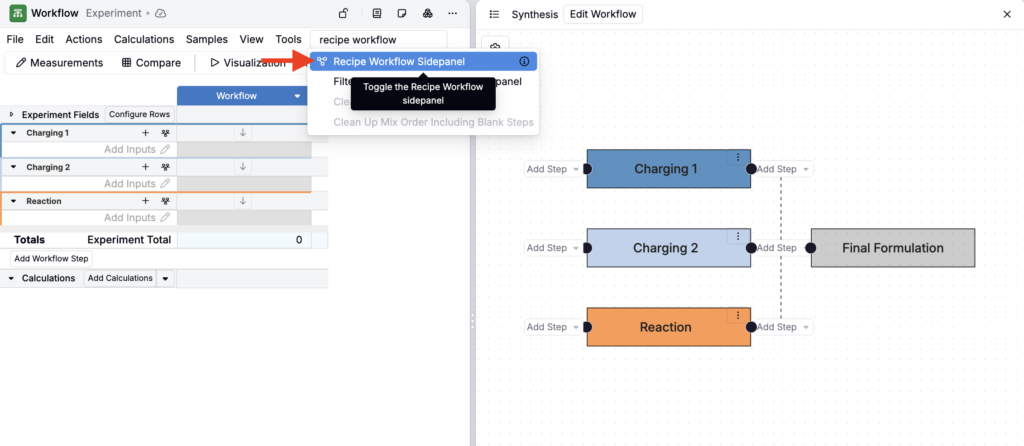
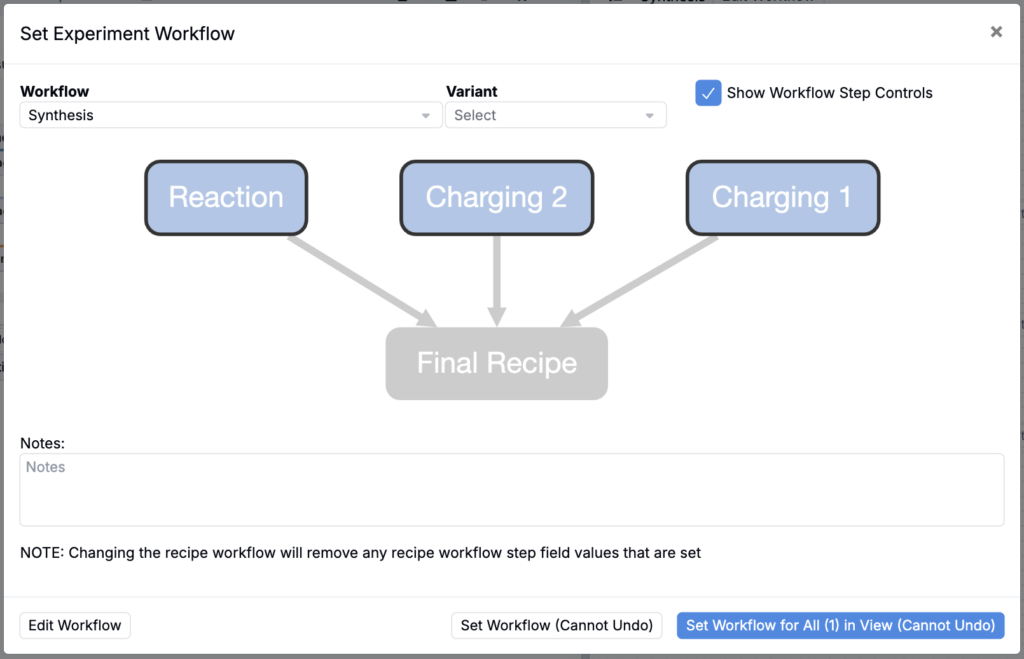
To view the workflow diagram and see how steps are connected, open the Recipe Workflow Sidepanel from the recipe view. This shows the step structure, any step relationships, and gives you access to workflow actions like reordering steps or editing step settings without leaving the experiment.
To change the workflow or workflow variant assigned to an experiment, use Search Actions to search for Change Experiment Workflow.
Workflow step actions
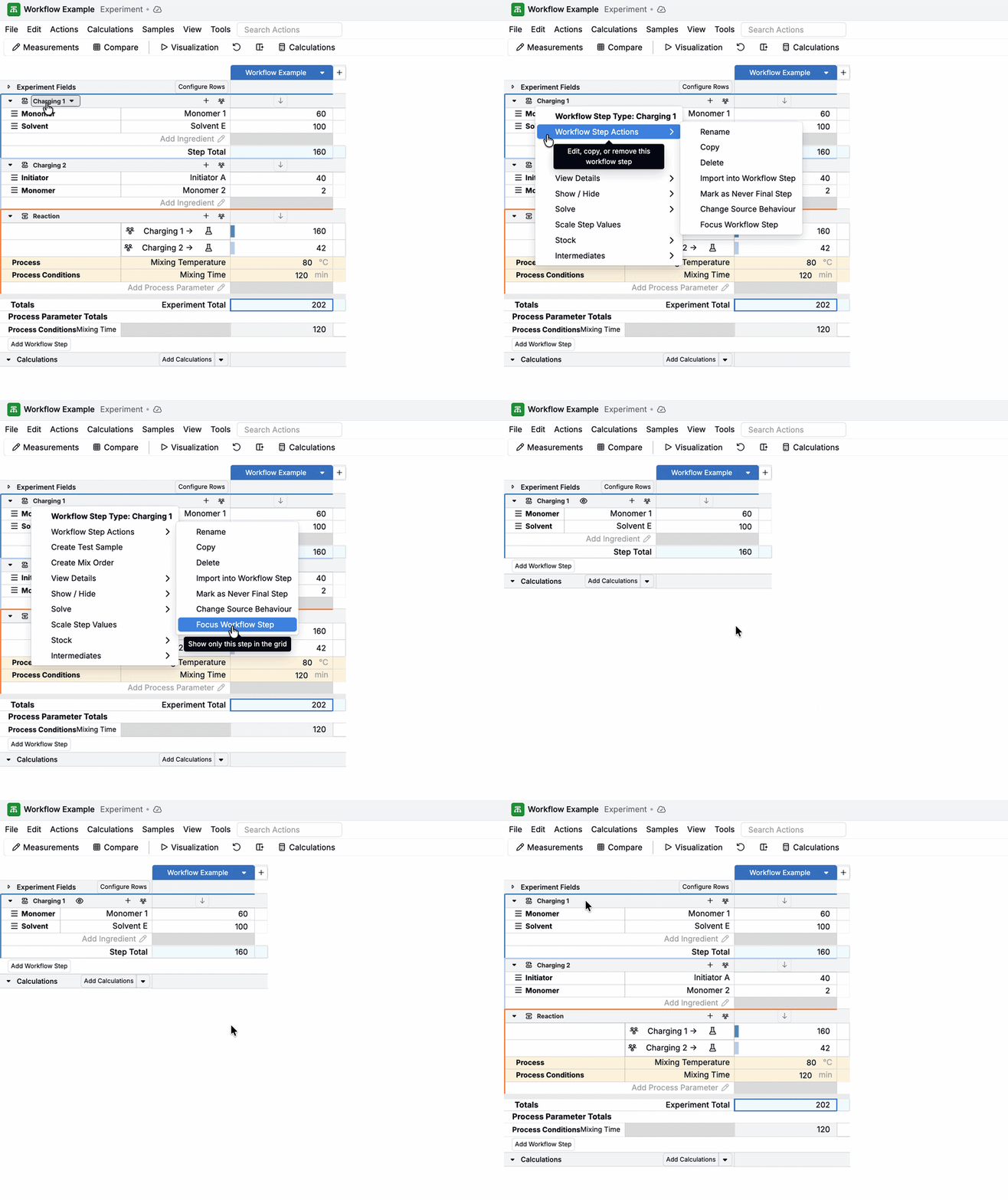
In each workflow step’s header menu, there are a few workflow step actions available.
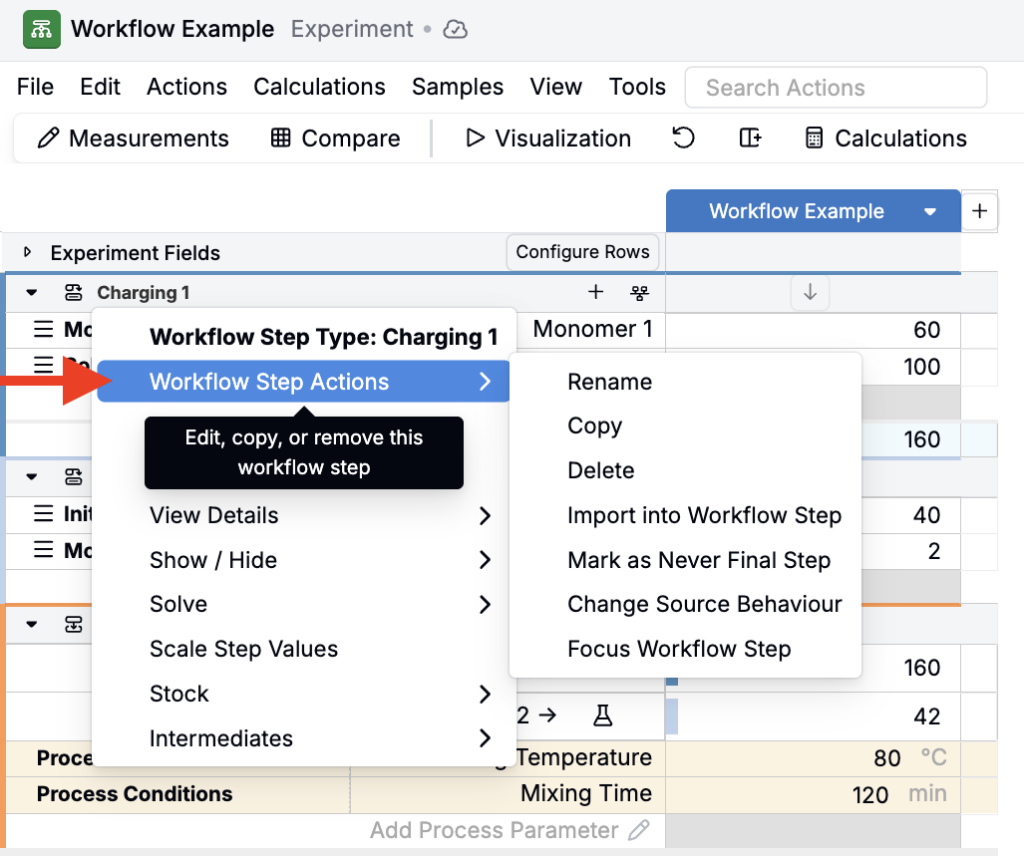
These include:
- Rename — Rename the workflow step. Applies only to the experiment, not to the actual workflow/variant.
- Copy — Adds a copy of the workflow step to the bottom of the recipe data grid. Applies only to the experiment, not to the actual workflow/variant.
- Delete — Removes the workflow step. Applies only to the experiment, not to the actual workflow/variant.
- Import Workflow Step — Imports the workflow step, including all inputs, into a new experiment
- Mark as Never Final Step — Prevents this step from being treated as a valid endpoint in the workflow (a guardrail so the workflow can’t “end” here).
- Change Source Behavior — Let’s you control how this workflow step pulls/updates data from its source recipe. Options include:
- Ignored by default — This step won’t show up by default in the new experiment UI when pulling from the source, but a user can add it manually
- Included by default — This step shows up by default when pulling from the source, but a user can remove it
- Required — This step shows up by default and cannot be removed (it must be included when pulling from the source)
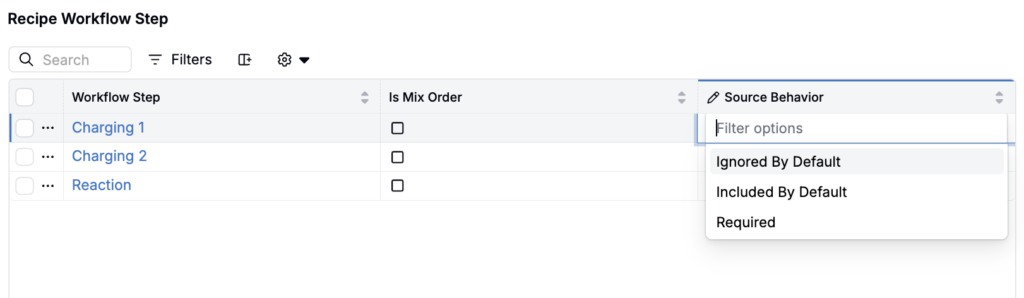
Changing a workflow step’s Source Behavior
- Focus Workflow Step — Hides all other steps, keeping your view on just that step. To return to the full recipe view, click the 👁️ icon in the step header.