
For paints and coatings companies, it’s common to track specs that depend on a theoretical value from a formula, like Density or % Solids. If that formula changes, static spec targets can become outdated and need manual updates.
Relative specs solve this by letting you set spec targets as an offset from the theoretical value. When the theoretical value changes, the spec range updates automatically.
When to use relative specs
- You want your spec to stay aligned to a theoretical calculation that may change.
- You currently edit spec ranges manually after changing a formula.
- You want to reduce the risk of using outdated targets in experiments.
Example
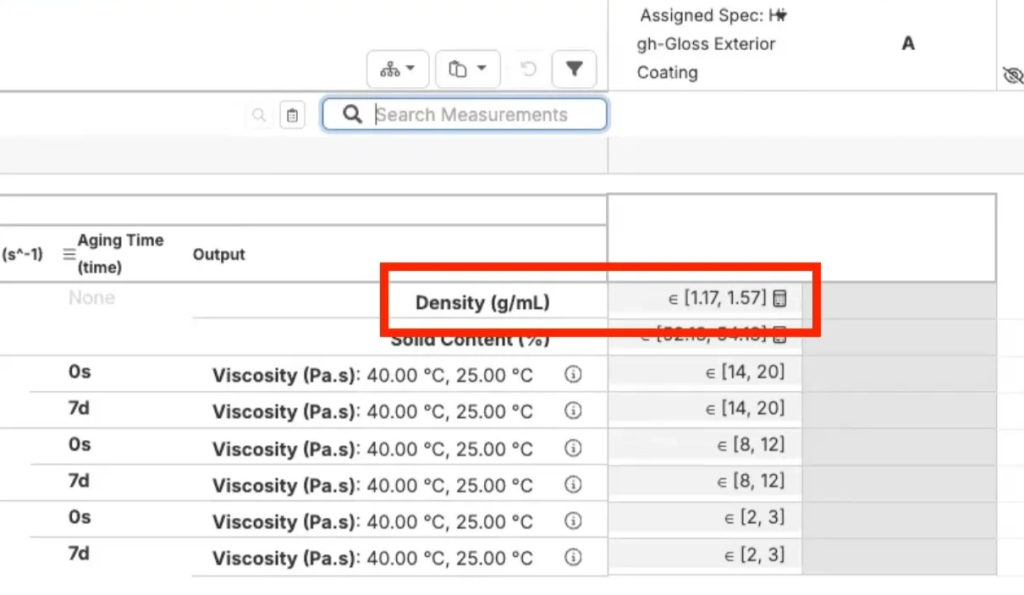
Let’s say your formula calculates a theoretical Density of 1.37. Instead of setting a fixed range, you can set a relative range of −0.20 to +0.20. The Measurements view will show this as a dynamic range of [1.17, 1.57].
Set up a relative spec
1. Open the Spec Editor
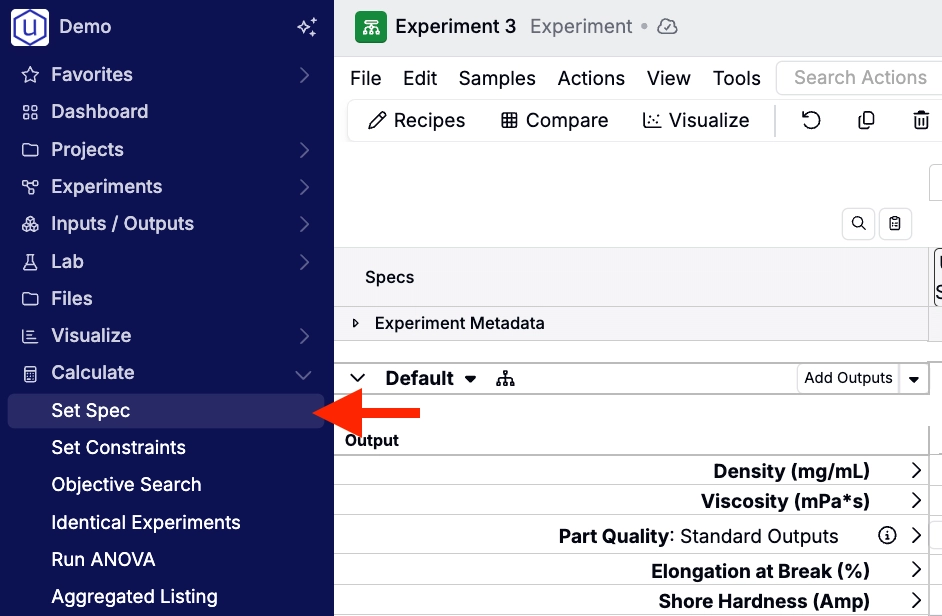
Navigate to the Spec Editor for the spec you want to configure by selecting Calculate > Set Spec from the navigation bar. This will load your current project’s default spec. You can also click Load Spec to load a different spec.
2. Configure the relative property
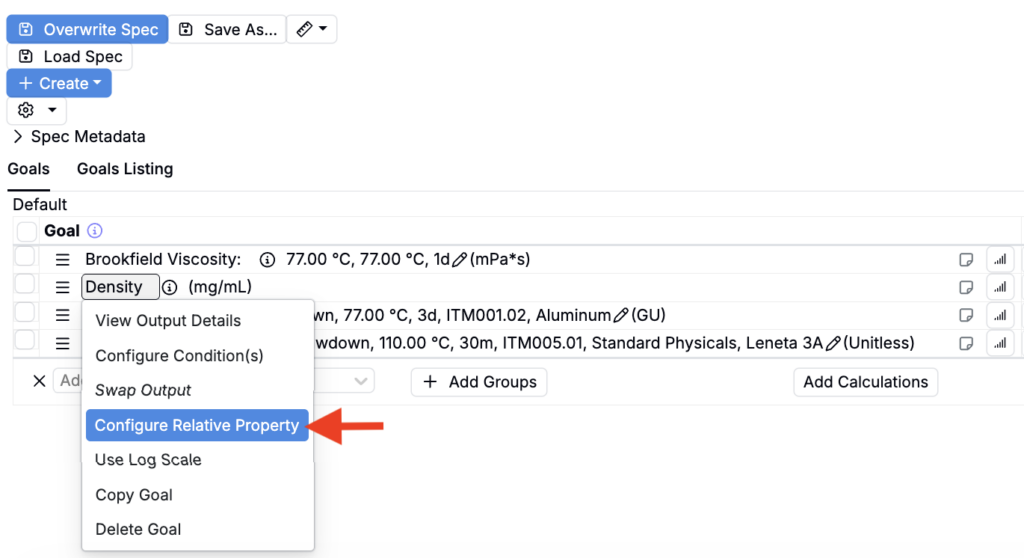
In the Goal table, right-click the output and select Configure Relative Property.
3. Define the relative property settings
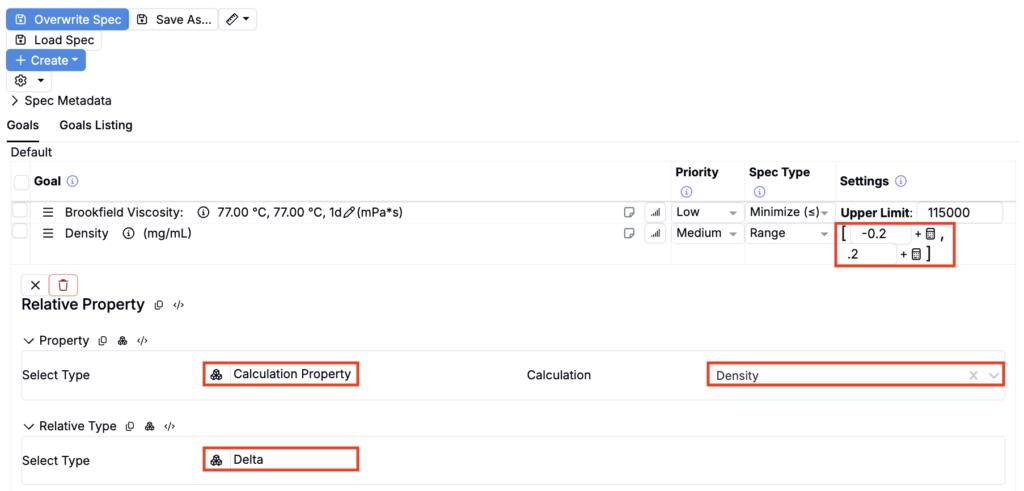
In the configuration panel:
- Select a Property Type:
- Choose Calculation Property to base the spec on a calculation.
- Choose Output Property to base the spec on an output.
- Select the base value
- If you chose Calculation Property, pick the calculation.
- If you chose Output Property, pick the output.
- Set Relative Type to Delta.
- In the Goal table, enter the min and max offsets you want (for example, −0.20 and +0.20).
View the relative spec in an experiment
Go to the Measurements view for your experiment and display your spec as a column. For your output, the relative spec appears as a dynamic range. If the underlying formula changes and the theoretical value updates, the spec range updates automatically.
If you do not see the spec range in the Assigned Specs column: make sure the spec has been assigned to the recipe. Click into the spec column header and select Assign spec then select the correct spec from the modal.