The Similar Entity Search tool helps you quickly identify and compare entities based on shared properties. Common use cases include:
- Searching for similar ingredients based on shared attributes (e.g., Molecular Weight)
- Searching for similar experiments based on inputs or outputs (e.g., ingredient amounts or test results)
What makes this tool powerful is that you define the criteria for measuring similarity. By adding filters and columns in the Similar Entity Search table, you control which attributes drive the comparison.
This article covers how to use Similar Entity Search for ingredients. To learn how to use it for experiments, refer to Similar Entity Search for Experiments.
Searching for similar ingredients
The Similar Entity Search tool allows you to identify similar ingredients based on their ingredients attributes. For example, you could use Similar Entity Search to identify similar ingredients with a lower cost or lower toxicity. Or, you might simply need to find a suitable alternative for an ingredient that is no longer available.
Step 1 — Access Similar Entity Search
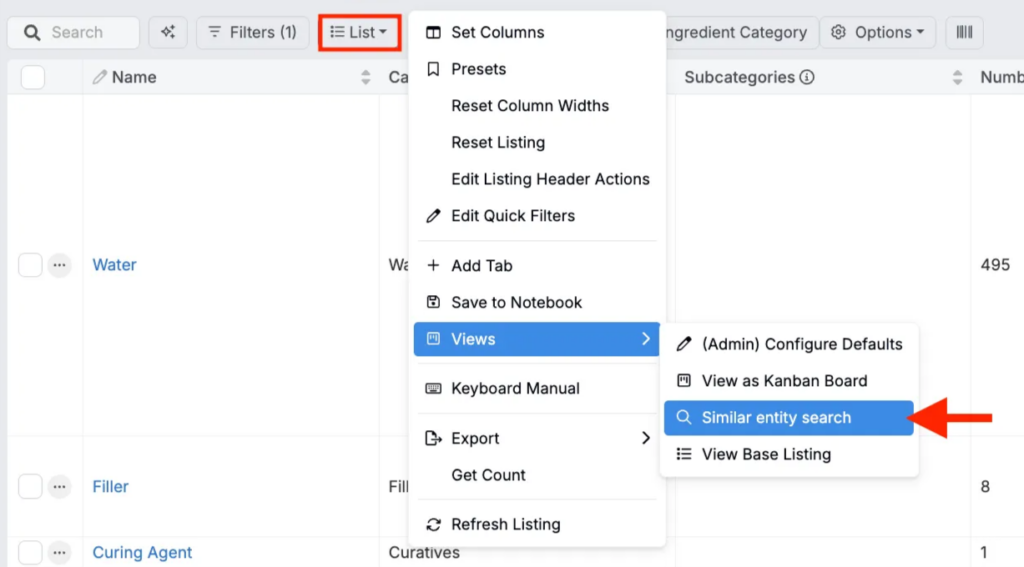
You can access Similar Entity Search from any listing within the platform by selecting List > Views > Similar Entity Search.
Step 2 — Select a target entity
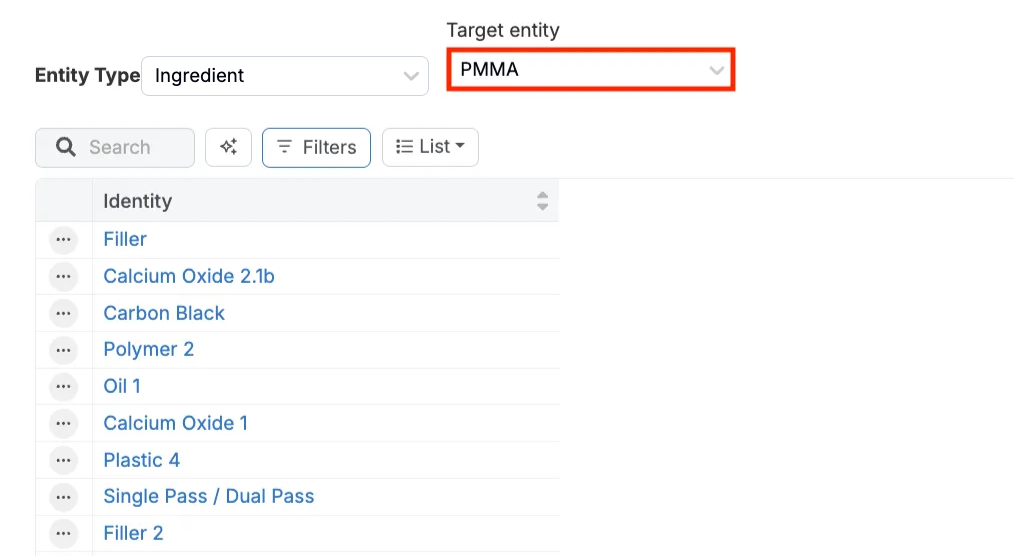
Start by setting the Entity Type to Ingredient and then select your Target Entity (e.g. PMMA).
Step 3 — Add filters and columns
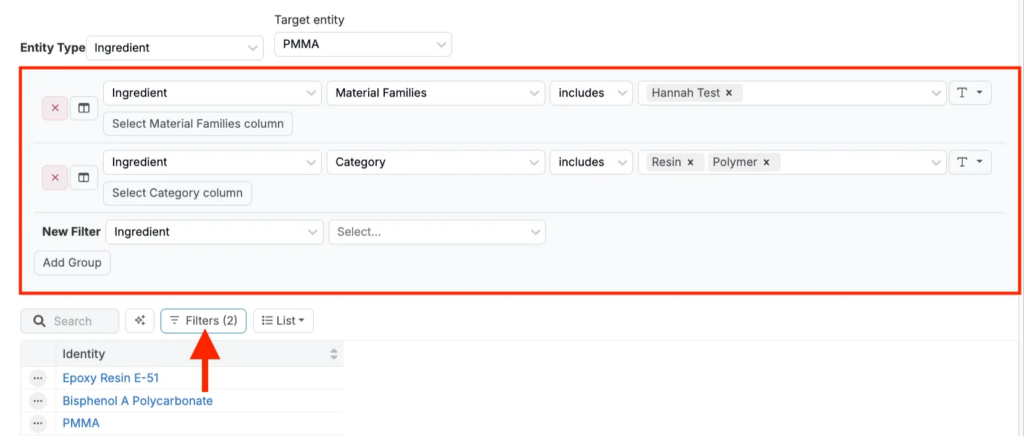
Filters and columns are used to define the search criteria. To add filters, click the Filters button. For example, you may want to filter to a specific material family or ingredient category.
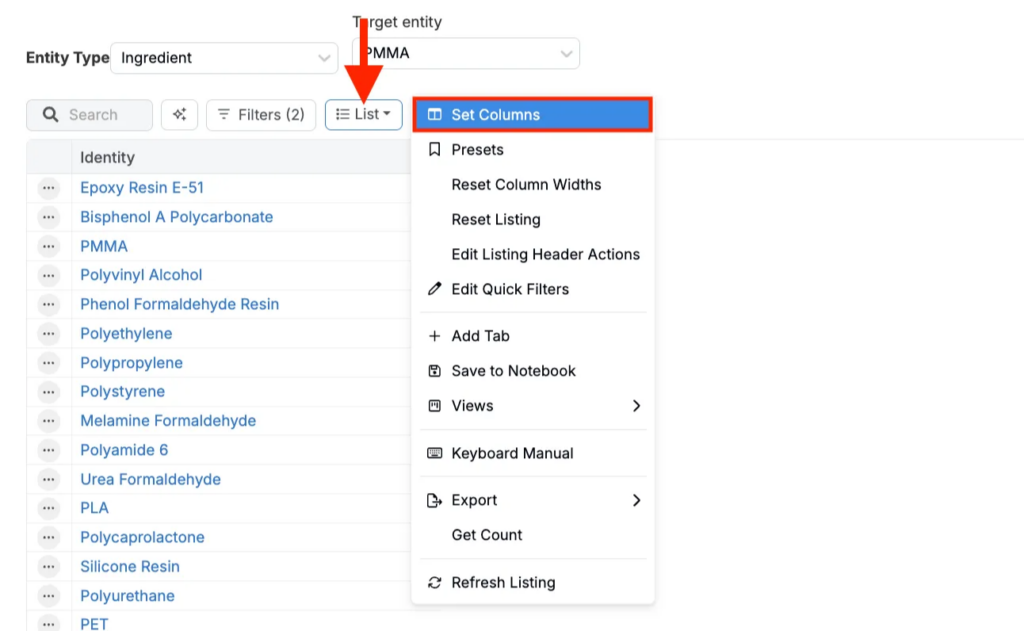
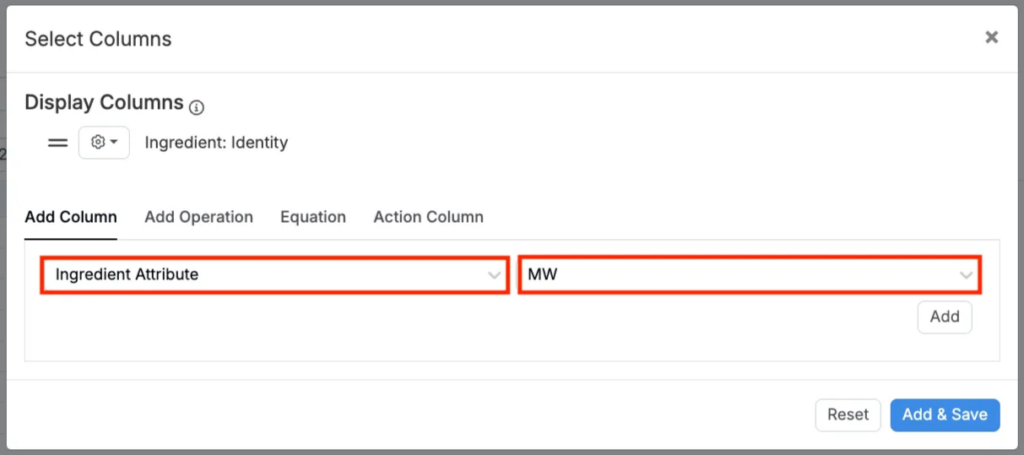
To add columns, click List > Set Columns. In the modal, add attribute columns (e.g. Molecular Weight).
Step 4 — Choose search columns
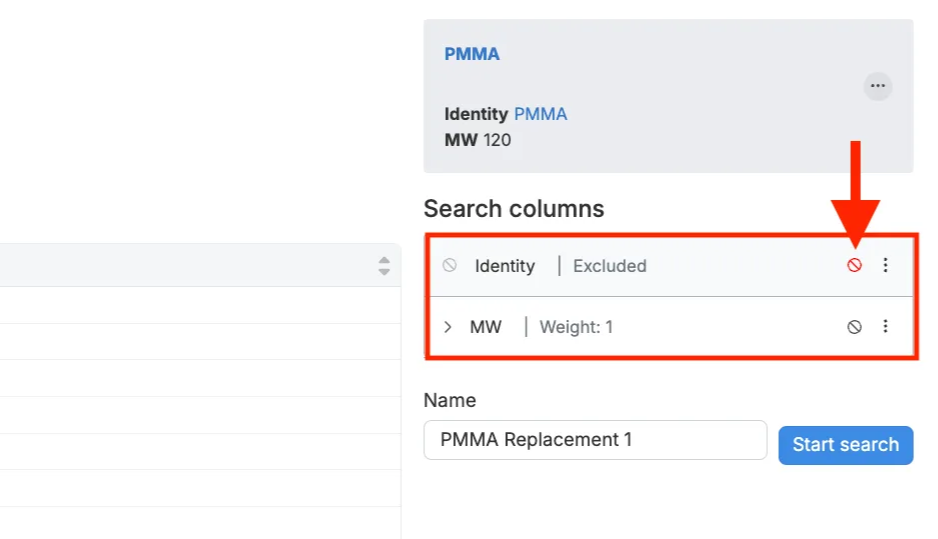
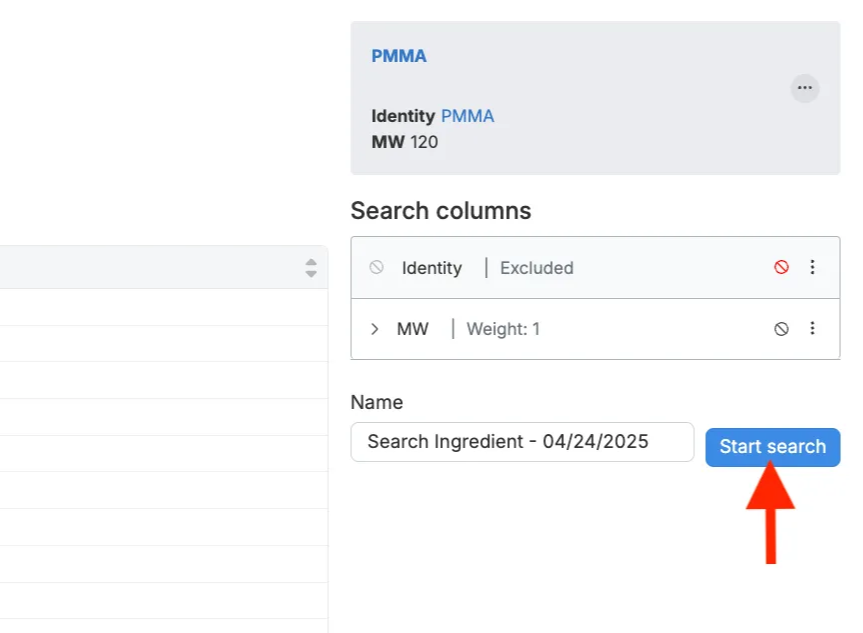
Before running a search, use the Search Columns sections to include or exclude a column as search criteria.
Step 5 — Add a name
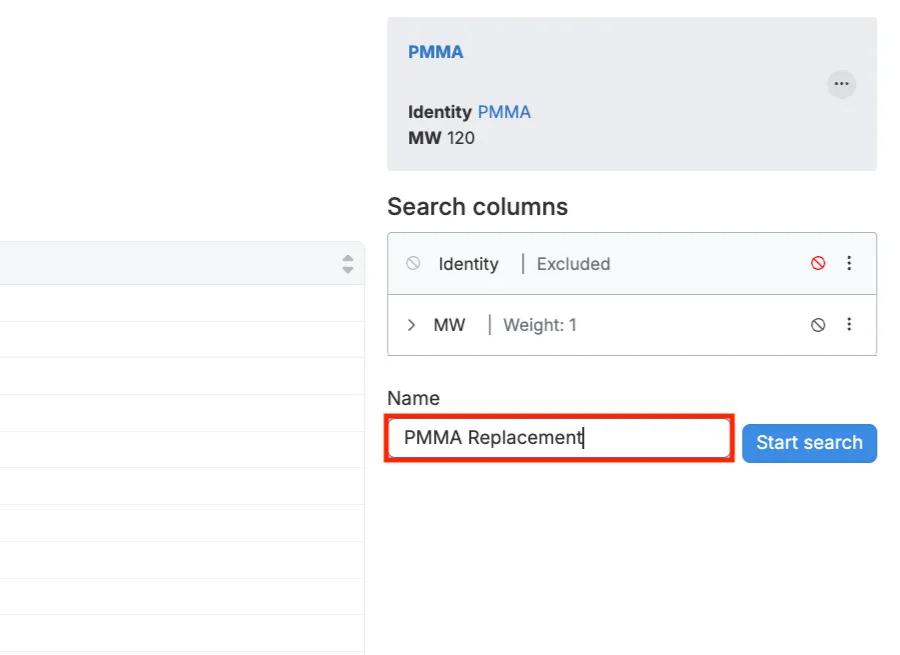
Optionally update the auto-generated name in the Name field.
Step 6 — Run a search
Once ready, click the blue Start search button.
Step 7 — Interpret results
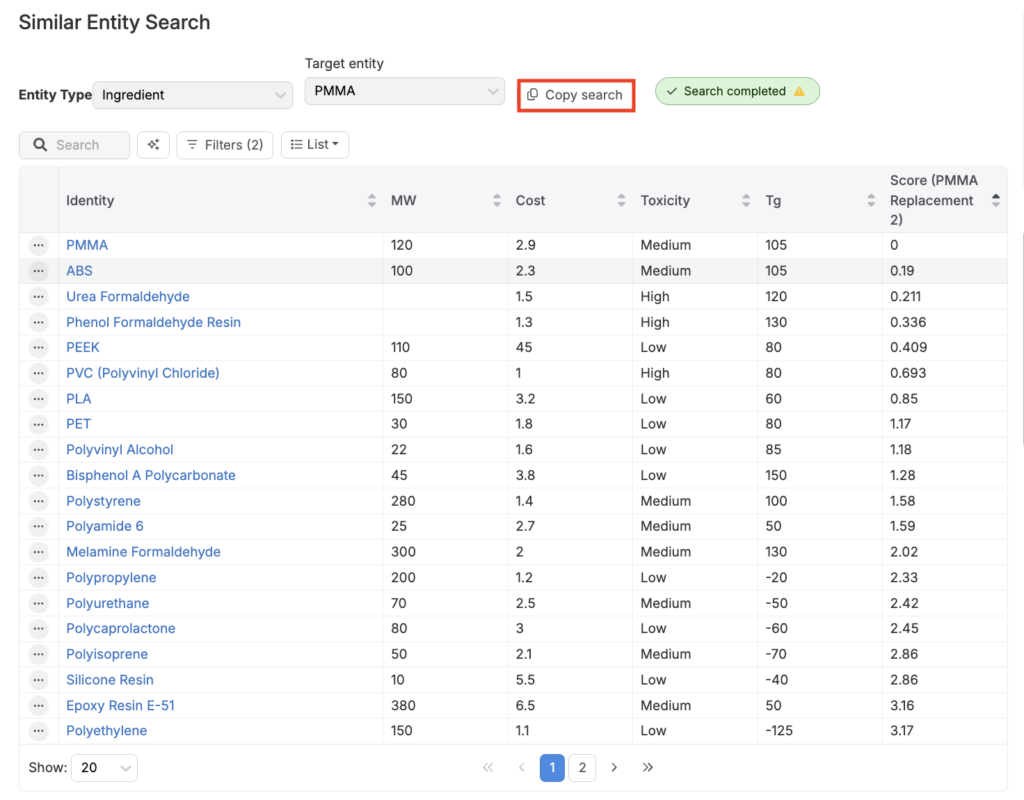
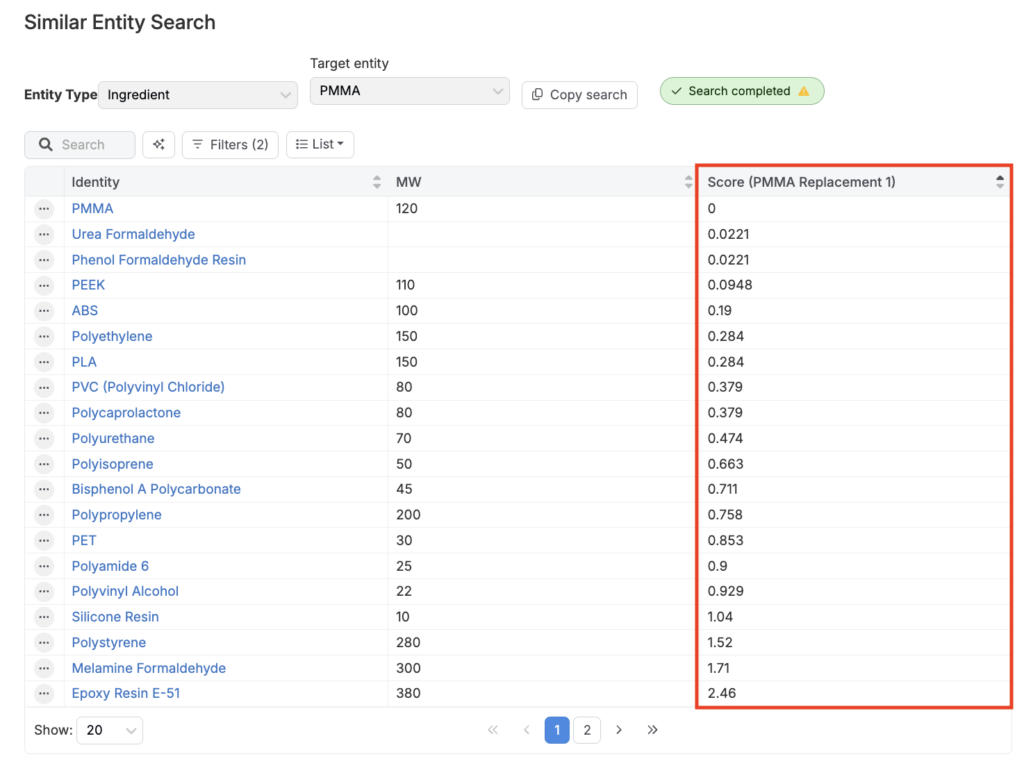
The results table ranks ingredients by similarity. Use the Score column to compare similarity scores. A low score = high similarity, while a high score = low similarity.
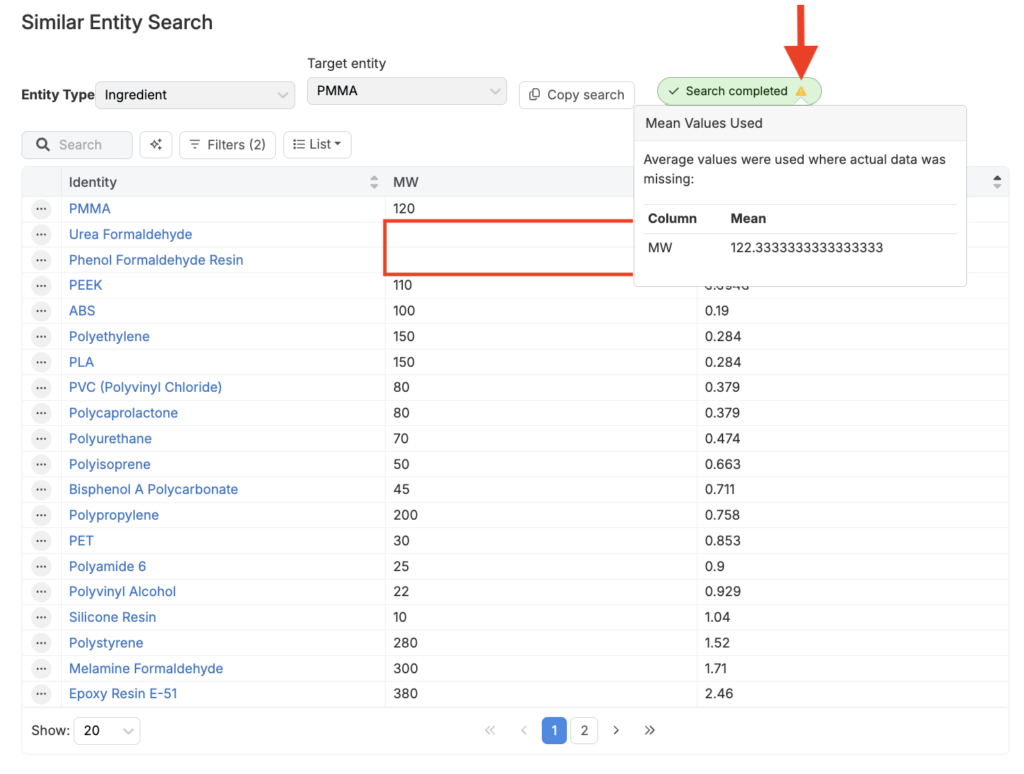
If any cell is empty, it’s not treated as zero. Instead, an average value (based on all entities in view) is substituted. Click the yellow icon in the Search completed notification to see those values.
For example, Urea Formaldehyde and Phenol Formaldehyde Resin, both missing MW values, receive the average value of 122.3.
Step 8 — Save results
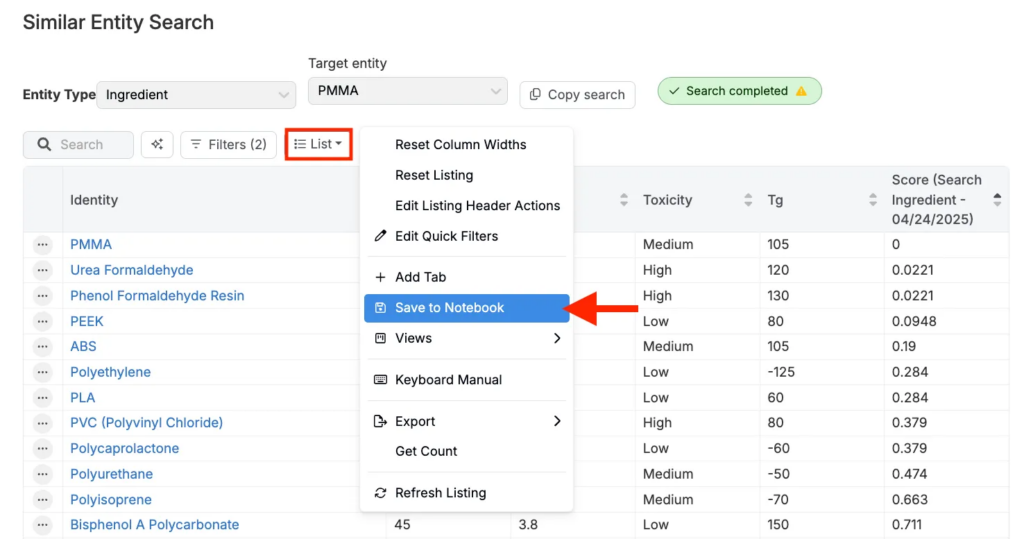
Click List > Save to Notebook to save the results to a new or existing notebook.
Step 9 — Run additional searches
Click Copy Search to adjust filters or columns and rerun the search. Save results to a notebook for side-by-side comparisons.