
Bodie can review one or more notebooks and leave comments directly on them, in the place each finding applies. For example, you can ask Bodie to proofread five notebooks for spelling and grammar errors, and it marks each error with an inline comment that explains the correction.
When to Use It
Use Bodie notebook comments when you want feedback added to a notebook for people to review, rather than changes made to the notebook itself. Common uses include:
- Proofreading notebooks for spelling and grammar errors.
- Reviewing documentation, such as SOPs or project gate packs, and flagging gaps or inconsistencies.
- Summarizing a table, chart, or the comments already left on a notebook.
Comment types
Bodie can leave the same three types of comments that users can. Each comment is labeled with its type in the comments panel.
| Type | What it covers |
|---|---|
| Inline | Specific highlighted words, such as a typo. |
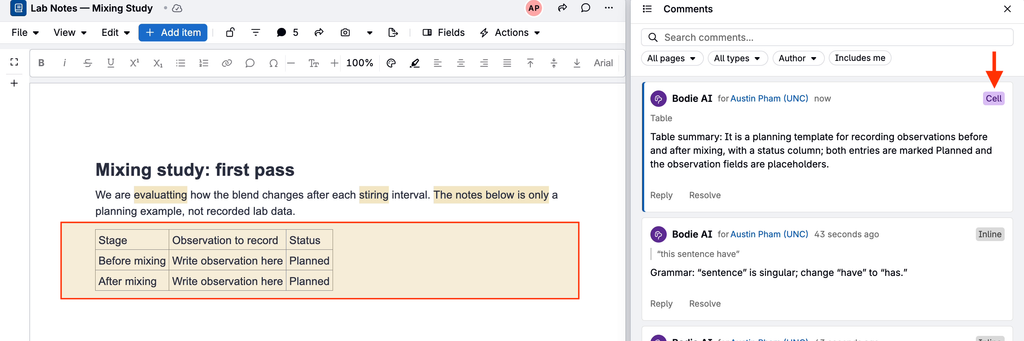
| Cell | A table, chart, image, or entire cell. |
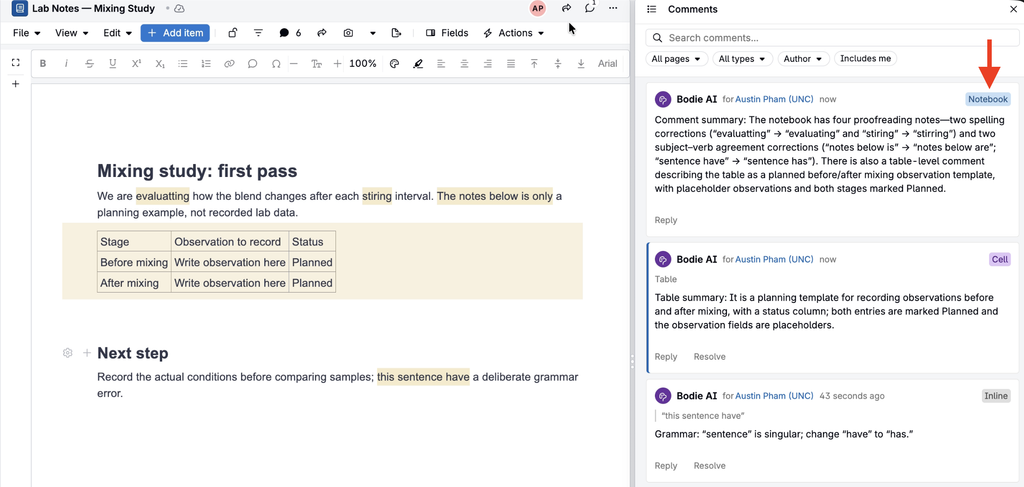
| Notebook | The notebook as a whole. |
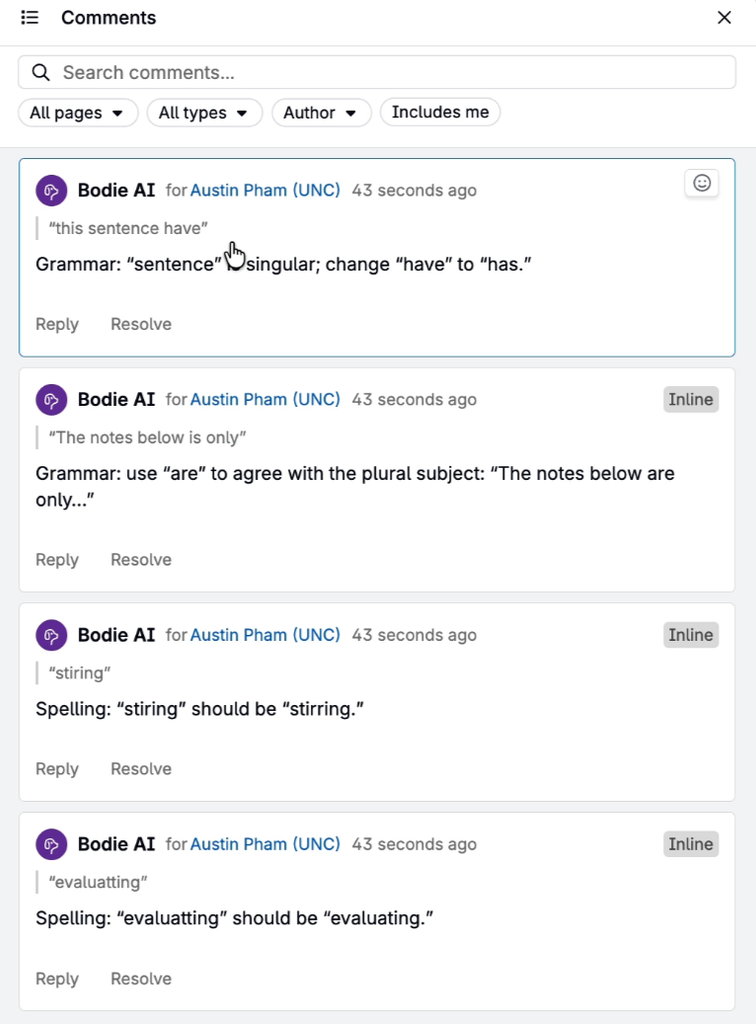
Comments left by Bodie appear under the Bodie AI name, followed by the user who asked Bodie to leave them (for example, Bodie AI for [user name]).
Asking Bodie to leave comments
- Open the Bodie AI chat.
- Ask Bodie to review one or more notebooks, and describe what to comment on. Name each notebook you want reviewed.
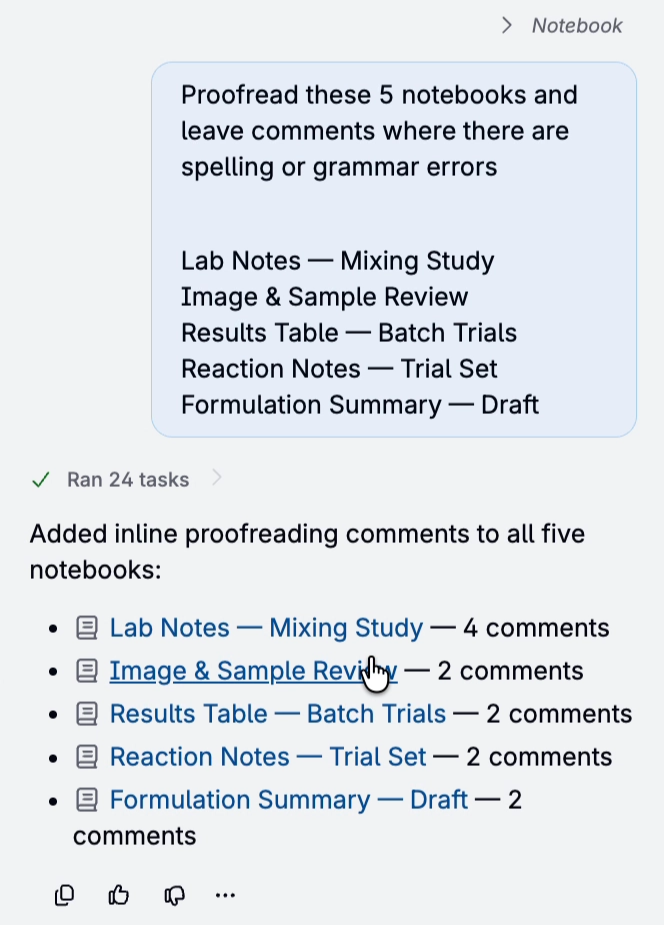
- When Bodie finishes, it lists each notebook it commented on with the number of comments it left. Click a notebook name to open it.
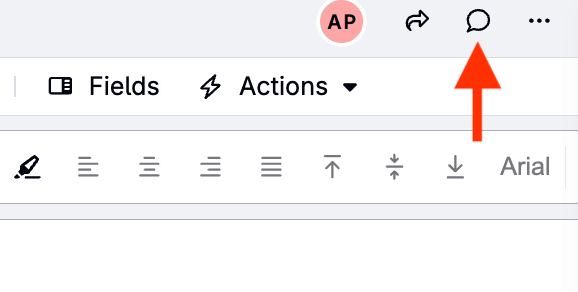
- In the notebook, click the comments button in the toolbar to open the Comments panel and view Bodie’s comments.
- Review each comment, then reply to it or resolve it from the panel as you would any other comment.
Example prompts:
- “Proofread these 5 notebooks and leave comments where there are spelling or grammar errors.”
- “Leave a comment summarizing the table in Lab Notes — Mixing Study.”
- “Leave a notebook level comment summarizing all the comments in Lab Notes — Mixing Study.”
Inline comments
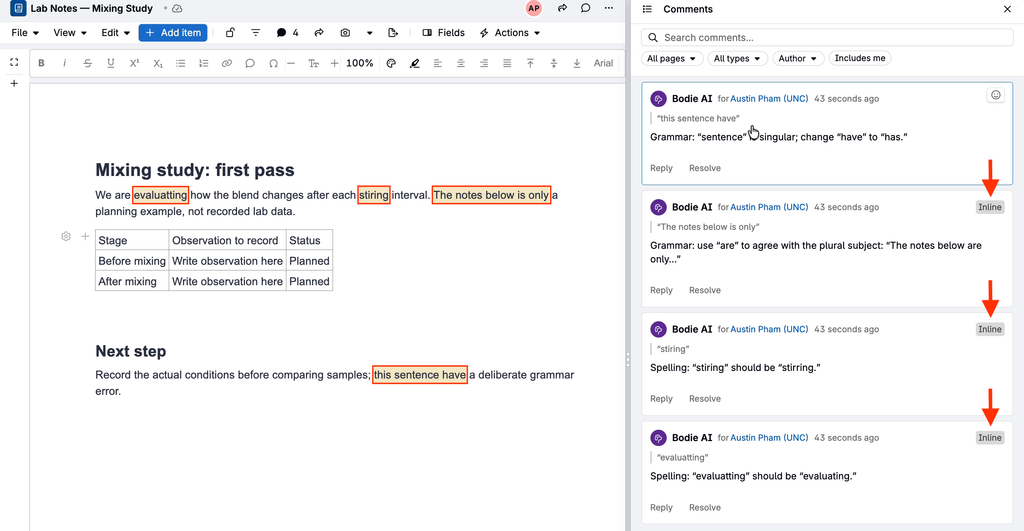
When a finding applies to specific words, such as a typo or a grammar error, Bodie leaves an “Inline” comment. The words are highlighted in the notebook text, and the thread is labeled Inline in the panel, with the quoted text above Bodie’s note.
Bodie’s inline comments are added as comments only. They don’t appear as notebook edits to accept or revert, so the notebook text stays unchanged until someone edits it.
Note: Bodie needs edit access to an unlocked notebook to leave inline comments. On a read-only or locked notebook, Bodie leaves cell or notebook comments instead.
Cell comments
When a comment applies to a whole table, chart, image, or cell, Bodie leaves a “Cell” comment. The cell is highlighted in the notebook in the same way as inline comments, and the thread is labeled Cell in the panel.
Notebook comments
When a comment applies to the entire notebook, Bodie leaves a “Notebook” comment. Notebook comments are labeled Notebook in the panel.
Reading and replying to comments
Bodie can also read the comment threads on a notebook. Ask Bodie to summarize the comments on a notebook, or to reply to a specific comment.
Example prompts:
- “Summarize the open comments on this notebook.”
- “Reply to the comment on the results table with the units used.”
New inline, cell, and notebook comments, whether left by Bodie or by a user, appear in the notebook and the Comments panel without refreshing the page.
Permissions and limitations
- Bodie needs edit access to an unlocked notebook to leave inline comments. On a read-only or locked notebook, Bodie leaves cell or notebook comments instead.
- Bodie can’t react to or resolve comments.