Text Match input calculations display a conditional text message on the recipe view of an experiment based on whether ingredient attributes match defined criteria. They are primarily used for compliance or classification checks — displaying whether a formulation meets (or fails to meet) a regulatory, quality, or categorization standard based on the properties of its ingredients.
What Is a Text Match Input Calculation?
Unlike numeric calculations, Text Match calculations return a text value rather than a number. The displayed value depends on whether any — or all — ingredients in the recipe have attributes matching the conditions you define.
This calculation type is well-suited to pass/fail or flag-style displays where you want to communicate a status at the formulation level based on ingredient-level data.
Example use cases
- Regulatory compliance — Display “REACH Compliant”, “Not Compliant”, or “Unknown” based on whether each ingredient carries a REACH compliance attribute
- Ingredient classification — Flag whether any ingredient in the recipe is classified as hazardous, allergen-containing, or restricted
- Material sourcing status — Show whether all ingredients are approved for a given application based on an approval attribute
- Certification tracking — Display whether a formulation can carry a given certification (e.g., bio-based, food-contact-safe) based on ingredient-level certification flags
How to Configure a Text Match Input Calculation
Text match calculations can be created from the Calculations listing page or directly in the Recipe view of a formulation. Both methods open the same creation modal.
In the modal:
- Enter a name for your calculation.
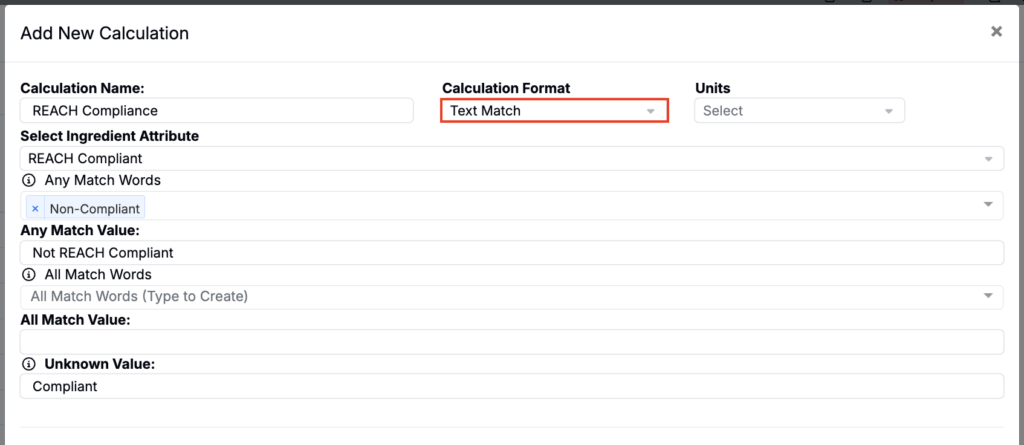
- Set Calculation Format to Text Match.
No numeric units are needed since the output is a text string.
Configuring the Match Logic
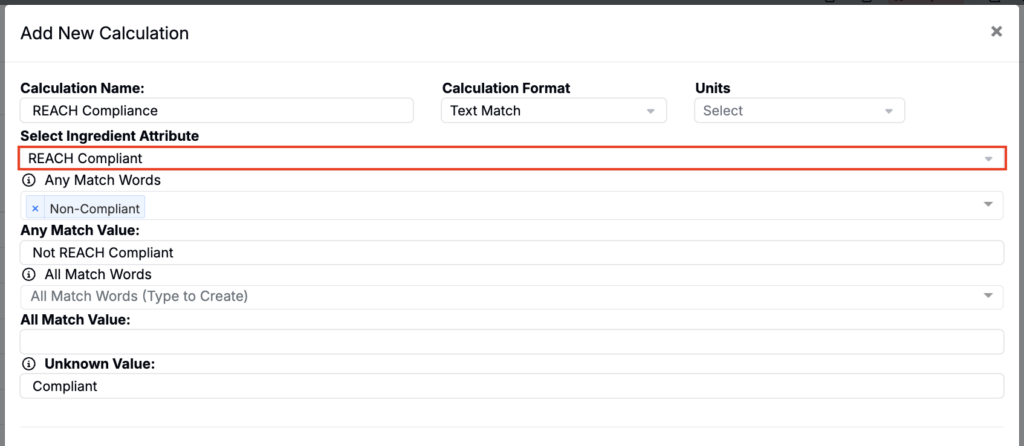
- Select Ingredient Attribute — Choose the ingredient attribute to evaluate. This is typically a text or categorical attribute (e.g., “REACH Compliance Status”, “Hazard Classification”).
- If you want the calculation to display a select value if any ingredient in the recipe has a selected value, use the Any Match fields:
- Any Match Words — Enter one or more words or values that should trigger the Any Match Value.
- Any Match Value — The single text value to display when any of the Any Match Words are found.
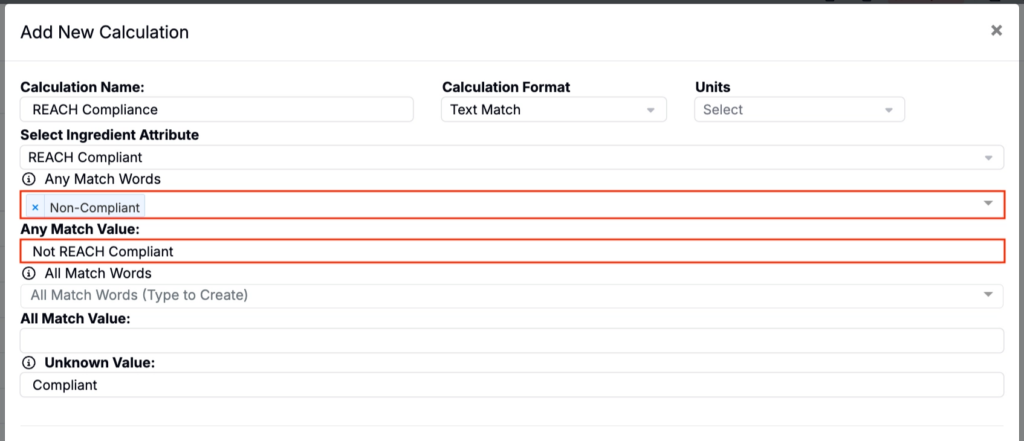
Note: Any Match takes priority over All Match. If any ingredient matches the Any Match words, that result is shown regardless of whether all ingredients also match the All Match words.
- If you want the calculation to display a select value if all ingredients in the recipe has a selected value, use the All Match fields:
- All Match Words — Enter one or more words or values that should trigger the All Match Value only when all ingredients in the recipe have one of these values for the selected attribute.
- All Match Value — The single text value to display when the All Match condition is met.
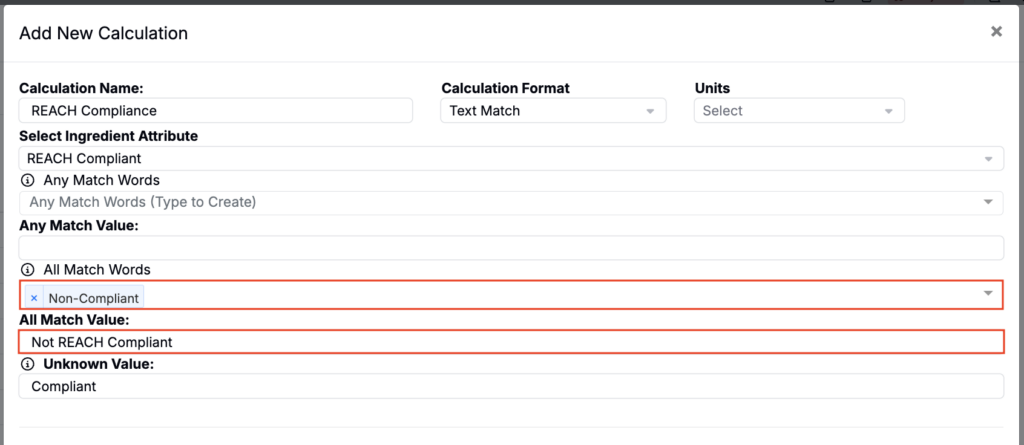
- Unknown Value — Enter the text to display when neither the Any Match nor All Match condition is met. This can be used as a fallback/default value.
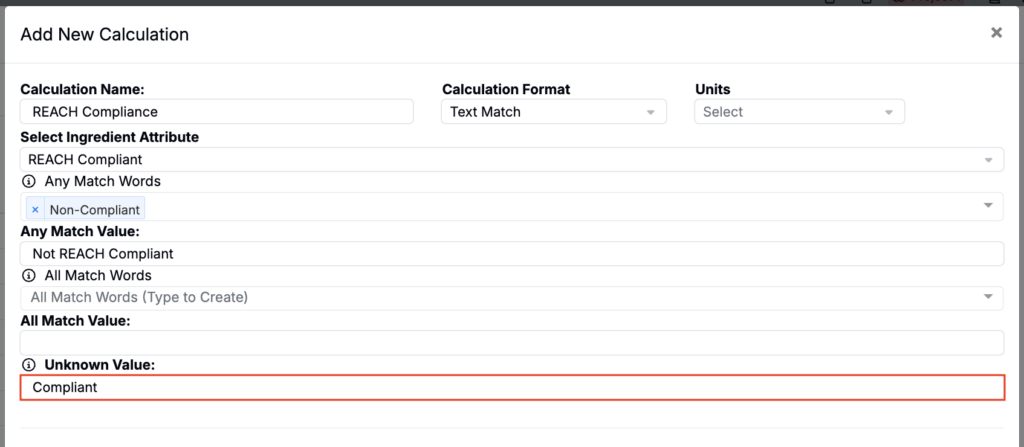
Important: Using Unknown Value as a default means that missing, blank, or unrecognized ingredient values will also return the Unknown Value. For example, if Unknown Value is set to “Compliant”, ingredients without a “Non-Compliant” value will be treated as compliant.
Calculation Settings
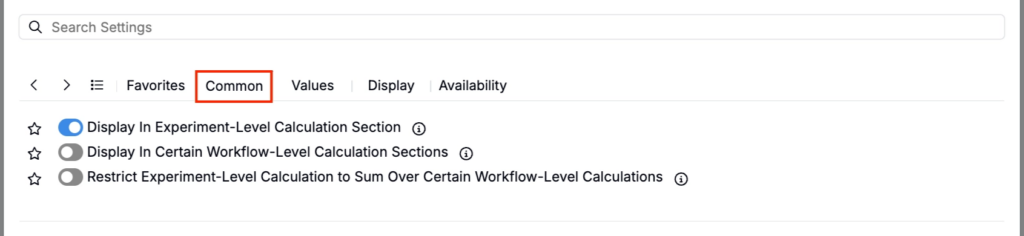
Common
- Display in Experiment-Level Calculation Section — Shows the value at the bottom of the full recipe
- Display in Certain Workflow-Level Calculation Sections — Shows the value only at selected workflow steps
- Restrict Experiment-Level Calculation to Sum Over Certain Workflow-Level Calculations — Limits the experiment-level total to selected workflow steps
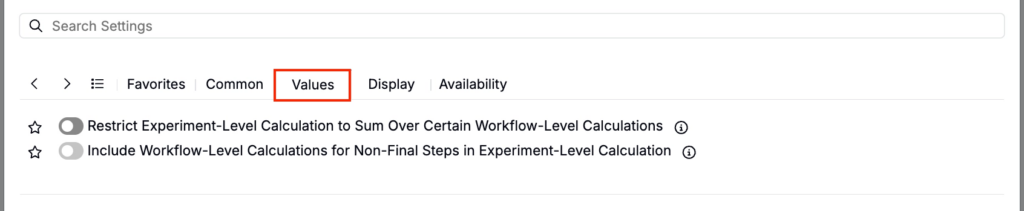
Values
- Restrict Experiment-Level Calculation to Sum Over Certain Workflow-Level Calculations — Limits the experiment-level total to selected workflow steps
- Include Workflow-Level Calculations for Non-Final Steps in Experiment-Level Calculation — Controls whether non-final step values roll up into the experiment-level calculation
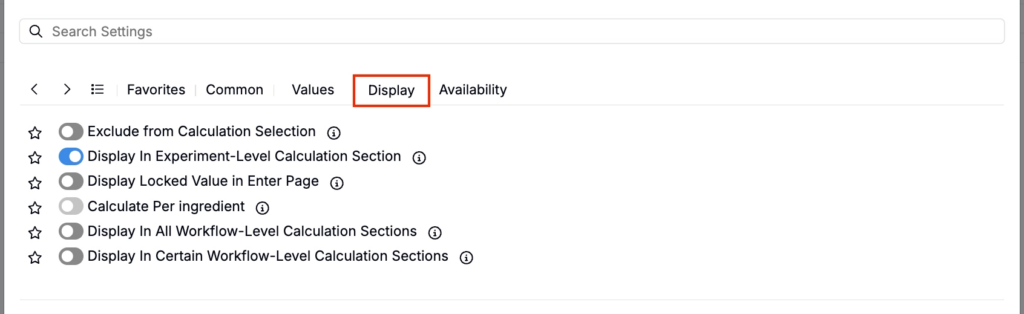
Display
- Exclude from Calculation Selection — Hides the calculation from view (useful for intermediary calculations)
- Display in Experiment-Level Calculation Section — Shows the value at the bottom of the full recipe
- Display Locked Value in Enter Page — If enabled, all cells for this calculation are locked on the Enter Recipe page (behaving like they are in Solve mode), preventing manual edits.
- Calculate Per Ingredient — When enabled, the calculation is computed separately for each ingredient (rather than only as a single rolled-up recipe-level value).
- Display in All Workflow-Level Calculation Sections — Shows the calculation at the end of every workflow step.
- Display in Certain Workflow-Level Calculation Sections — Shows the calculation only at the end of selected workflow steps.
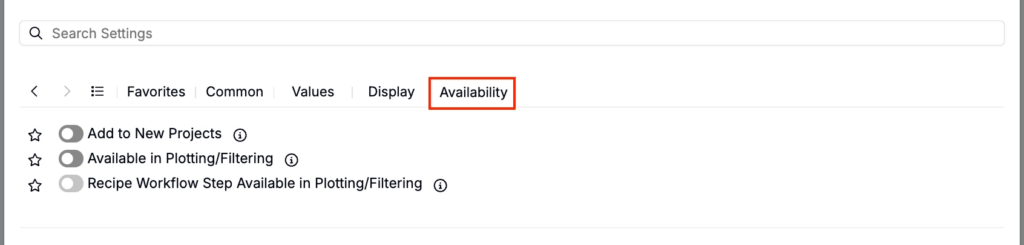
Availability
- Add to New Projects — Automatically includes this calculation in new projects in the material family
- Available in Plotting/Filtering — Makes the calculation value available as a filter or plot axis
- Recipe Workflow Step Available in Plotting/Filtering — Makes the calculation’s workflow-step-level values available to use as filters or plot axes (so you can analyze how the value changes by workflow step, not only at the overall experiment level).
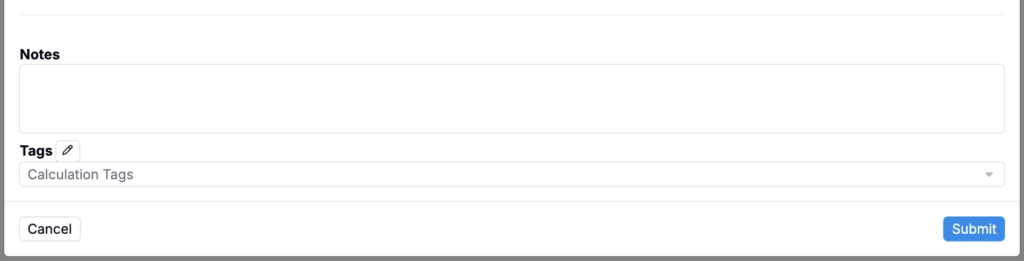
- Notes — Free-text shown on hover over the calculation in the recipe view
- Tags — Group calculations together. Tags let you toggle visibility of related calculations as a set.