Date input calculations allow you to compute an elapsed time value directly within Uncountable by subtracting two date or timestamp values from each other. They are useful for any situation where you want to display a calculated time duration — such as sample age, time in process, or days since a component was made — directly on the recipe view of an experiment.
What Is a Date Input Calculation?
Date calculations work with Date or Timestamp type fields. You define a start date and an end date, and the calculation returns the difference between them. Both fields can come from:
- Experiment metadata on the current experiment
- Process parameters on the current experiment
- Experiment metadata or process parameters on a component (intermediate) experiment included in the recipe
- Current Date — a dynamically updating value that reflects today’s date each time the experiment is viewed
The result is expressed in whatever time unit you specify (days, hours, etc.).
Example use cases
- Sample Age — Subtract the date a sample was prepared from the date it was tested
- Time in Storage — Subtract a production date from today’s date to show how long a batch has been stored
- Process Duration — Subtract a process start timestamp from a process end timestamp
- Intermediate Age — Reference dates stored on a component experiment to calculate how old the intermediate is at the time it was incorporated
How to Configure a Date Calculation
Date calculations can be created from the Calculations listing page or directly in the Recipe view of a formulation. Both methods open the same creation modal.
In the modal:
- Enter a name and units (recommended) for your calculation
- Set Calculation Format to Date.
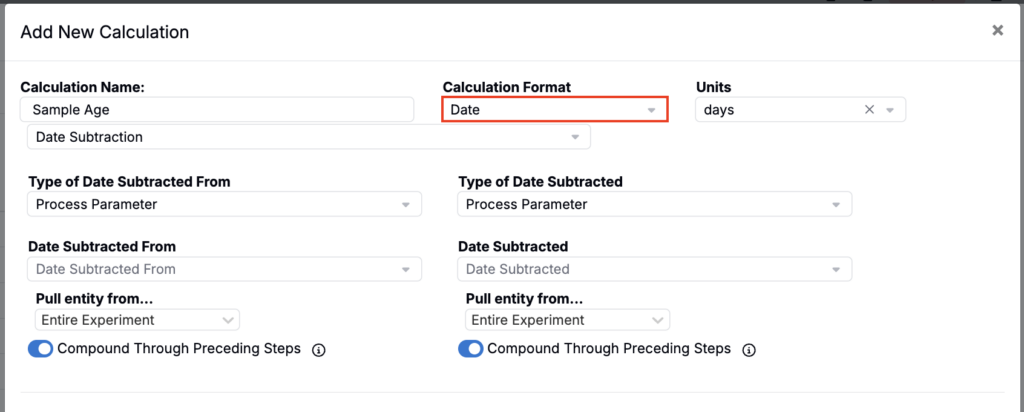
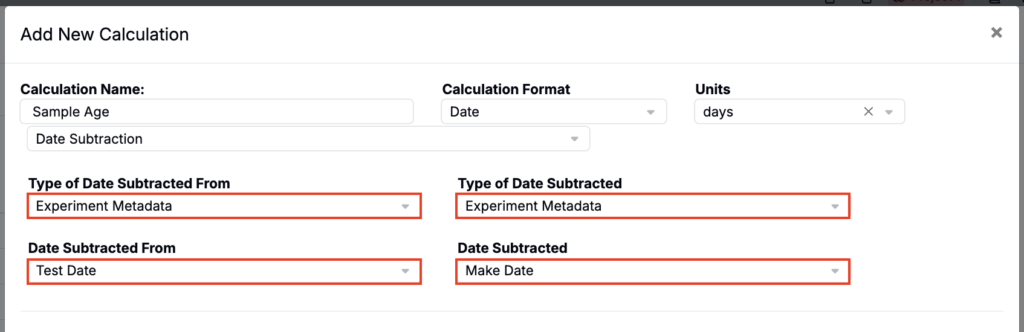
- Choose the Type of Date Subtracted From and Type of Date Subtracted.
- Process Parameter — Use a date or timestamp process parameter from the current experiment.
- Process Parameter (Use Only Component Parameters) — Use a date or timestamp process parameter from a component (intermediate) experiment in the recipe.
- Experiment Metadata — Use a date or timestamp metadata field from the current experiment.
- Experiment Metadata (Use Only Component Metadata) — Use a date or timestamp metadata field from a component (intermediate) experiment in the recipe.
- Current Date — Use today’s date as the comparison date. This updates dynamically each time the experiment is viewed, so the calculated elapsed time stays current.
- Select the actual Date Subtracted From and Date Subtracted fields.
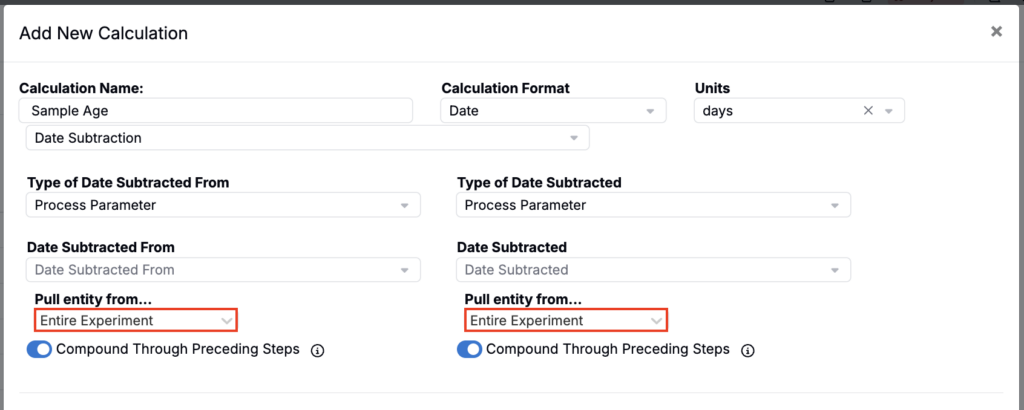
- If either date uses a component-based option, select Pull Entity From for that date. This determines which component experiment or recipe entity the date value should be pulled from.
- Configure Compound Through Preceding Steps for each date as needed.
- Enable this when the date should be carried through prior workflow steps or component history so the calculation can resolve the appropriate date even when the value originates earlier in the process.
Calculation Settings
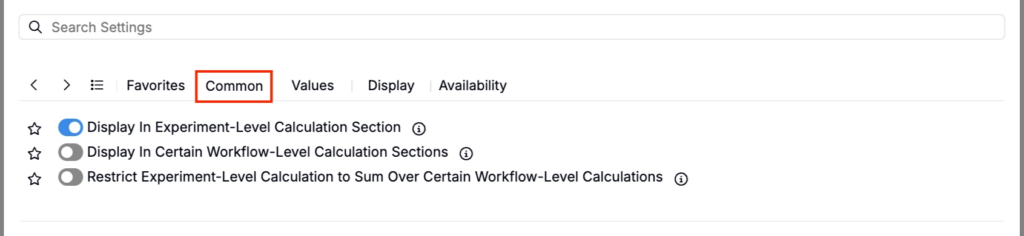
Common
- Display in Experiment-Level Calculation Section — Shows the value at the bottom of the full recipe
- Display in Certain Workflow-Level Calculation Sections — Shows the value only at selected workflow steps
- Restrict Experiment-Level Calculation to Sum Over Certain Workflow-Level Calculations — Limits the experiment-level total to selected workflow steps
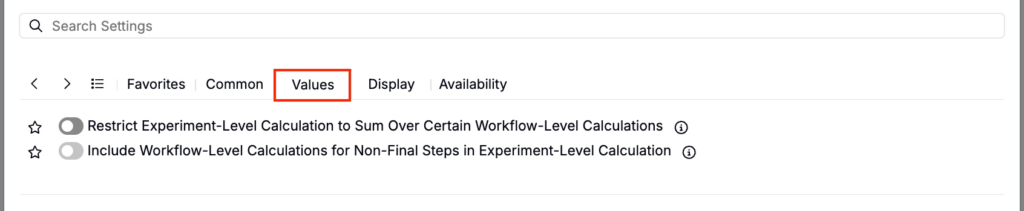
Values
- Restrict Experiment-Level Calculation to Sum Over Certain Workflow-Level Calculations — Limits the experiment-level total to selected workflow steps
- Include Workflow-Level Calculations for Non-Final Steps in Experiment-Level Calculation — Controls whether non-final step values roll up into the experiment-level calculation
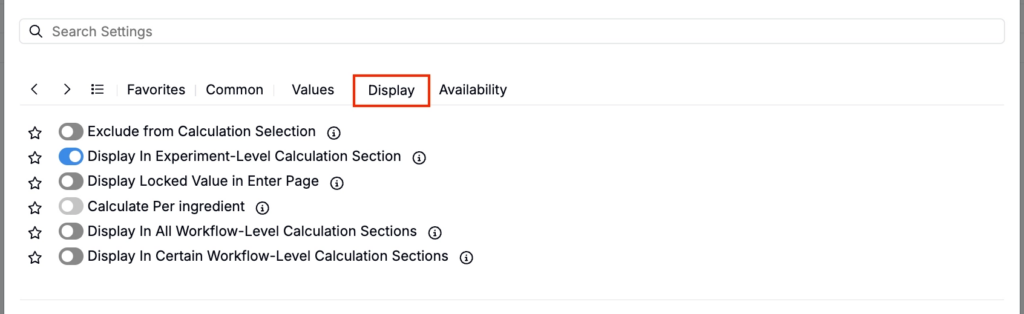
Display
- Exclude from Calculation Selection — Hides the calculation from view (useful for intermediary calculations)
- Display in Experiment-Level Calculation Section — Shows the value at the bottom of the full recipe
- Display Locked Value in Enter Page — If enabled, all cells for this calculation are locked on the Enter Recipe page (behaving like they are in Solve mode), preventing manual edits.
- Calculate Per Ingredient — When enabled, the calculation is computed separately for each ingredient (rather than only as a single rolled-up recipe-level value).
- Display in All Workflow-Level Calculation Sections — Shows the calculation at the end of every workflow step.
- Display in Certain Workflow-Level Calculation Sections — Shows the calculation only at the end of selected workflow steps.
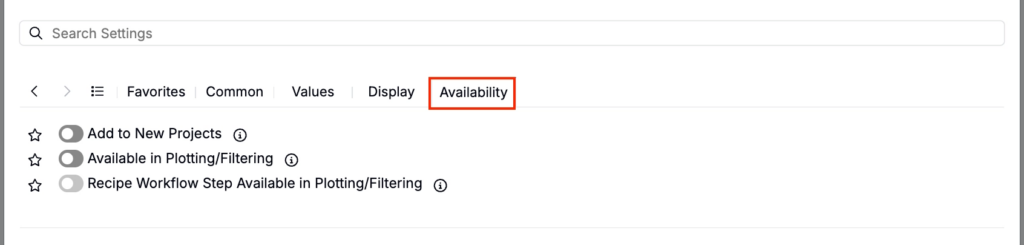
Availability
- Add to New Projects — Automatically includes this calculation in new projects in the material family
- Available in Plotting/Filtering — Makes the calculation value available as a filter or plot axis
- Recipe Workflow Step Available in Plotting/Filtering — Makes the calculation’s workflow-step-level values available to use as filters or plot axes (so you can analyze how the value changes by workflow step, not only at the overall experiment level).
- Notes — Free-text shown on hover over the calculation in the recipe view
- Tags — Group calculations together. Tags let you toggle visibility of related calculations as a set.