In Uncountable, tasks are the smaller units of work that help teams execute lab work in a trackable, assignable way. Tasks are commonly generated as part of a broader workflow, such as after a request is reviewed and approved.
A typical example is breaking a larger request into many discrete steps. For instance, one workflow may create one task per sample per test, turning a large request into an actionable queue for technicians and lab staff.
Where to find Tasks
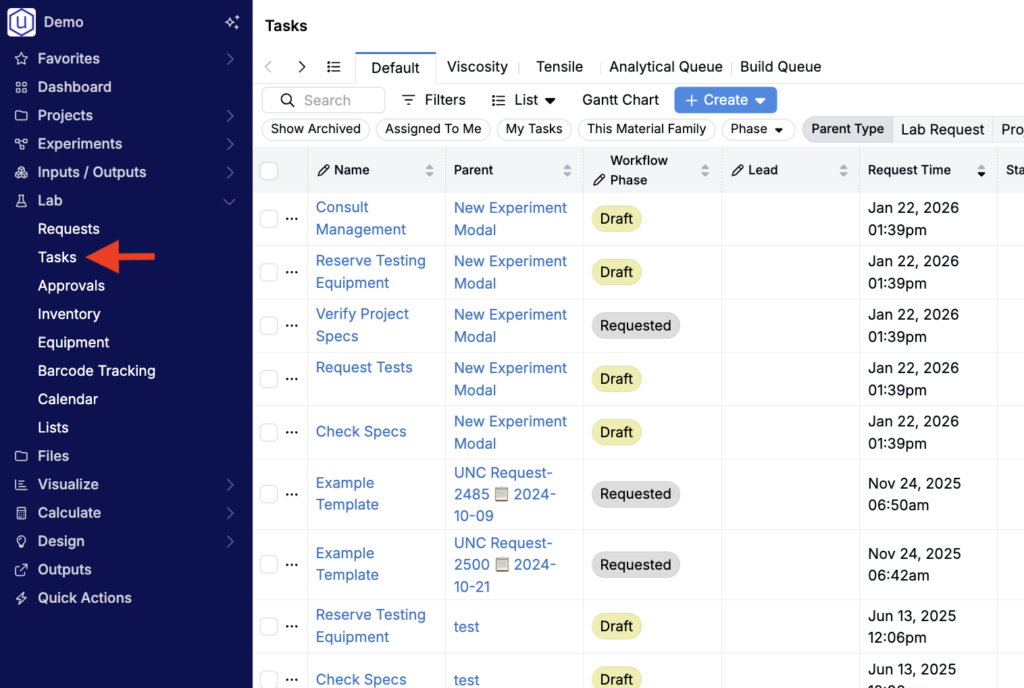
Tasks are available from the main navigation under Lab > Tasks.
This Tasks page is often the primary place technicians work from day-to-day, because it represents the execution queue of work to be completed.
Tasks Listing view
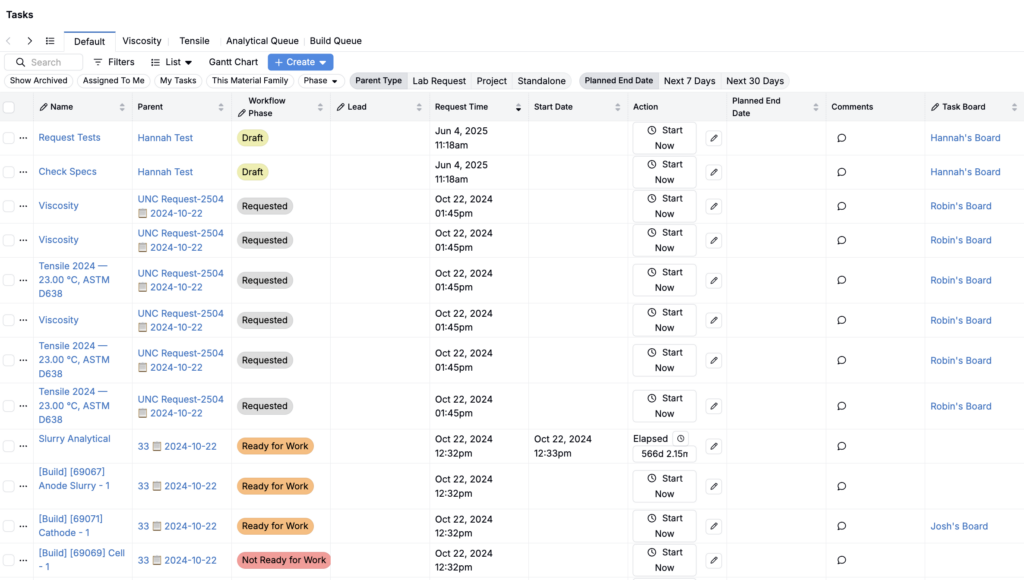
The Tasks listing is best when you need a detailed view of work with filtering, sorting, and bulk edits. Common uses include:
- Assigning tasks to specific people (manual assignment or configured triggers).
- Monitoring progress across many tasks at once.
- Making bulk updates (for example, setting assignee, priority, or dates on many tasks).
Task Boards
A Task Board is a specific board that tasks can be assigned to (a saved “planning space” for a subset of tasks). Task boards are most useful when you want to:
- Plan and coordinate a particular set of tasks together (for a team, project, or workflow phase).
- Assign tasks to a board so they can be scheduled in that board’s Gantt chart.
Assigning tasks to a task board
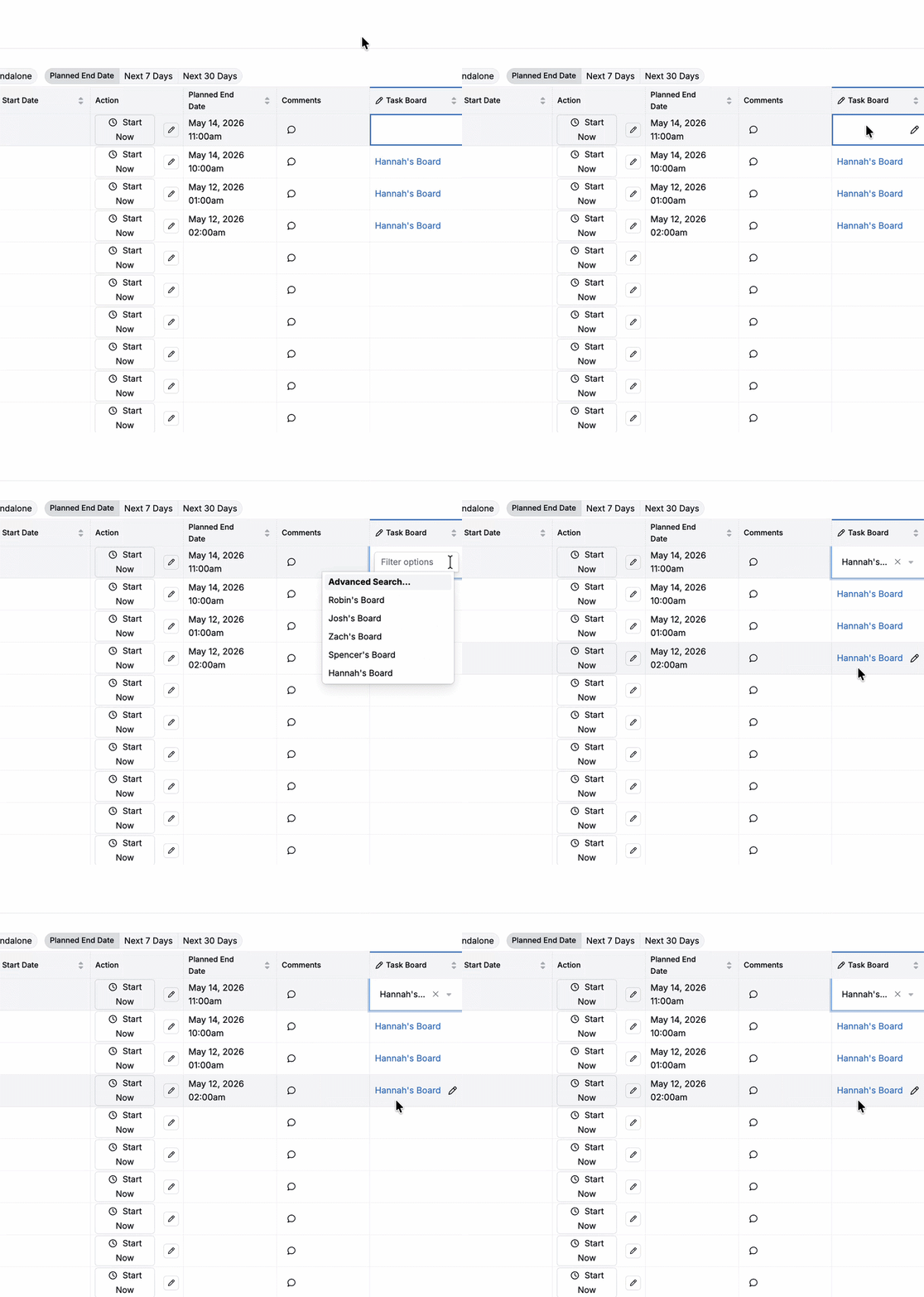
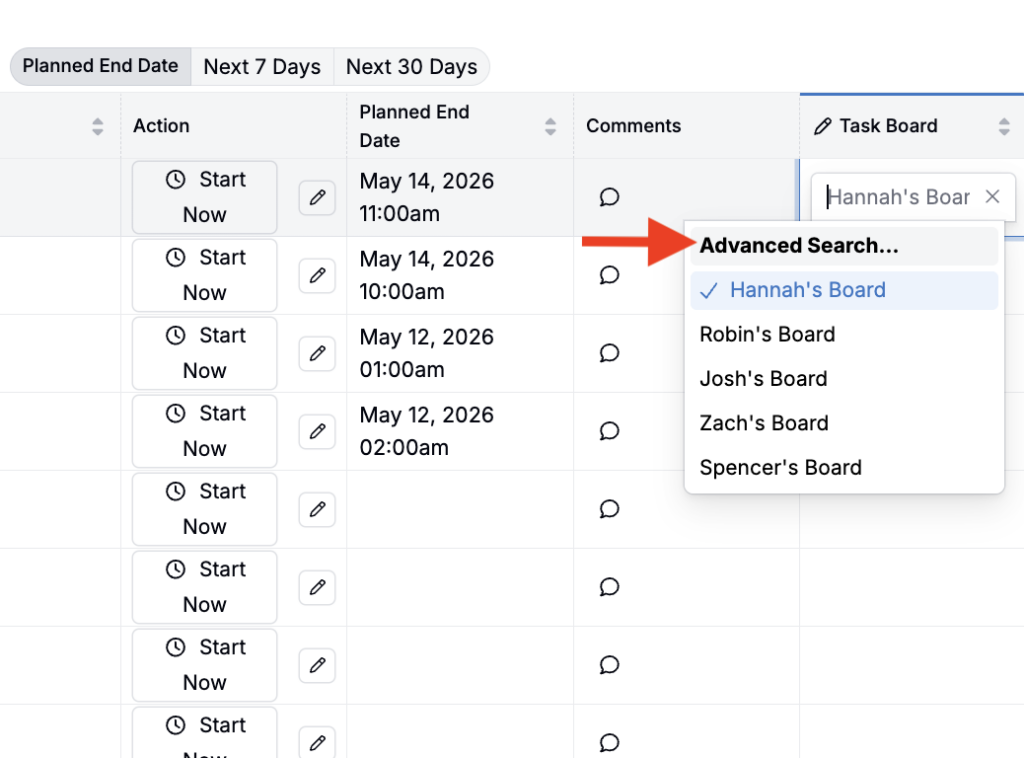
On the Tasks listing view, you associate tasks with a task board using the Task Board column.
Creating a task board
To create a new task board:
- Open the Task Board selection menu on the listing or on the Gantt chart view.
- Choose Advanced Search.
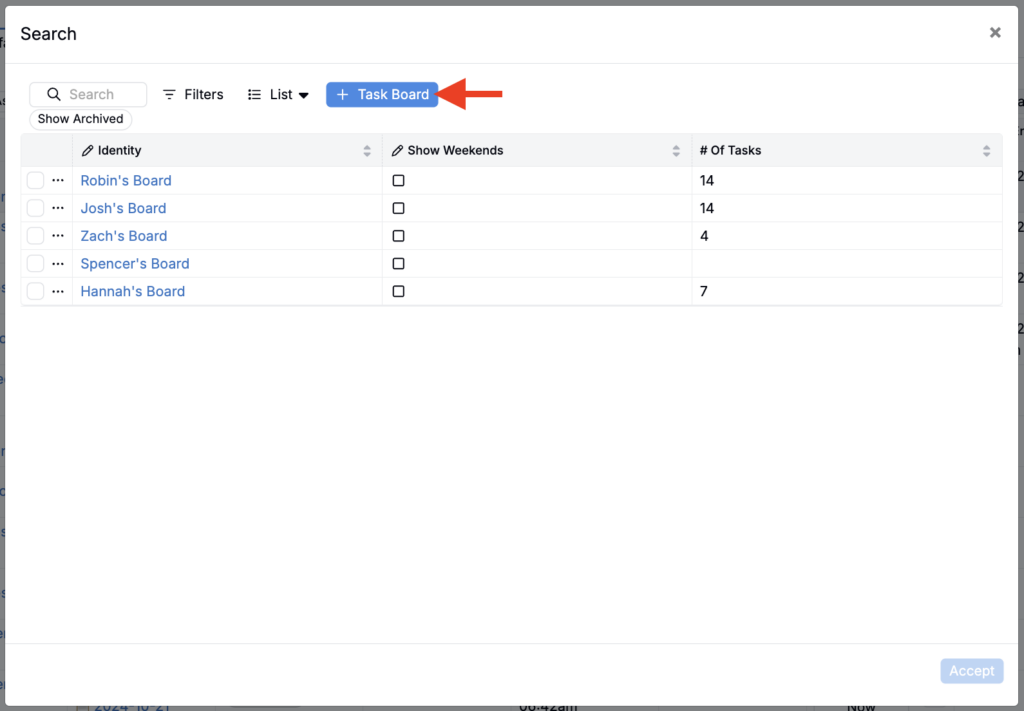
- In the modal that opens, click + Task Board.
- Add a board name and save.
Gantt Chart view
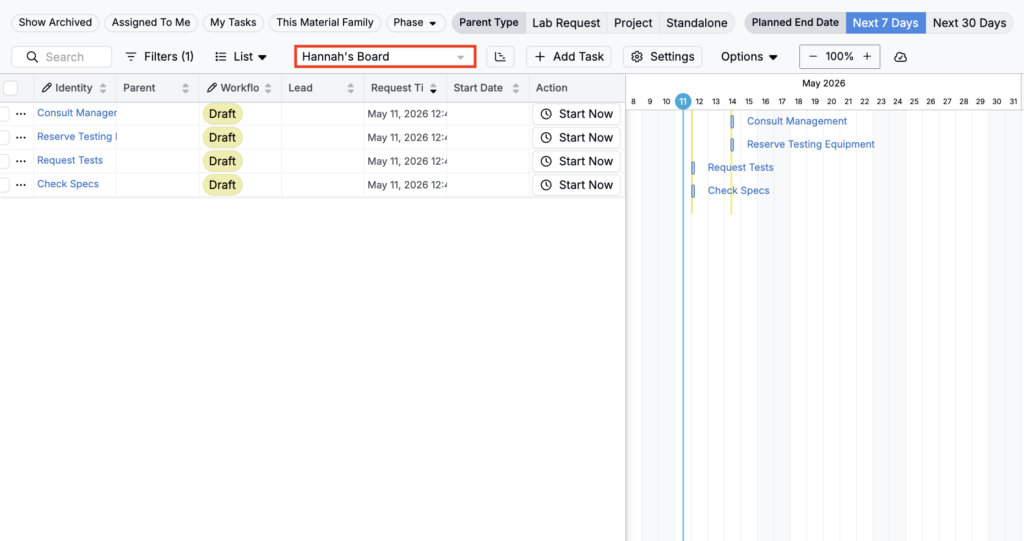
If you want an even easier way to see and schedule work, Uncountable also offers a Gantt Chart view. From the Tasks listing, click Gantt Chart to open a timeline view of tasks on a specific Task Board. It’s especially helpful for:
- Seeing overlapping work and capacity at a glance.
- Planning longer-running work (for example, stability studies, aging schedules, or other preplanned work assigned to specific users).
The Gantt chart is the scheduling view for a specific Task Board. Once a task is assigned to a Task Board, it appears on that board’s Gantt chart and can be scheduled there.
Creating and assigning new tasks from the Gantt chart
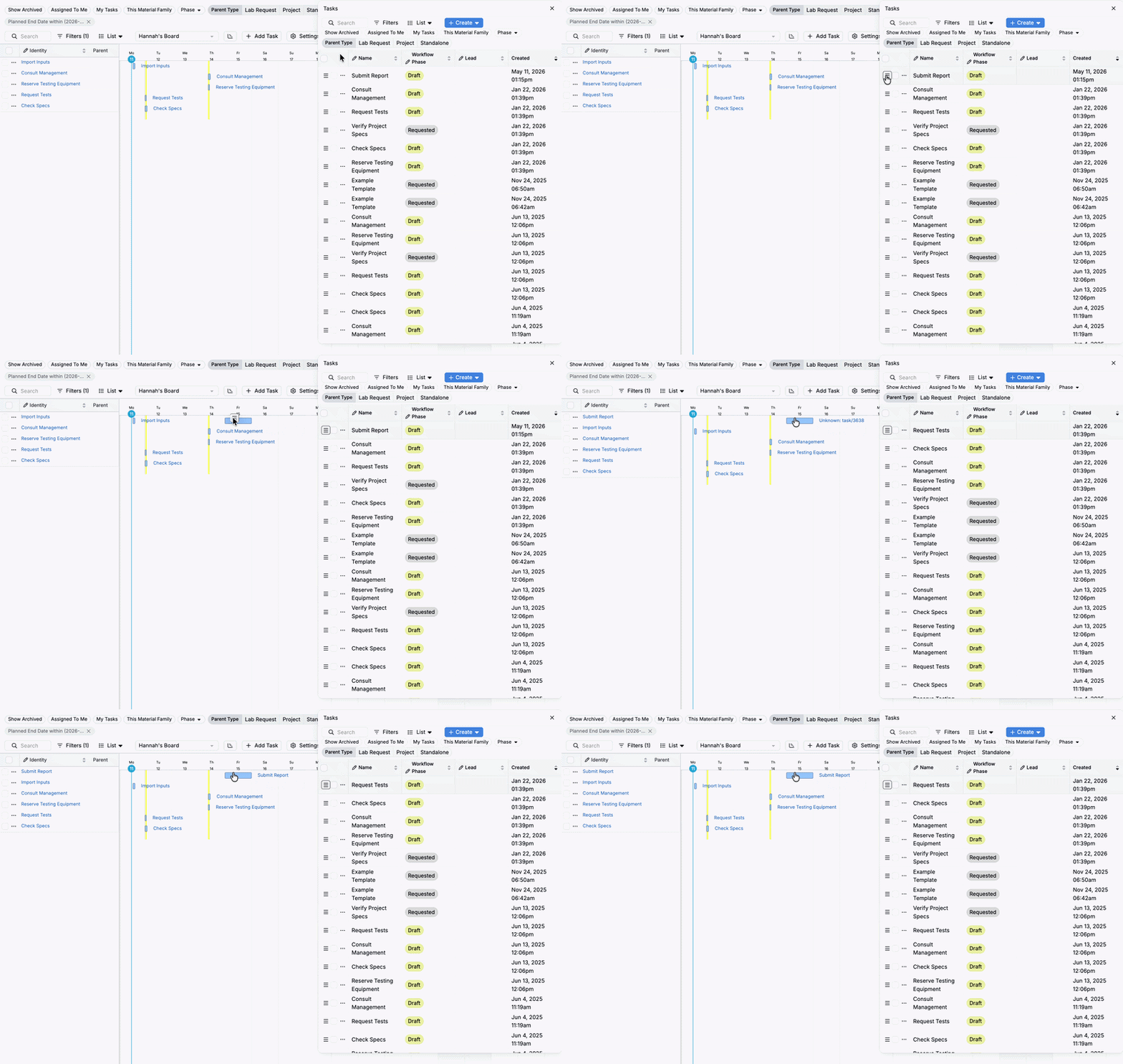
From the Gantt chart view, create new tasks and assign tasks to a board by dragging and dropping from the Tasks sidepanel.
- Click + Add Task to open the Tasks sidepanel.
- Within the sidepanel, click Create to create a new task.
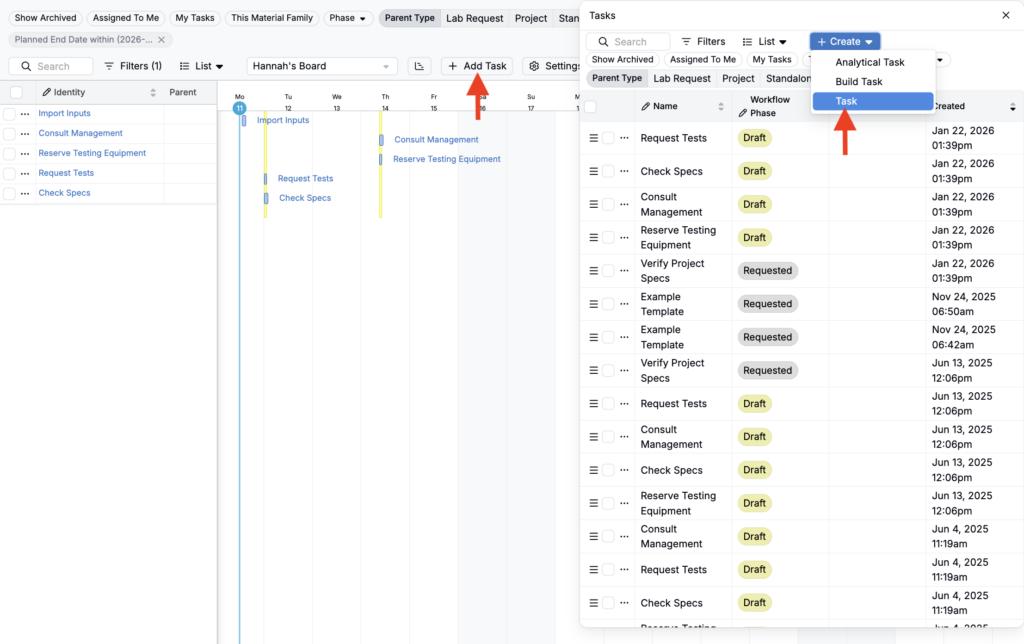
- To assign a new or existing task to the task board, use its drag handle in the sidepanel to drag and drop it directly onto the board. Where you place it on the board updates its planned start date accordingly.