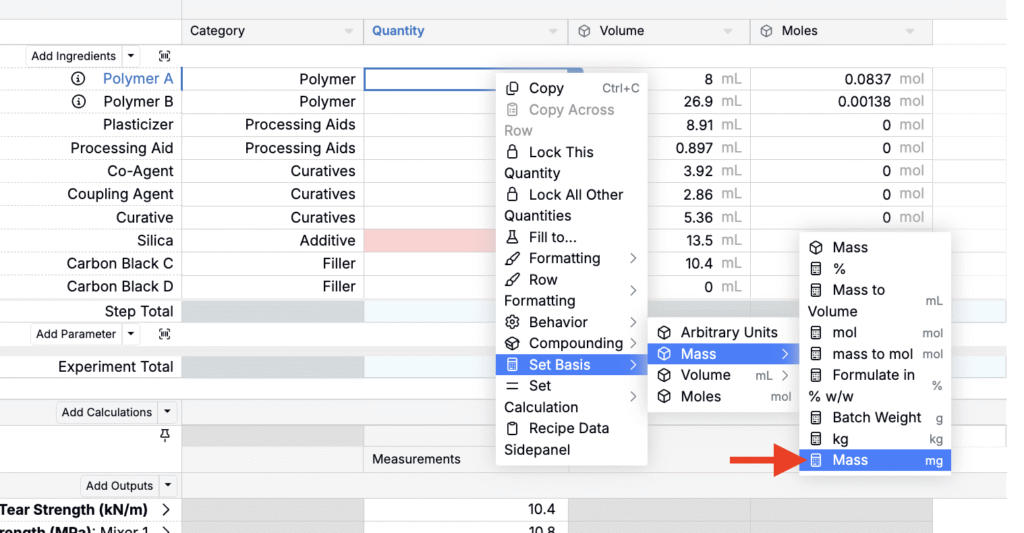
In Uncountable, basis units control how ingredient quantities are entered and displayed across three families: Mass, Moles, and Volume.
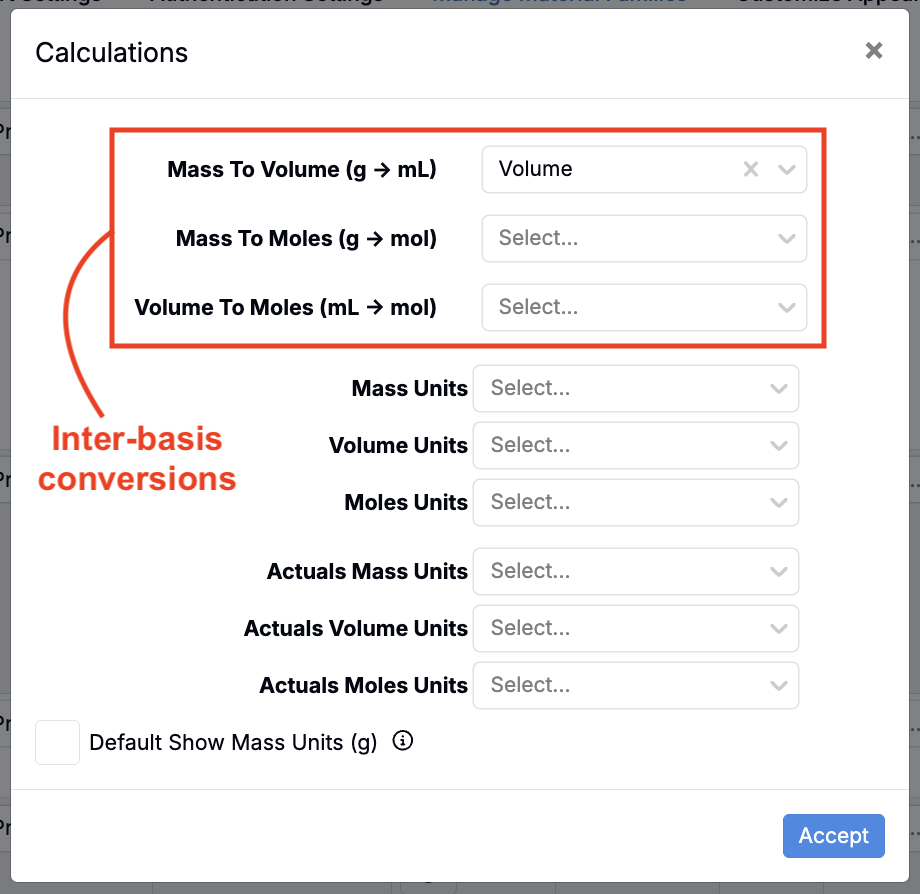
Basis families are independent by default. To relate them, admins configure inter-basis conversions (between families)—for example, Mass to Volume, Mass to Moles, or Volume to Moles. These are set per material family.
Within a single family, admins can also add intra-basis conversions (within a family) to expose additional units—for example, Mass (g) to Mass (kg) or Volume (mL) to Volume (L).
Note: For a given material family, there is one inter-basis mapping per direction but any number of intra-basis units may be defined.
Inter-basis Conversions
Inter-basis unit conversions transform recipe values from one unit family to another and are set up via input calculation at the material family-level.
- Example: Mass (g) to Volume (mL)
- Input calculation: Volume (mL) = Mass (g)/specific gravity
Configuring an inter-basis conversion
- Create a new input calculation.
- Add a calculation name.
- Select the starting basis for the numerator (e.g. Mass).
- Under Select Weights, choose the ingredient attributes needed for the transformation.
- Under Display Settings, toggle on Display in Column Calculations Selection.
- Save the calculation.

Applying an inter-basis conversion
Once an input calculation has been configured for an inter-basis conversion, that conversion can be applied by admins across a material family.
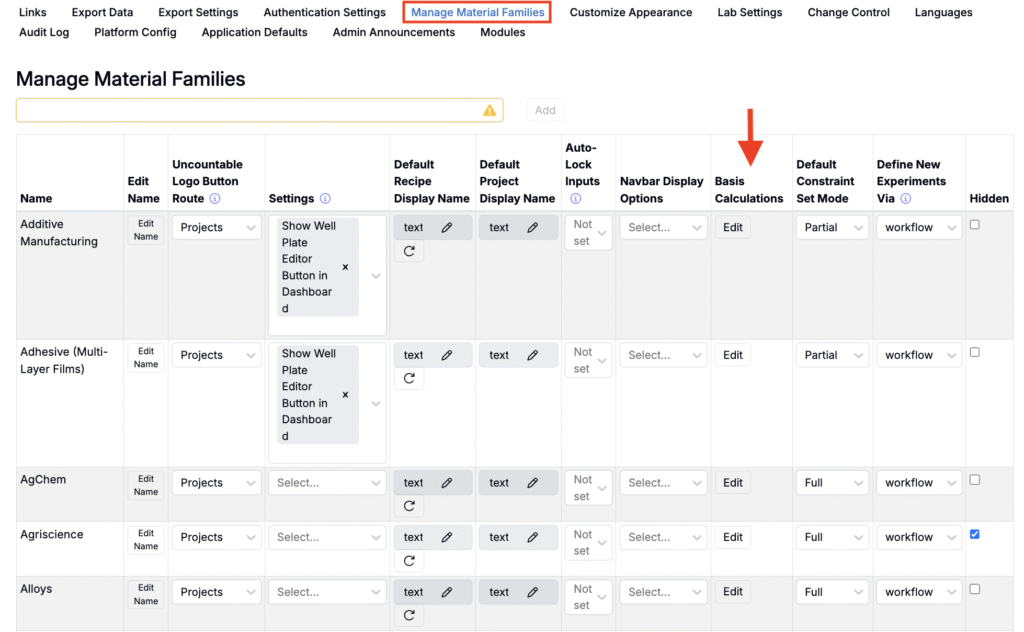
- Access Manage Material Families page (Company-Wide Settings > Manage Material Families).
- Click Edit in the Basis Calculation column of a material family row.
- In the modal, use the Mass to Volume, Mass to Moles, or Volume to Moles field to select your conversion, configured above. Note: The calculation you select must convert exactly as shown in the field labels. For example, Mass to Volume must convert g → mL (not lb → gal). You can still set default display units elsewhere (e.g., pounds or gallons), but the inter-basis mapping itself must be defined in grams to milliliters, grams to moles, or milliliters to moles respectively.
Intra-basis Conversions
Intra-basis unit conversions transform recipe values from one unit to another within the same basis family and are set up via an input calculation.
- Mass example: Mass (g) → Mass (mg)
- Input calculation: Mass (mg) = 1000 × Mass (g)
- Volume example: Volume (mL) → Volume (L)
- Input calculation: Volume (L) = 0.001 × Volume (mL)
Note: The Numerator basis controls which Basis family the conversion will appear under.
- To add a Mass unit (e.g., mg), set Numerator = Mass (g).
- To add a Volume unit (e.g., L), set Numerator = Volume (mL).
Configuring an intra-basis conversion
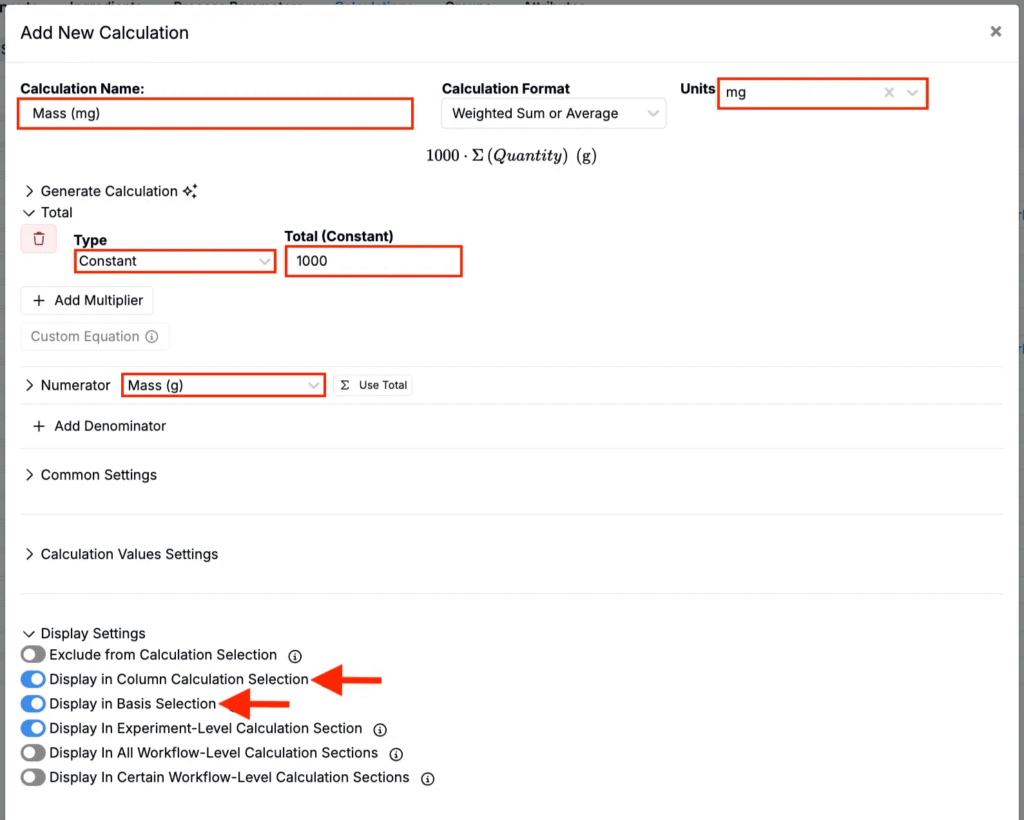
- Create a new input calculation.
- Add a calculation name (e.g., Mass (mg) or Volume (L)).
- Select calculation units (e.g., mg or L).
- In Numerator, choose the base unit in the same family you’re converting from:
- Mass conversion: select Mass (g).
- Volume conversion: select Volume (mL).
- Set the multiplication factor for the base unit:
- Set Type to Constant
- Input the correct multiplication factor into the Total (Constant) field (e.g., 1000 for g → mg, 0.001 for mL → L).
- Optionally, add denominators or additional ingredient attributes.
- Under Display Settings, toggle on:
- Display in Column Calculation Selection
- Display in Basis Selection
- Save the calculation.

Applying an intra-basis conversion
Once an input calculation has been configured for an intra-basis conversion, that conversion will appear as unit option within the basis unit family and can be applied by users across the platform. For example, user could convert the quantity basis from m to mg for an individual ingredient in a recipe.