
Ingredients are the raw materials and components used in formulations. In Uncountable, ingredients serve as the building blocks for recipes, allowing you to track materials, their properties, and how they’re used across experiments.
Each ingredient can include:
- Identification — Name, CAS number, and commercial details
- Classification — Categories, subcategories, and material families
- Attributes — Properties like density, cost, safety data, and supplier information
- Relationships — Links to lots, suppliers, and other ingredients
Ingredients are managed centrally and can be reused across multiple recipes and experiments, ensuring consistency and traceability throughout your R&D process.
Ingredient Lots
While ingredients represent the general material (e.g., “Polymer A”), lots track specific batches from suppliers. Lots are useful for:
- Traceability — Track which specific batch was used in each experiment
- Batch-specific properties — Record properties like purity, expiration date, and cost that vary by batch
- Documentation — Store Certificates of Analysis (COAs), Safety Data Sheets (SDSs), and test results
- Inventory management — Link to inventory items to track consumption and stock levels
- Quality control — Associate labels, barcodes, and test outputs with specific batches
When adding ingredients to recipes, you can assign specific lots to ensure accurate tracking and compliance. The Lots column on an experiment recipe allows you to link ingredients to their corresponding batches.
For complete details on creating and managing lots, see Ingredient Lots.
Creating New Ingredients
You can create ingredients from the Ingredients listing page or directly from a recipe. Both methods use the same New Ingredient modal.
From the Ingredients Listing
- Select Inputs/Outputs > Inputs from the navigation bar.
- Click the blue + Ingredient button.
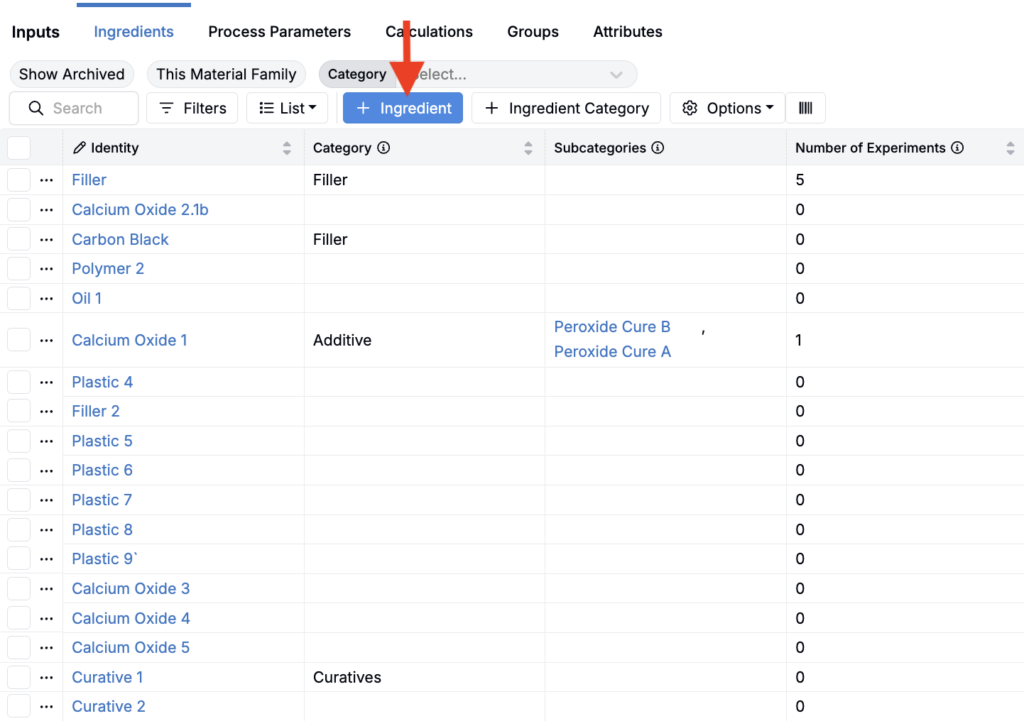
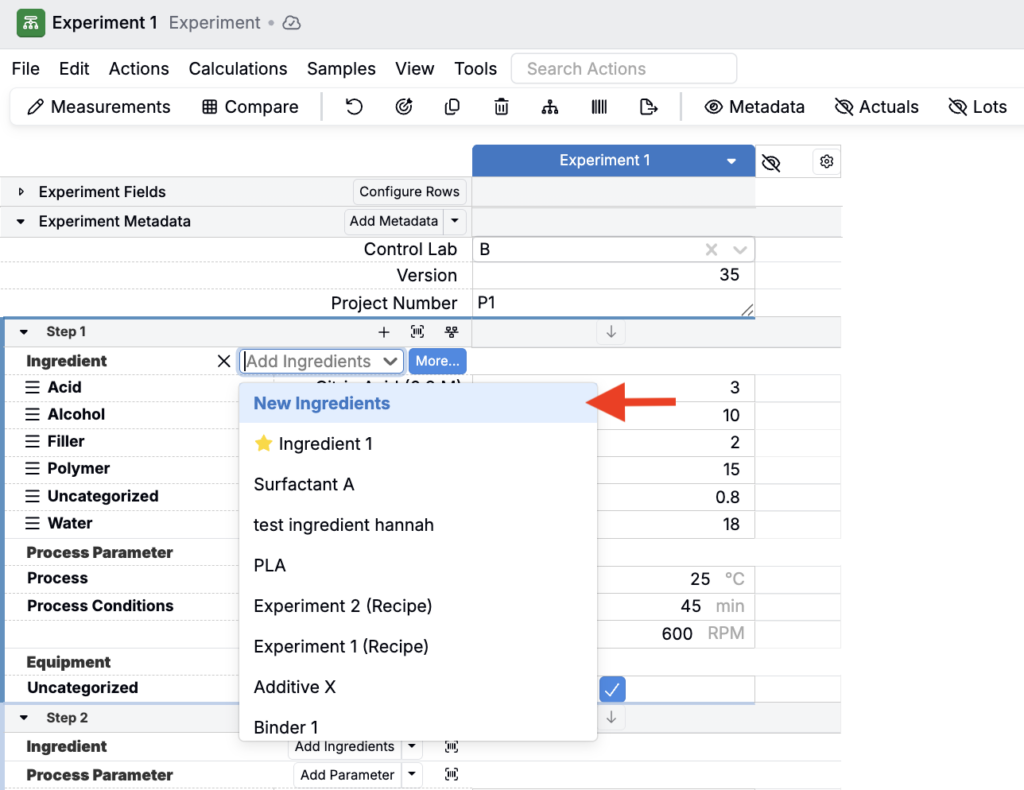
- Fill out the modal:
- Ingredient Name — Use the commercial name.
- Additional Material Families — By default, the ingredient belongs to the current family. Select additional families to make it available elsewhere.
- Category and Subcategories — Assign a primary category and any relevant subcategories.
- CAS Number — Links the ingredient to PubChem for standardized identifiers, property data, and regulatory references.
- Attributes — Add other descriptors such as density, cost, or safety data.
From a Recipe
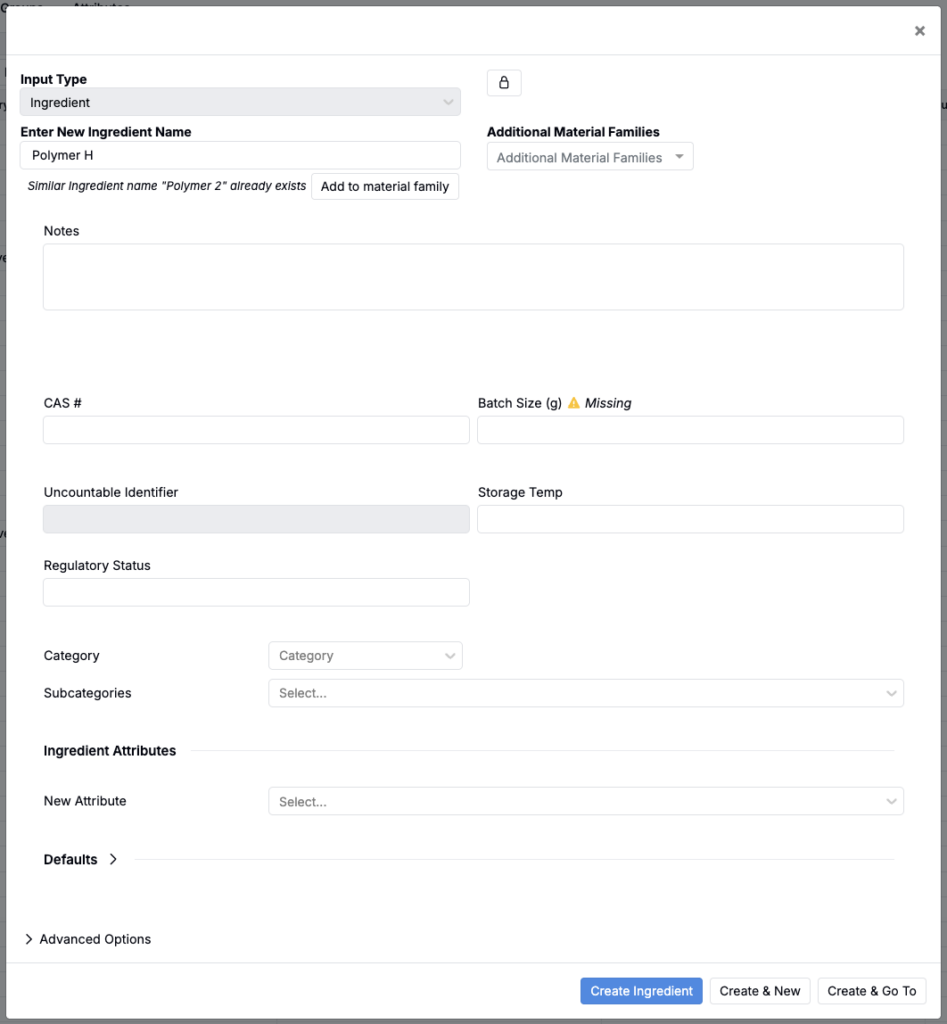
- On the Recipe view, click Add Ingredients in any workflow step.
- Select New Ingredient from the menu.
- Complete the same modal as above.
Configuring the New Ingredient Modal
Admins can control which attributes appear in the New Ingredient modal and whether they’re optional, prompted, or required.
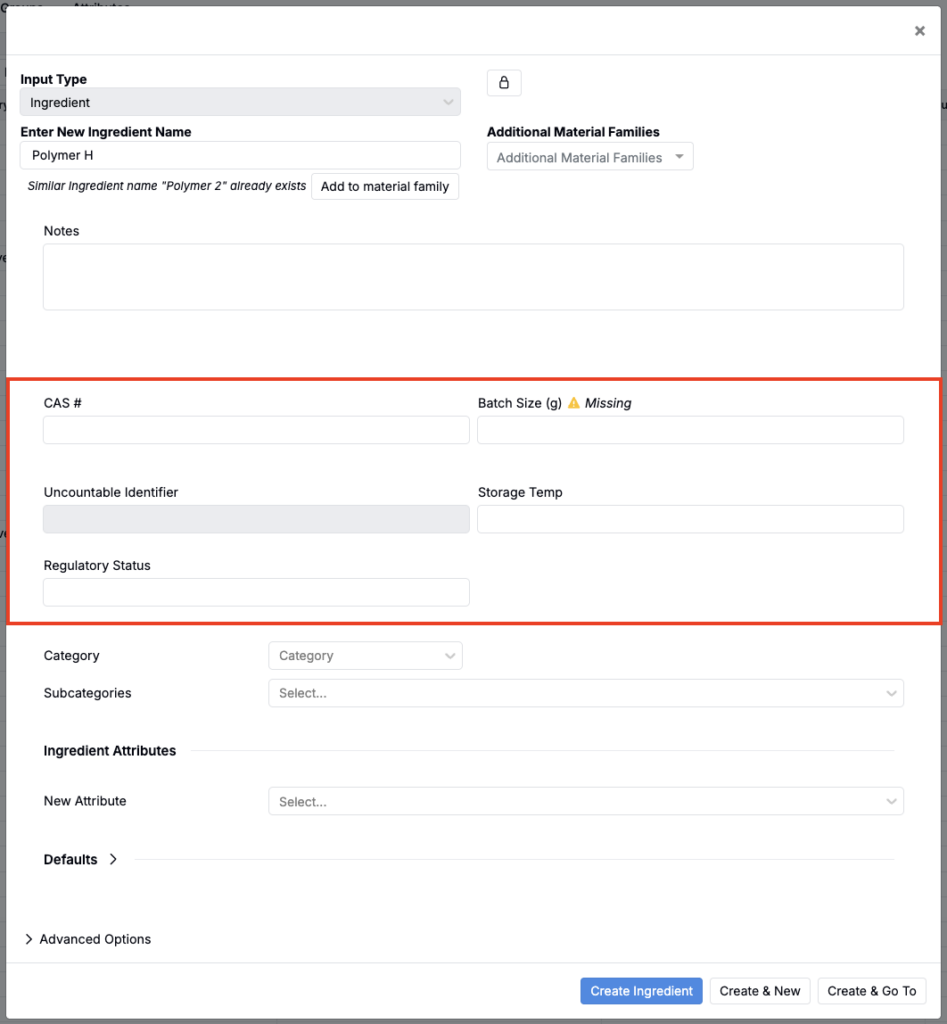
To configure an attribute:
- Go to the Attributes listing page.
- Locate the attribute and click … > Edit Attribute.
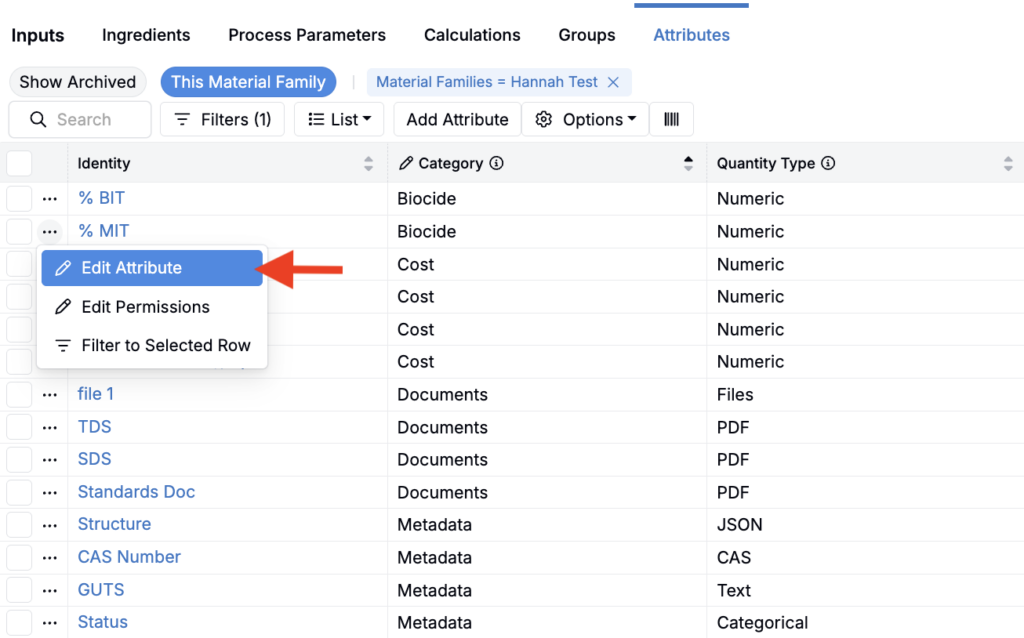
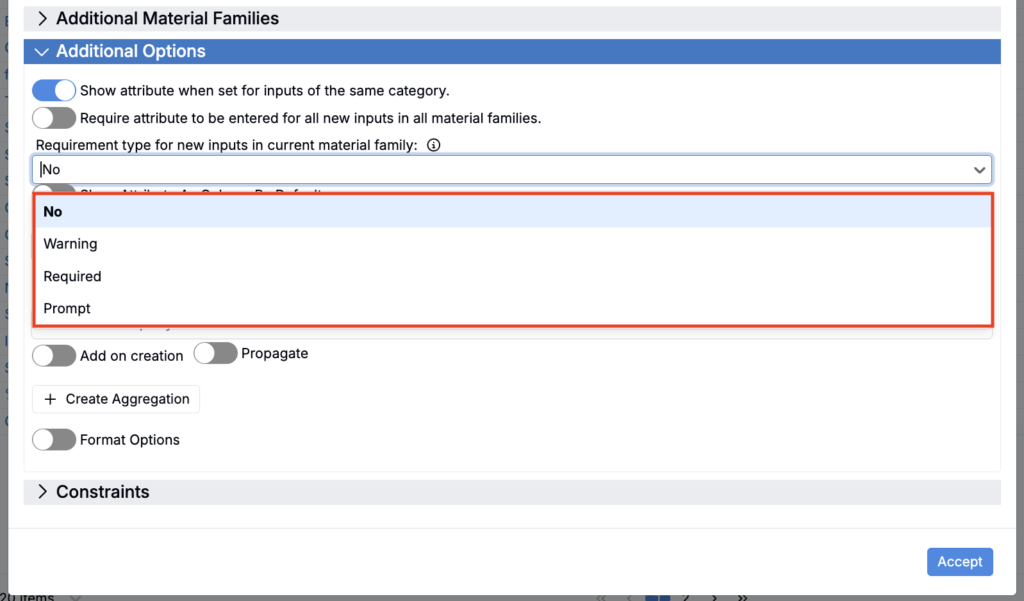
- Under Additional Options, set the requirement type:
- No — Hidden when creating new ingredients (can be added later).
- Prompt — Appears as an optional field.
- Warning — Appears in yellow to encourage completion.
- Required — Appears in red and must be completed before saving.
Adding Ingredients to a Recipe
Once ingredients exist in your system, you can add them to recipes in the Recipe view of an experiment. To add an ingredient to a recipe:
- Click Add Ingredients (this may also appear as Add Inputs).
- Choose how to add:
- Search and add individually — Type an ingredient name into the field and select from the dropdown. The search also suggests ingredients with similar tags.
- Add multiple at once:
- Click More.
- In the Ingredients tab, search or filter the listing and click + Add. Selected ingredients will appear in the Inputs to be Added panel.
- In the Groups tab, add pre-configured input groups.
- Click Add Inputs to confirm.
While “ingredient” typically refers to a raw material, recipes can also be added to an experiment as an ingredient—for example, in cases where that recipe details an intermediate batch, premix, or blend.
Working with Ingredients in a Recipe
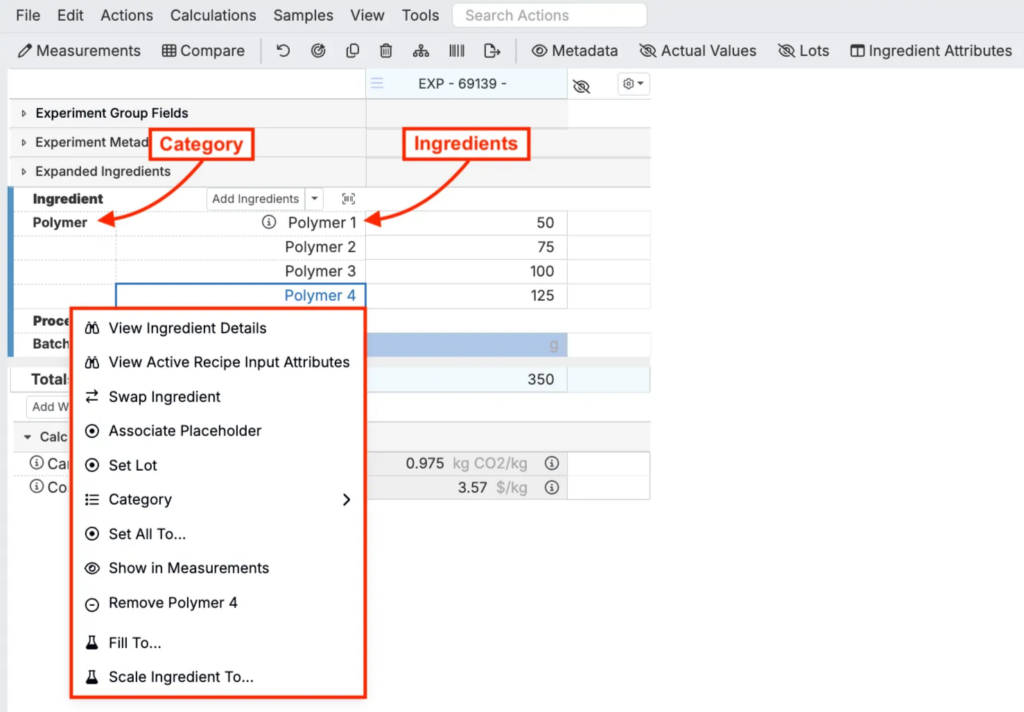
Once added, ingredients appear in the Ingredients section, organized by category. Enter values directly into the table cells.
Clicking an ingredient name opens a dropdown with additional options:
- View Ingredient Details — Open the ingredient’s details page.
- View Active Recipe Input Attributes — View or edit recipe-specific attributes.
- Swap Ingredient — Replace with another ingredient, or choose from the Similar tab.
- Associate Placeholder — Retroactively assign the ingredient to a subcategory.
- Set Lot — Link the ingredient to specific lots.
- Remove — Delete the ingredient from the recipe.
- Category — Change its category directly from the recipe.
- Set All To — Assign a specific value to all instances of the ingredient.
- Show in Measurements — Add the ingredient to the inputs table in the measurements view.
- Fill To — Adjust the ingredient to reach a target Experiment Total.
- Scale Ingredient To — Scale the ingredient while maintaining ratios across the recipe.
Ingredients with notes stored on them will appear on the Recipe page with an information icon (see Polymer 1 in the screenshot below). Click the icon to display the ingredient notes.
Ingredient Details Page
Selecting an ingredient from the Ingredients listing page or clicking View Ingredient Details from the recipe dropdown menu navigates you to the Ingredient Details page.
This page provides a centralized view of all information about a specific ingredient, including:
- Notes — Store and view notes directly on the ingredient
- Chemical Information — PubChem data such as molecular weight, chemical diagrams, and SMILES strings
- Categories and Subcategories — Organizational tags for filtering and grouping
- Ingredient Attributes — Properties like density, cost, supplier information, and technical documents
- Material Families — Shows which material families have access to this ingredient
- Similar Ingredient Tags — Associated ingredients for simplified swapping during formulation
- Lots — Batch-specific information and default lot settings
- Inventory History — Tracking changes to inventory levels
- Default Annotations — Safety warnings or handling instructions that appear automatically when added to recipes
- Ingredient Usage — History of usage by user
For complete details on the Ingredient Details page, see Ingredient Details Page.