In a recent update, the Uncountable platform now offers a more efficient and customizable way to export labels using triggers and entity actions. Steps for both are outlined in the sections below. For more information on labels, refer to Guide to Custom Labels.
Steps for Exporting Labels via Trigger Action
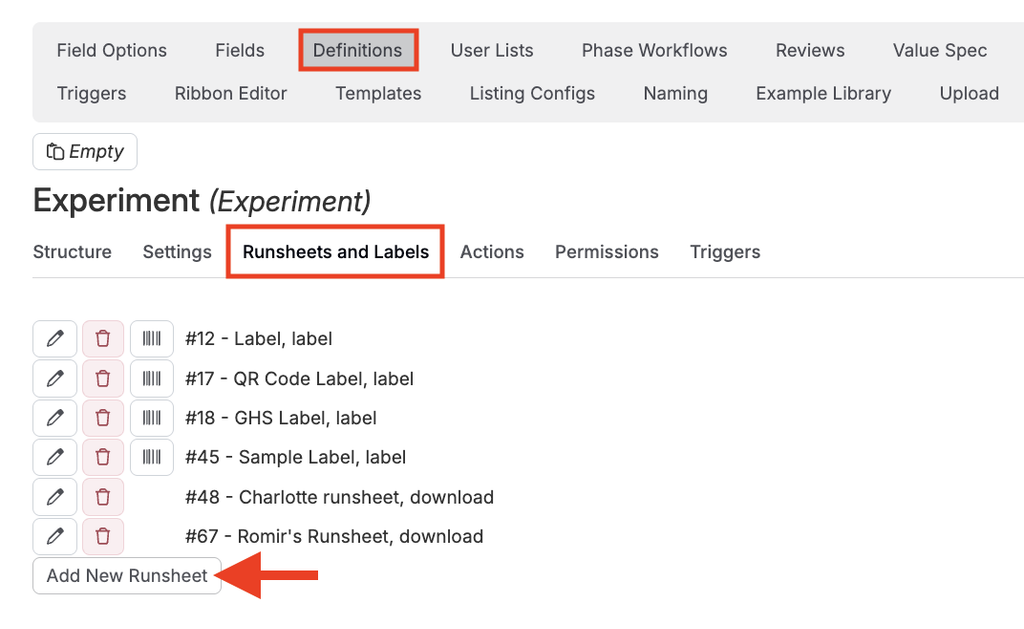
- Within the Runsheets and Labels tab of a definition on the Form Admin page, edit an existing label or create a new one by clicking the “Add New Runsheet” button.
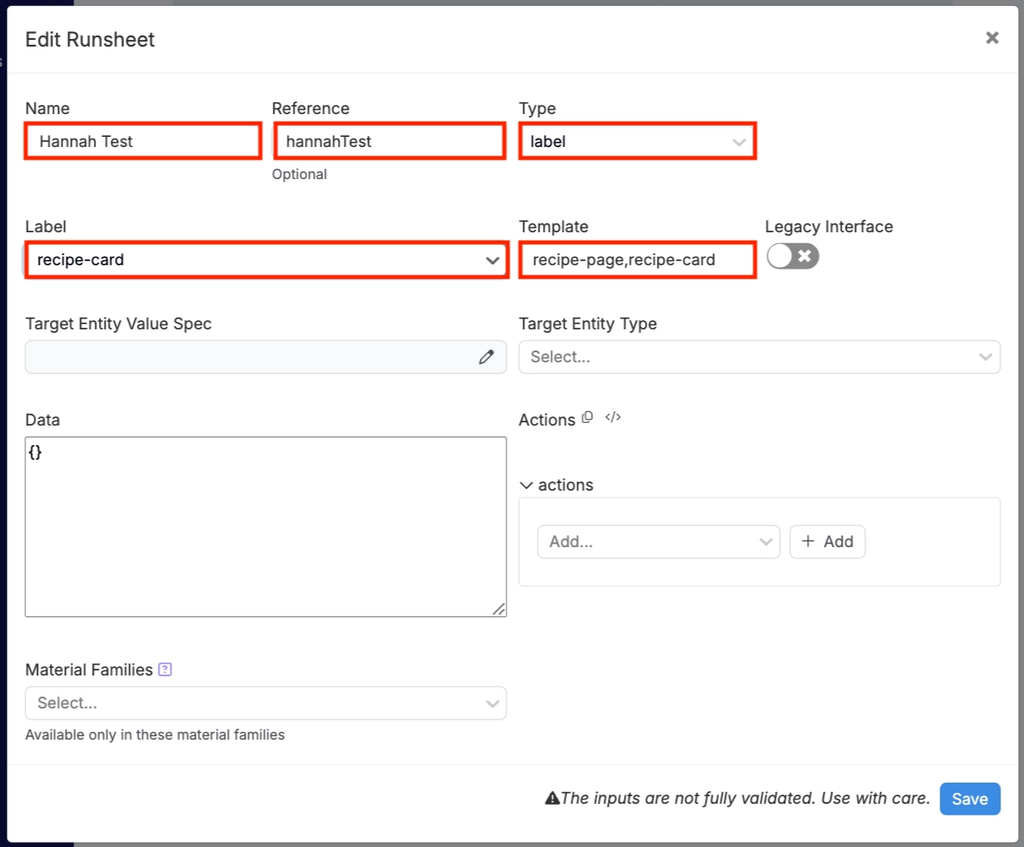
- In the Edit Runsheet modal, configure the following:
- Name: Add a name for the label
- Reference: Add a reference name, which will later be used to create the triggerType: Set the type to “label”
- Label: Select a label (i.e. “recipe-card”)
- Template: Select a template (i.e. “recipe-page, recipe-card”)
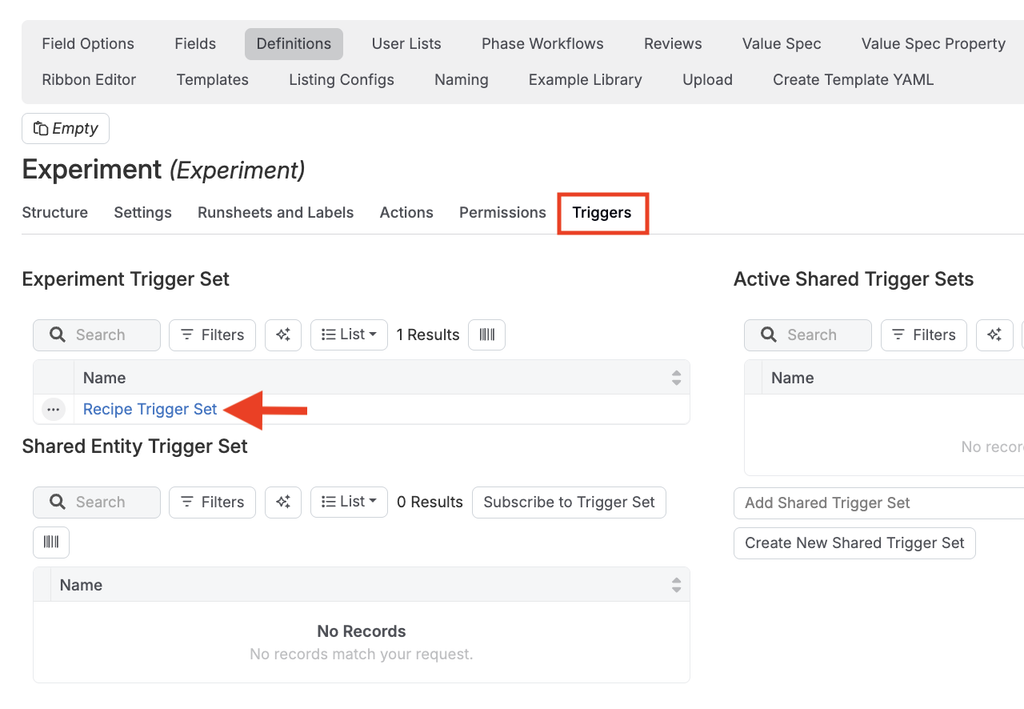
- Access the definition’s Triggers tab and select the trigger set.
- On the trigger set, add a new trigger.
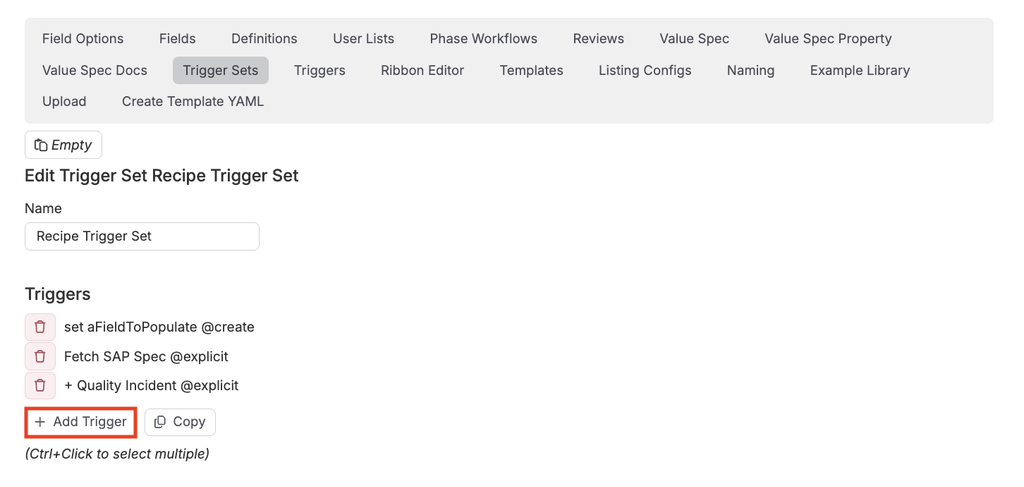
- Assign a name for the new trigger (i.e. “Export Label”) and add an Export Runsheet action.
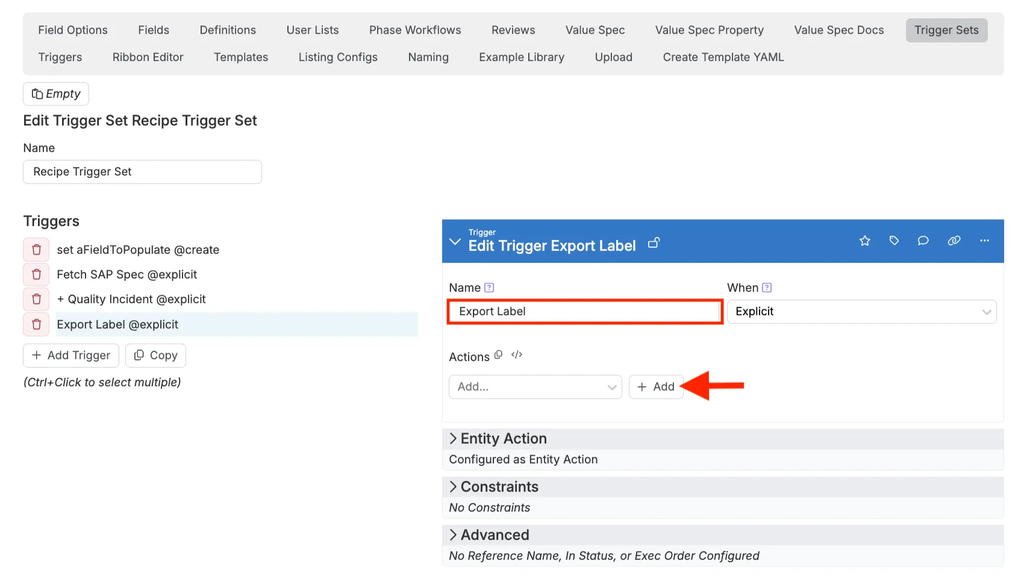
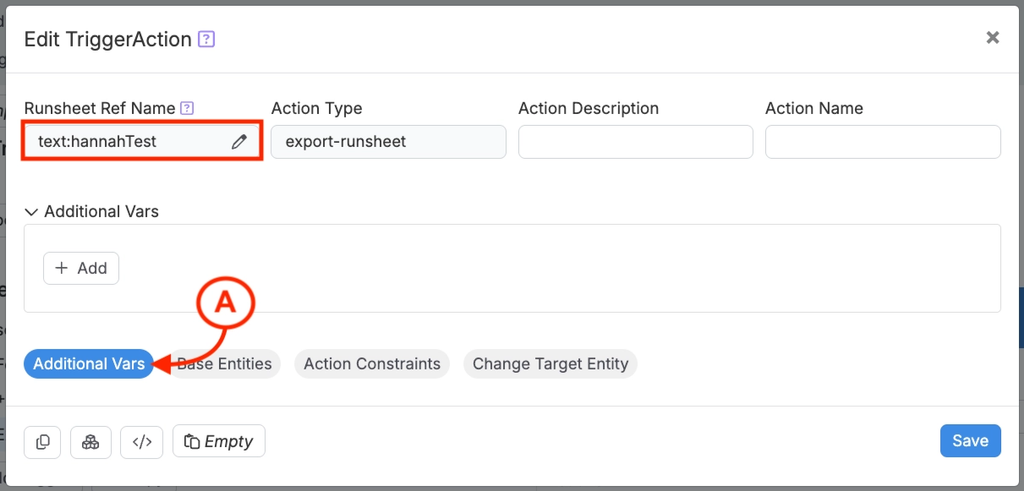
- In the Edit TriggerAction modal, paste the label reference name assigned in step 2b (i.e. “hannahTest”) into the Runsheet Ref Name field using the following value spec format: text:hannahTest
- Add Additional Variables to inform how and when the export label trigger is executed (A). For more information, refer to the section below.
Adding Additional Variables to a Trigger
For passing in entity action form variables in the label, they must be passed directly in via the Additional Vars configuration on the trigger.
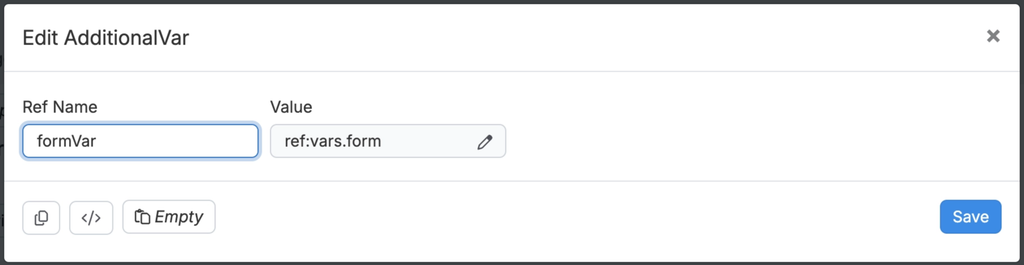
For example, if you have a field with the ref name “test” in the entity action form, in the configuration for the label export, add Ref Name “test” and Value ref:vars.form.test .
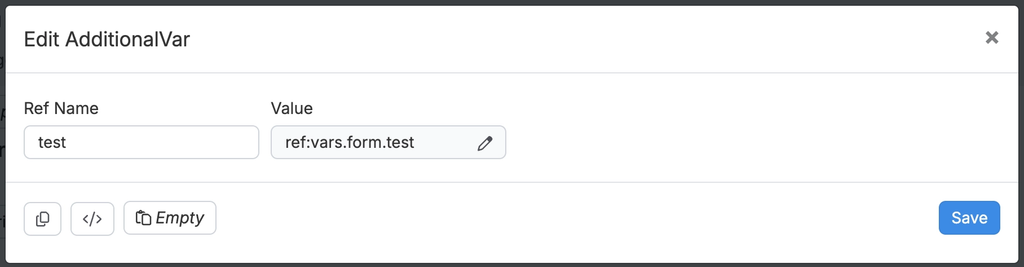
You can also pass in the whole form using a variable with ref name “formVar” and Value ref:vars.form and access the variables in the label template with v:formVar.test.
Steps for Exporting Labels via Entity Action
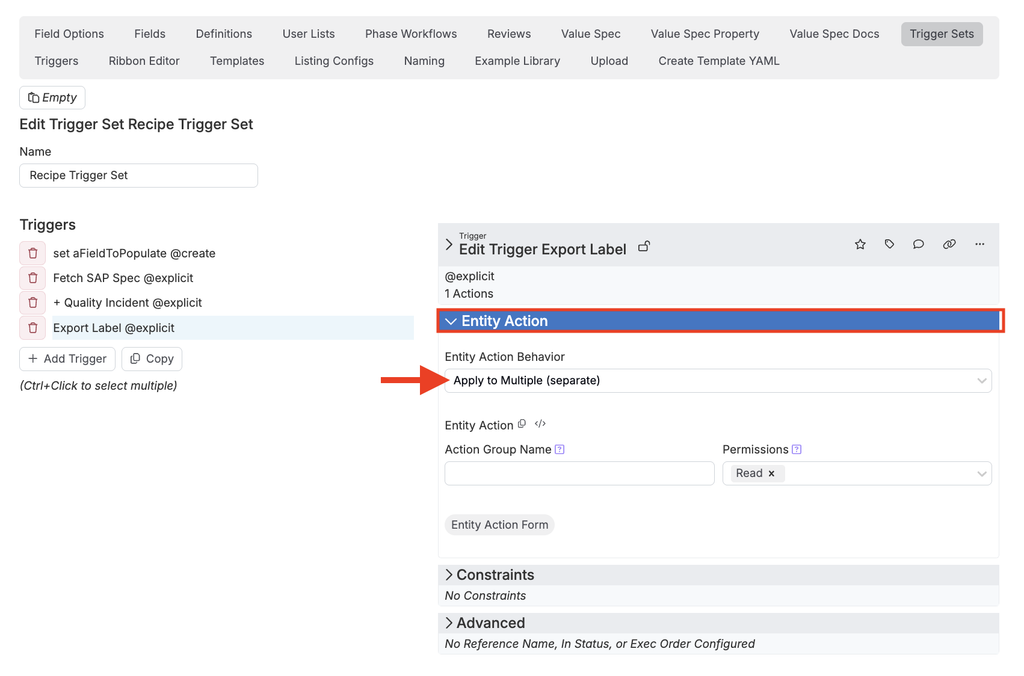
- On the Trigger Sets tab of the Form Admin, select the trigger.
- Within the Entity Action tab by use the dropdown menu to change the behavior from “Not Available as Action” to one of the following:
- Apply to Multiple (separate)
- Apply to Multiple (together)
- Apply Only to Single Entities
Once saved, the trigger will now be available as an entity action on the entity itself and on the entity listing page.
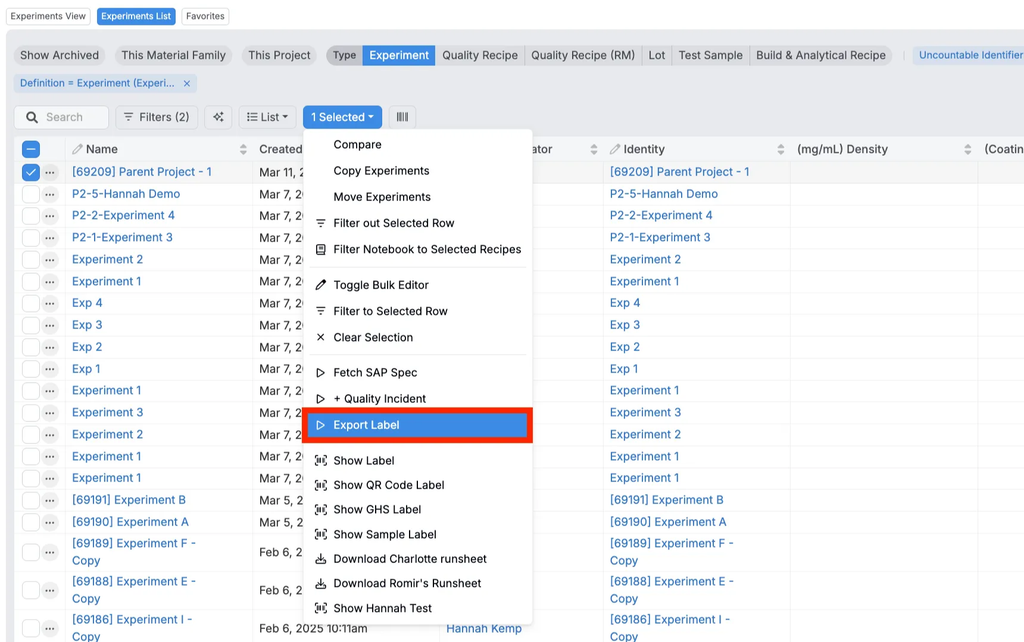
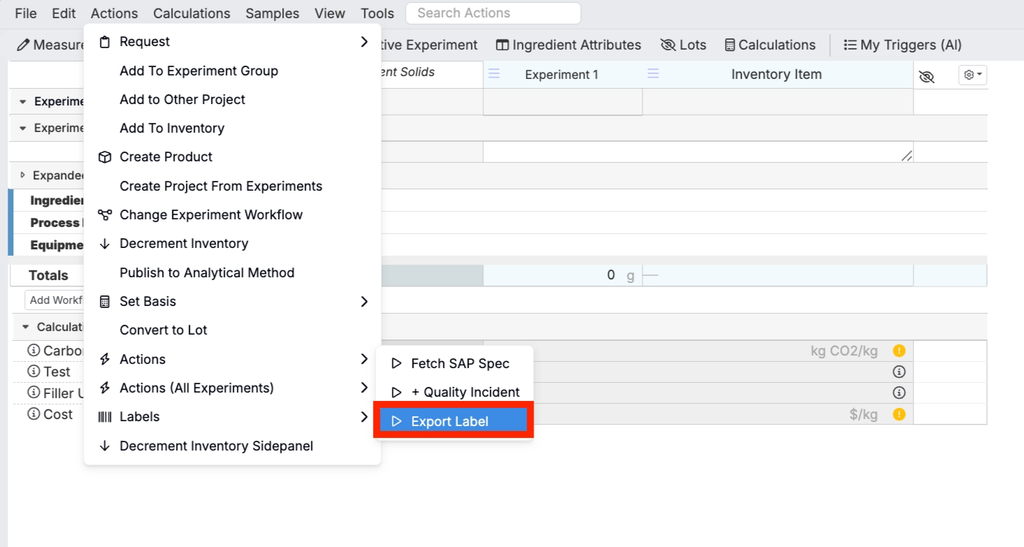
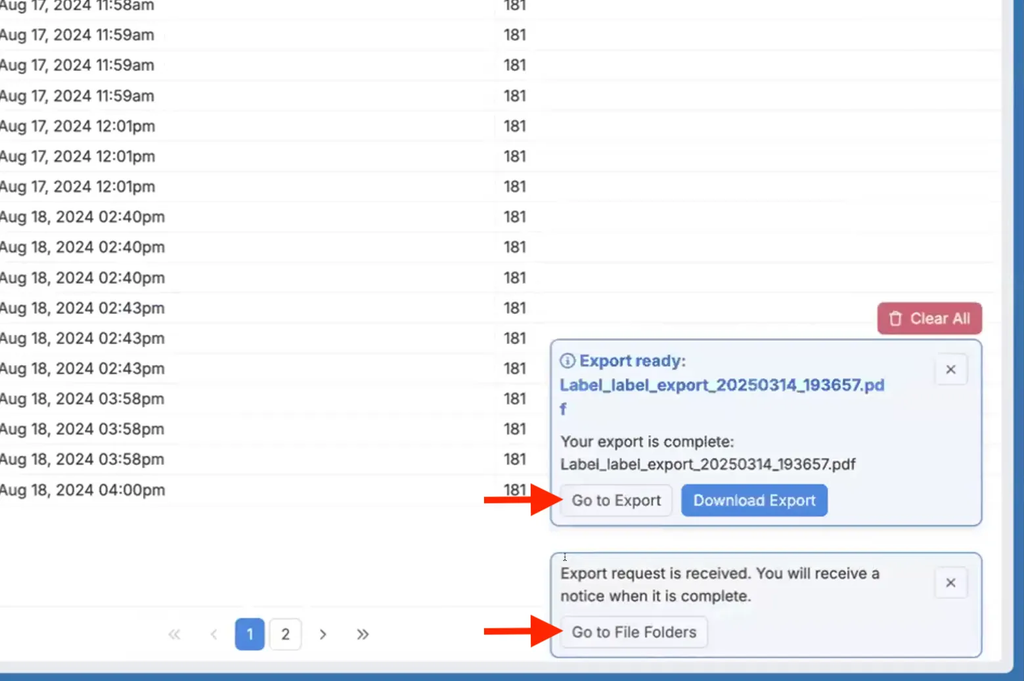
Using the configured trigger or entity action will prompt an asynchronous export. Once complete, you will receive an in-platform notification. Select Go to Export to view the label in the Files Folder or Download Export to download the exported label to your device.