Custom entity definitions can be marked as versioned, so that each entity created from the definition exists on a version tree with a defined lifecycle, similar to notebook versions. This gives teams a controlled way to revise records such as specifications or procedures while keeping earlier versions available for reference.
For versioning of uploaded documents, see File Versioning and Drafts.
How Versioning Works
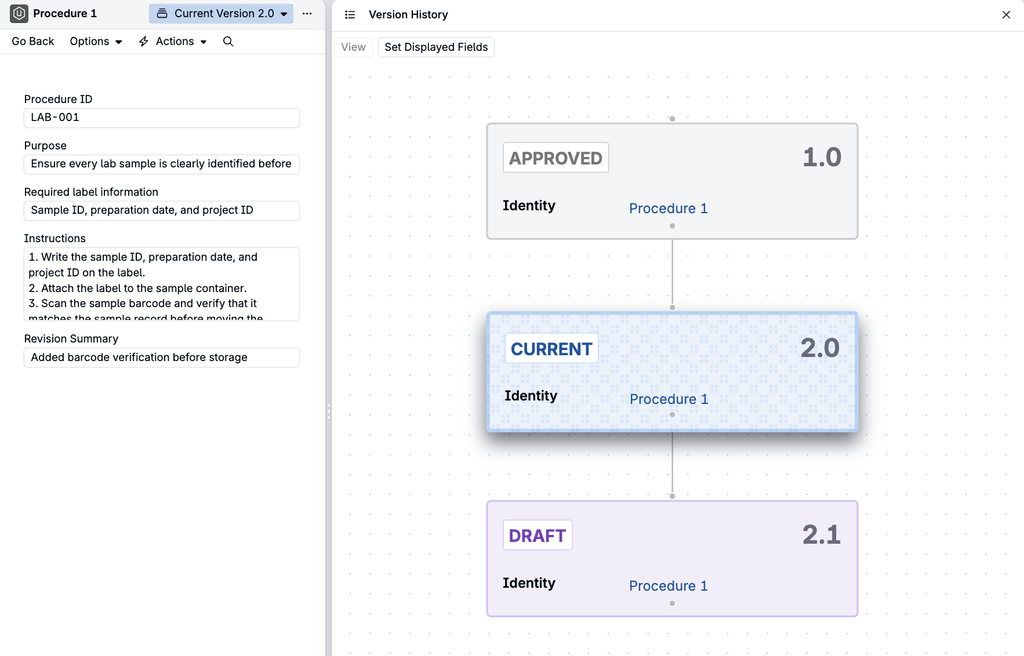
Each version is Current, Approved, or Draft. Only one version can be Current, and listings show Current versions by default.
- Current — the version in use now. This is the effective version, shown in listings by default. Only one version of an entity can be Current at a time.
- Approved — a previously effective version kept for reference. When a new draft is promoted to Current, the former Current version becomes Approved. It remains in the version history but is no longer the version in use.
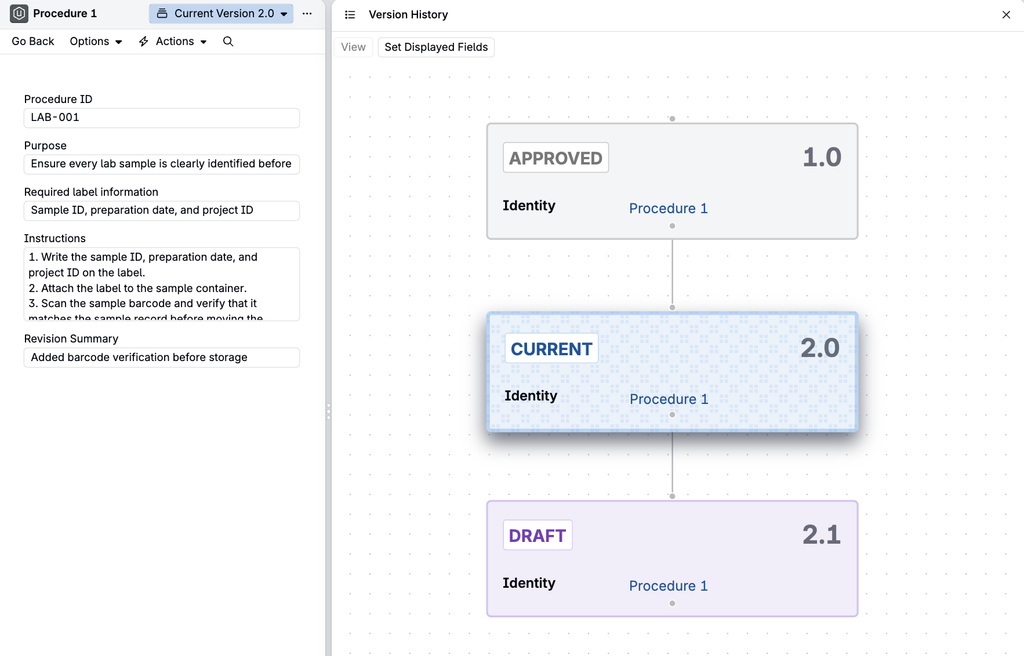
- Draft — a proposed revision. A draft does not replace the Current version until it is promoted.
Example: Version 1 is Current while you prepare a draft of Version 2. When you promote Version 2, it becomes Current and Version 1 becomes Approved. In short, Current means “in use now”; Approved means “previously in use.”
Enabling Versioning
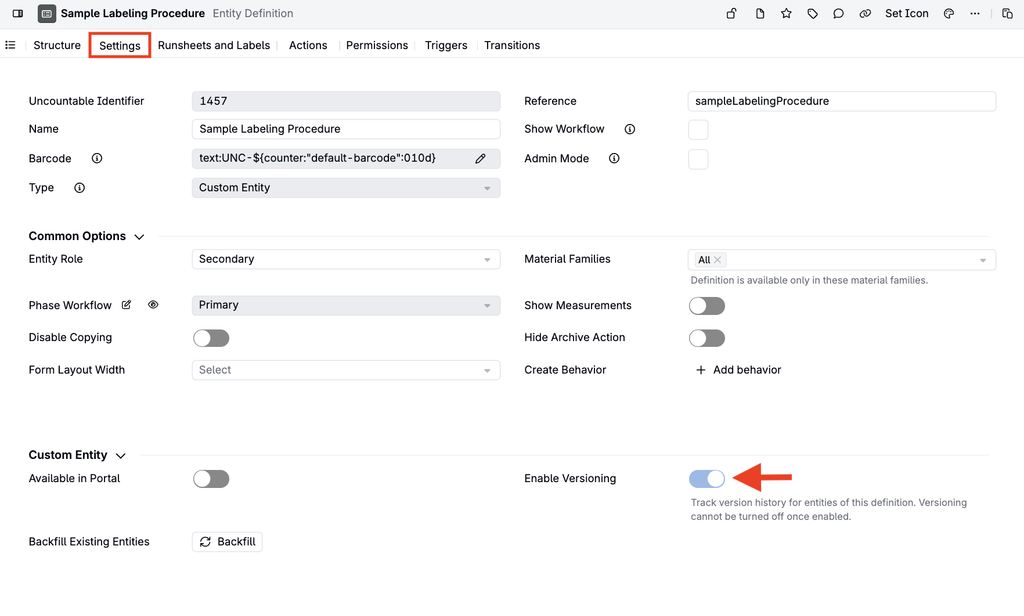
To enable versioning for custom entities, use the versioning toggle on the custom entity definition’s settings page.
Warning: Marking a definition as versioned cannot be undone.
Revising a Record
Revisions are made with the Create Draft Version and Promote Version entity actions. The example below walks through revising a Sample Labeling Procedure.
- Start with the Current procedure. Create a Sample Labeling Procedure record (from a custom entity definition).
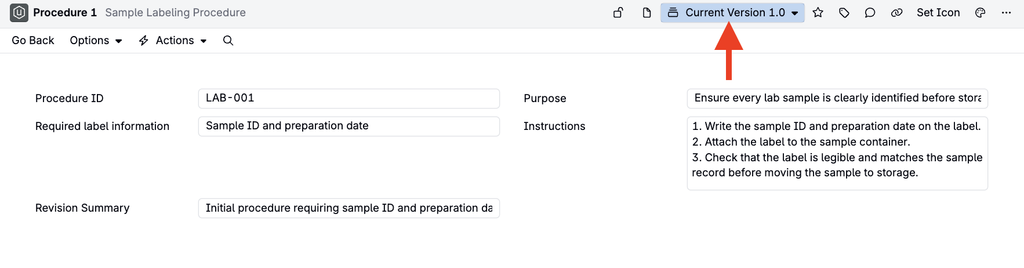
- Create and edit a Draft. On the Current record, run Create Draft Version from the entity’s actions.
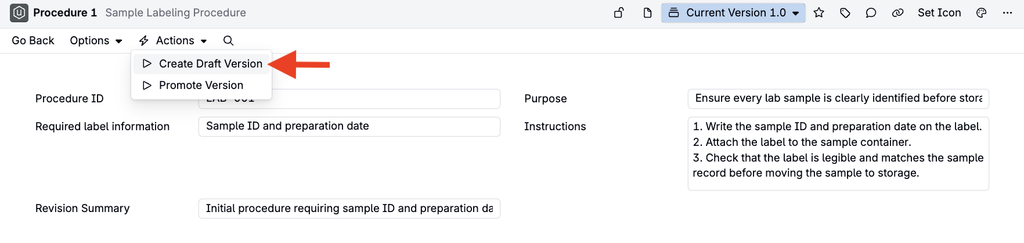
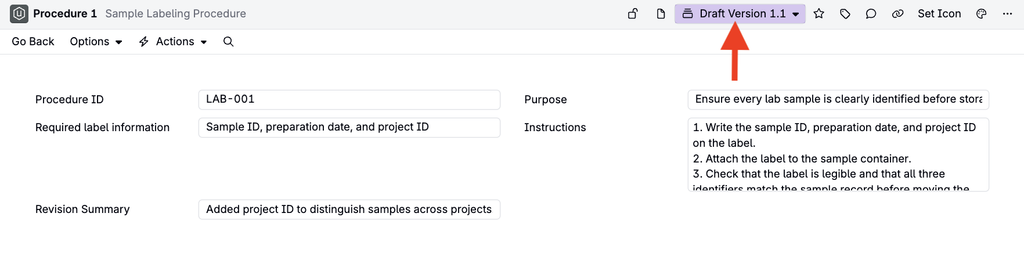
Open the new draft and make edits. The original version remains Current while you prepare the change.
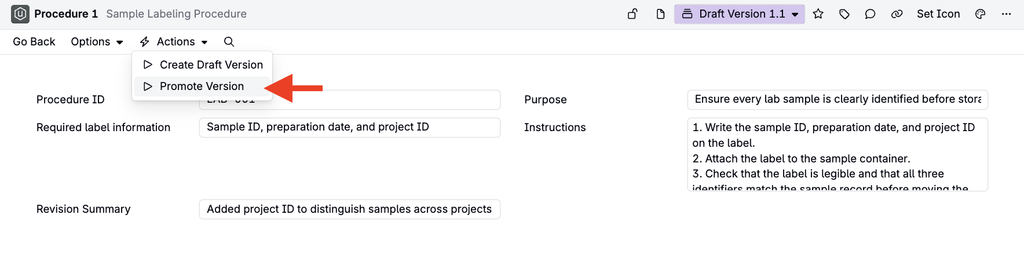
- Promote the revision. On the draft, run Promote Version.
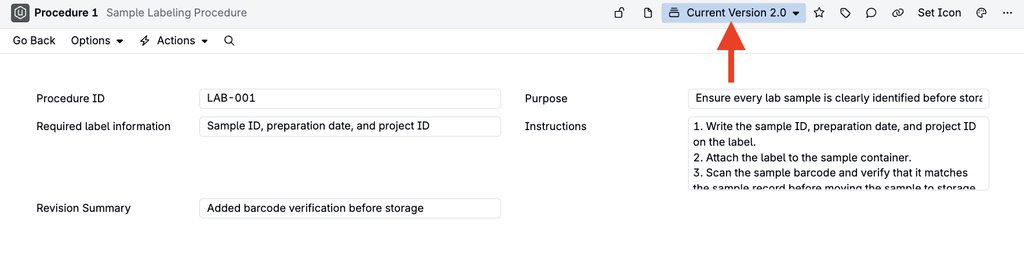
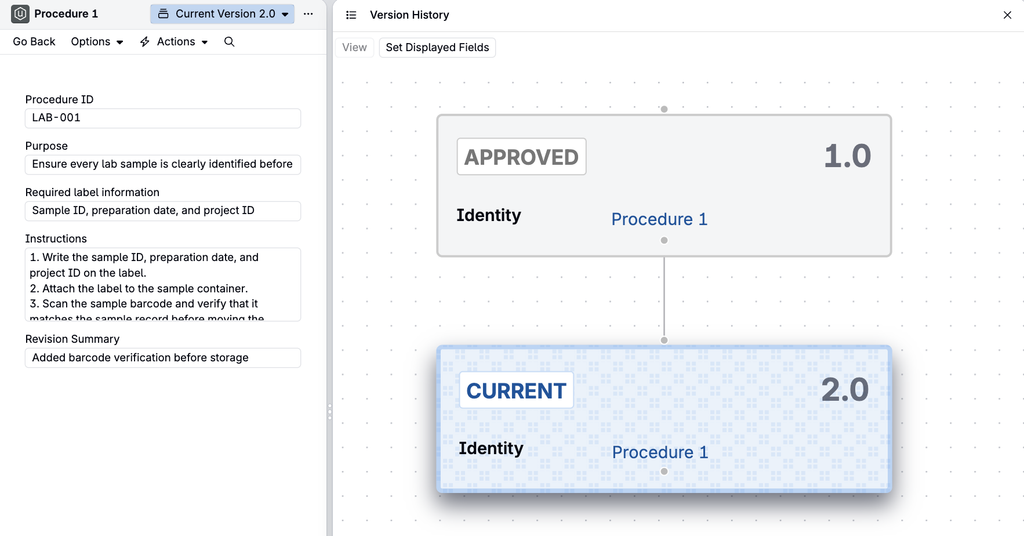
The updated procedure becomes Current, and the original becomes Approved, with its earlier values retained in version history.
- View the version history. At any point, click the version badge on the entity page and select View History.
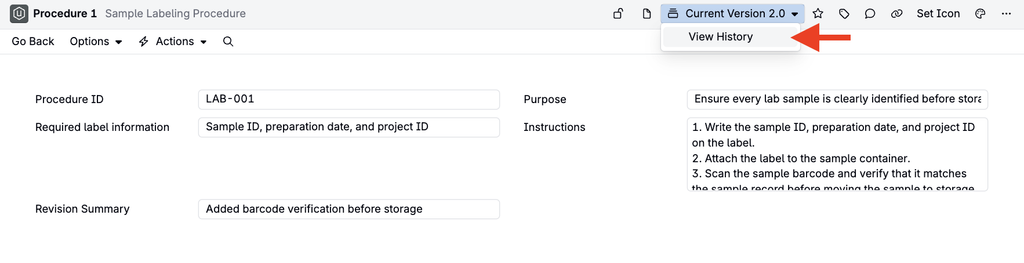
This opens the version tree, with links to every other version.
- Prepare the next change. From the new Current record, create and edit another draft by running the Create Draft Version action again. Leave this version as Draft until it is ready to replace the Current procedure.
Viewing Versions in Listings
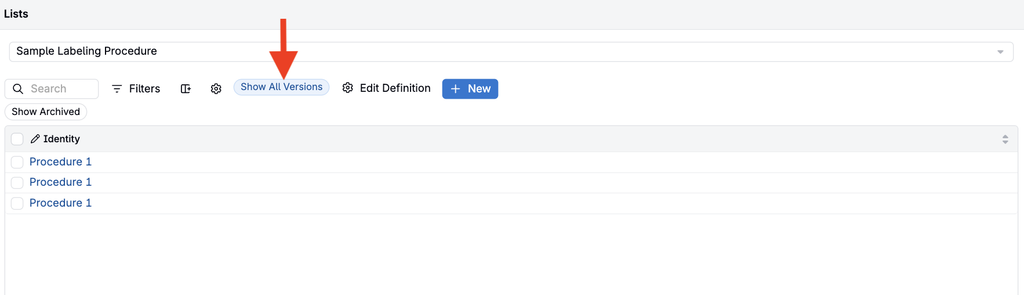
By default, a versioned custom entity’s listing page shows only the Current version of each entity. Click Show all versions to show Approved, Current, and Draft versions on the listing view — for example, the original Approved procedure, the Current procedure, and the Draft.