
Uncountable supports storing and working with image files as outputs. This functionality is useful for capturing sample photos, microscope images, and other visual data.
To learn how to create a new Image-type output field, refer to Creating New Outputs.
Supported File Types
You can upload the following image formats as outputs in Uncountable:
.png.jpg/.jpeg.gif.tiff.bmp
If you require support for additional image types, please contact your account manager.
Uploading Images as Outputs
To upload an image as an output:
- Add the Image-type output to your measurement table.
- Click the + icon in the cell.
- Upload or paste an image.
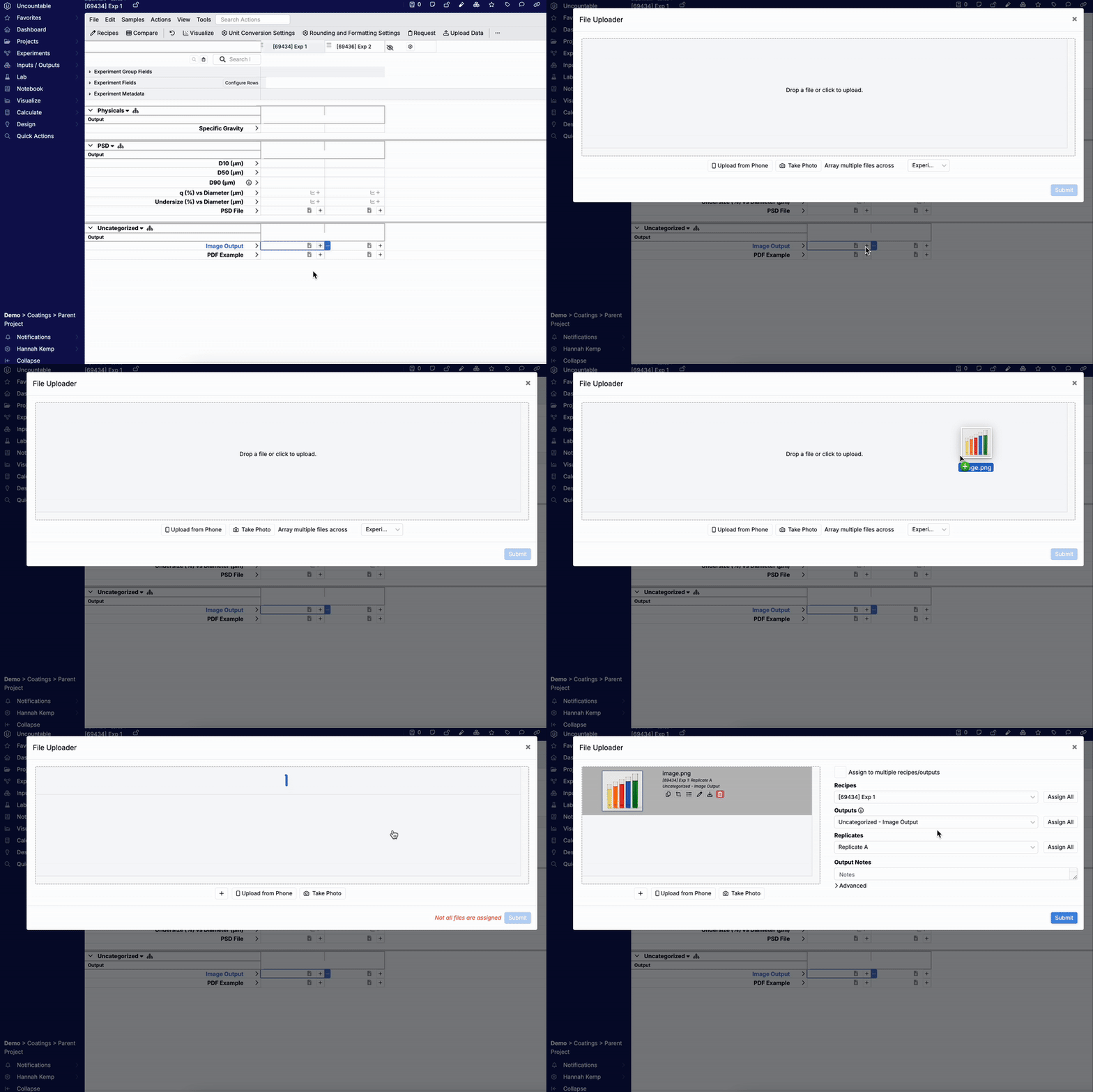
Editing and Assigning Image Outputs to Recipes/Replicates
Once you’ve uploaded an image, you can optionally crop and assign specific portions to individual recipes or replicates. This is especially useful if a single image contains multiple samples.
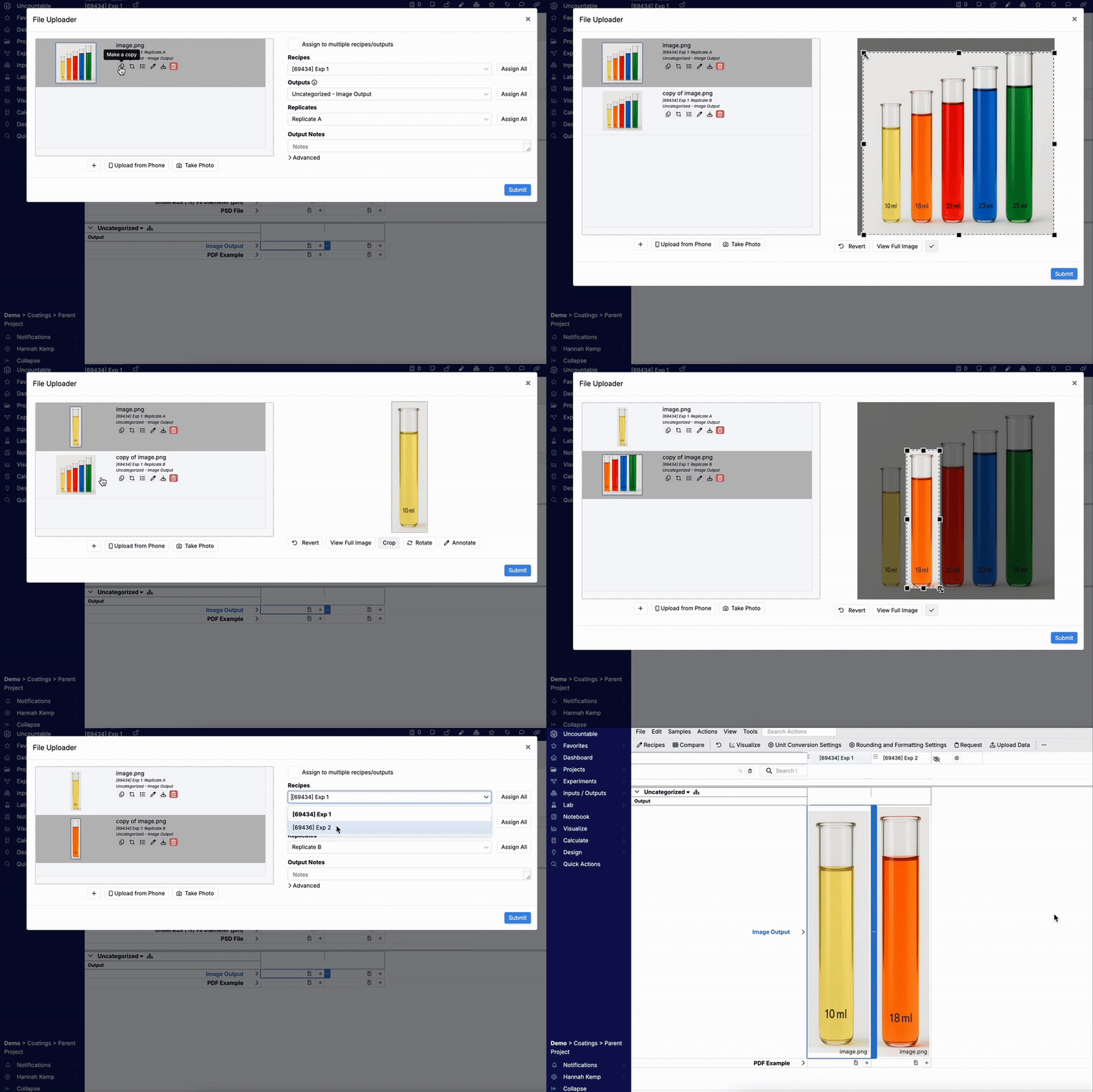
File Uploader Actions
- Copy — Click the Copy icon (A) to duplicate the image.
- Crop — Click the Crop icon (B) to select and isolate a specific region.
- Assign — Click the Assign icon (C), then complete the following fields:
- Recipes (D): Choose the recipe you want to assign the image to.
- Outputs (E): Select an image- or file-type output for that recipe.
- Replicates (F): Assign the image to a specific replicate of the recipe (Optional).
In this modal, users can also:
- Use Assign to multiple recipes/outputs to apply the image to several recipes or outputs at once.
- Add Output Notes to an image, which will appear in the image’s Measurement Details window on the measurement view of the experiment.

Viewing and Comparing Image Outputs
Once your images are saved, you can view them alongside other outputs or use the Compare Images page to create a tabular view across multiple samples.