
Portals let you expose a narrowly scoped slice of Uncountable to people who don’t need full platform access. Typical audiences include external partners, contractors, or internal users who only need to submit or view specific forms. Portal users see and interact with designated portal pages only, not the full UI.
Example use cases
- External testing requests. For example, a company may accept testing requests via a portal instead of spreadsheets or email.
- Internal business workflows. Technicians can submit timesheets without accessing formulation or R&D data.
Setting up a Portal
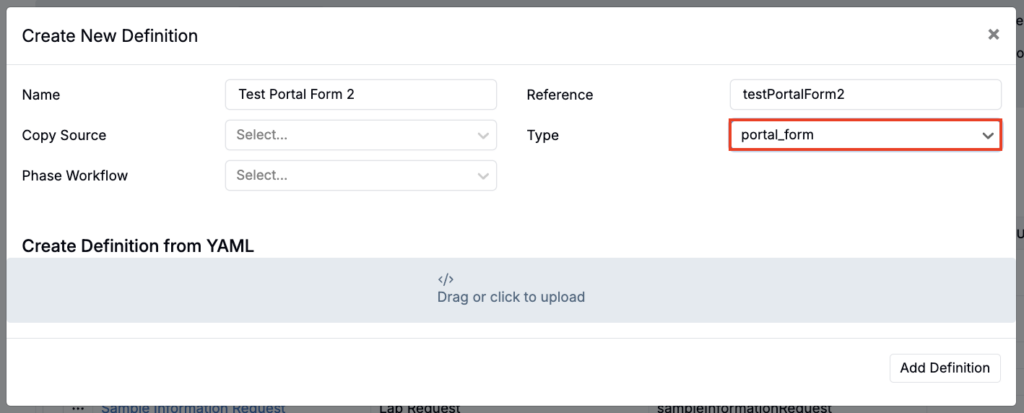
- Create a Portal Form definition on Form Admin.
- Add a name.
- Set Type to portal_form.
- To include a workflow, select from the Phase Workflow field.
- To copy groups and fields from an existing definition, use the Copy Source field.
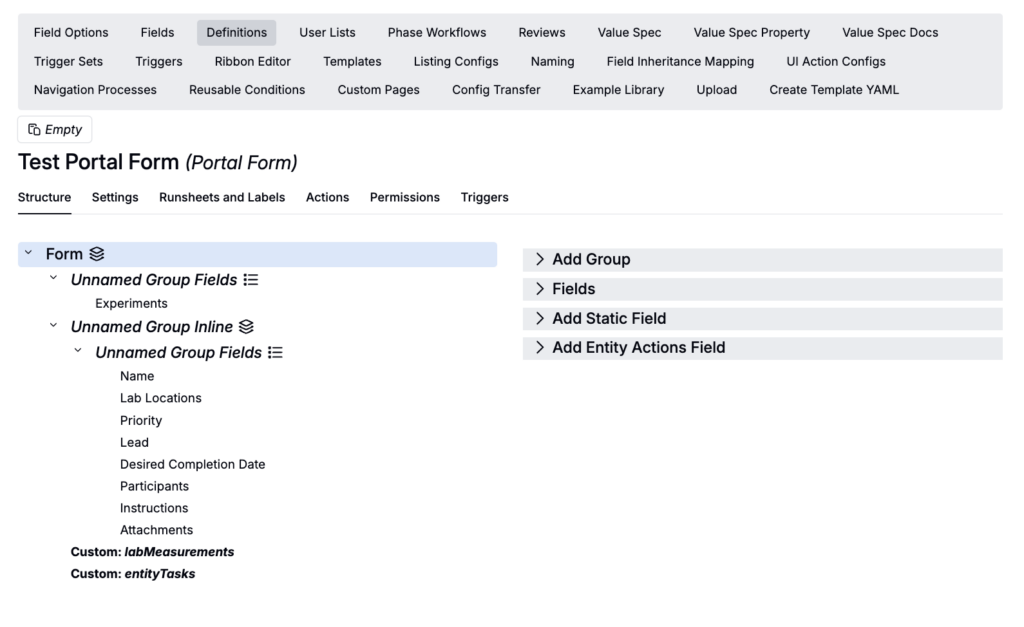
- On the definition, add fields and entities as you would for a lab request or custom entity.
- To learn more about request form configuration, refer to Lab Request Templates.
- Any sub‑entities or option sets referenced by the form must be explicitly enabled for portal access by checking the “Available in Portal” setting. Learn more.
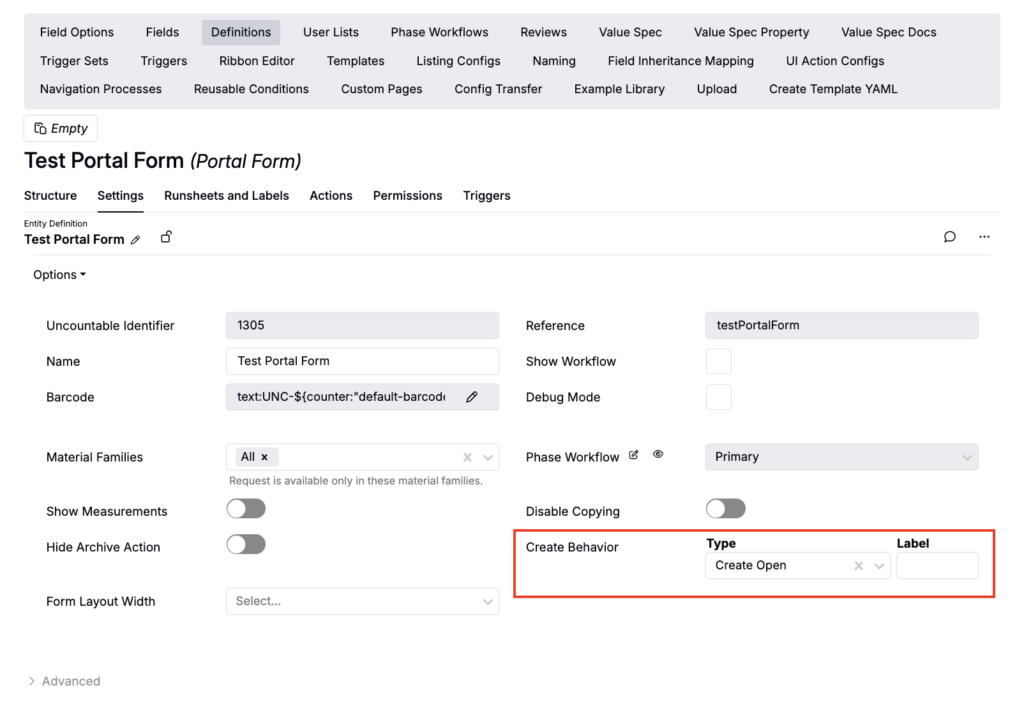
- (Optional) By default, portal users cannot create new forms. To grant create permissions, navigate to the definition’s Settings tab and set Create Behavior to Create Open or Modal Submit.
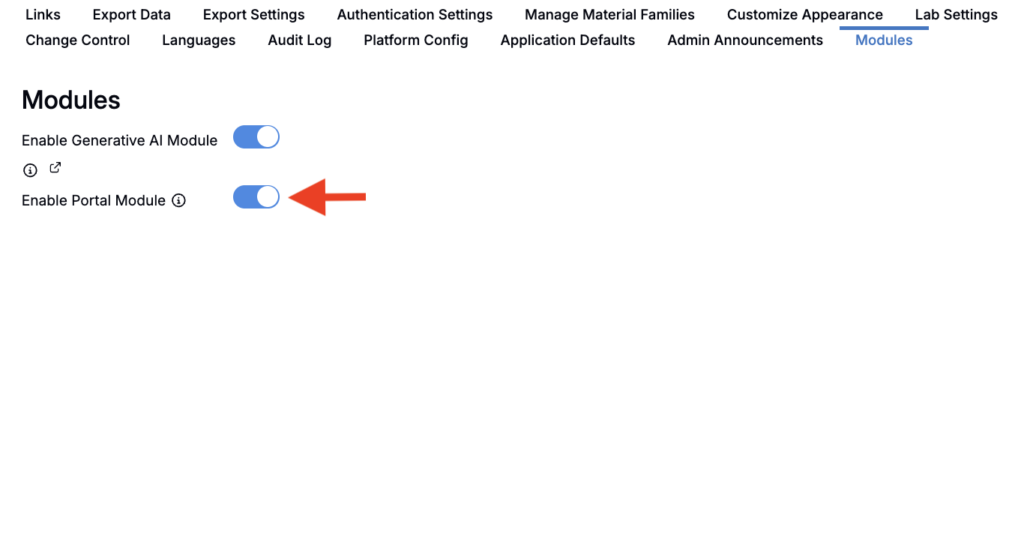
- Enable the Portal Module.
- Navigate to the Company-Wide Settings > Modules.Toggle on Enable Portal Module.
- Invite portal users.
- Navigate to User Administration > Portal Users.
- Click Invite Users.
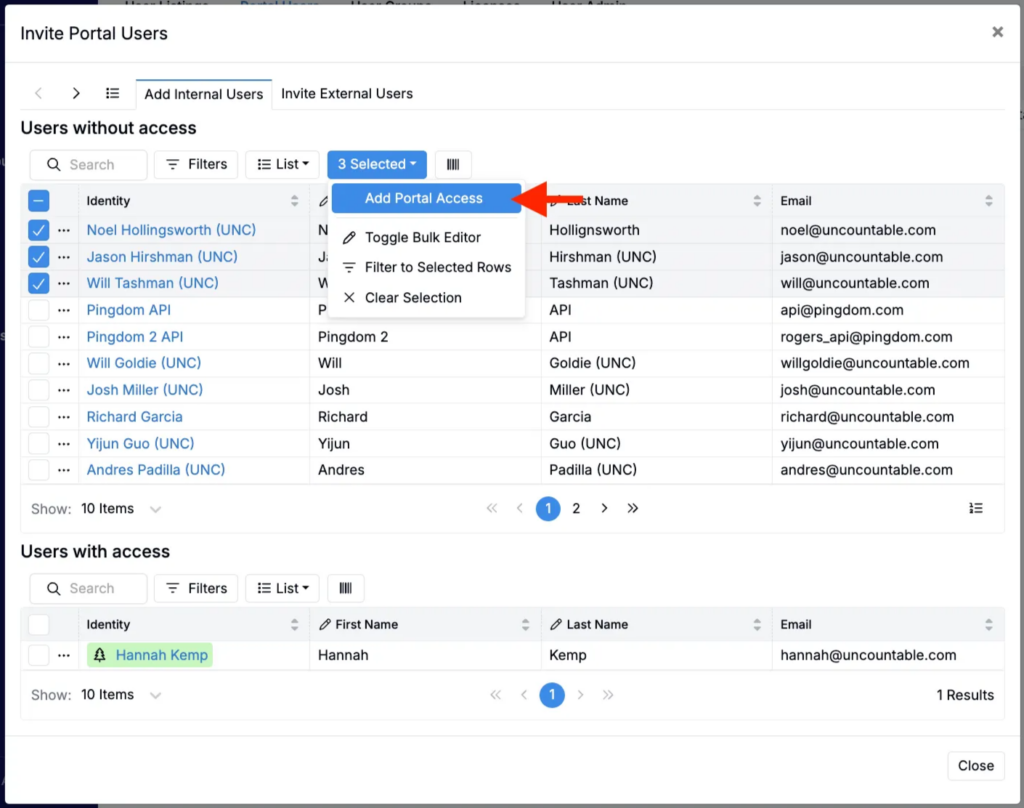
- In the Add Internal Users tab, select users to invite and, in the selection menu, click Add Portal Access.
- You can also use the Invite External Users tab to invite external users via email.
Making Entities and Option Sets Available in Portals
Standard groups and fields can be added to portal forms without additional configuration. However, entities and option sets require explicit access before they can be added to a portal form definition.
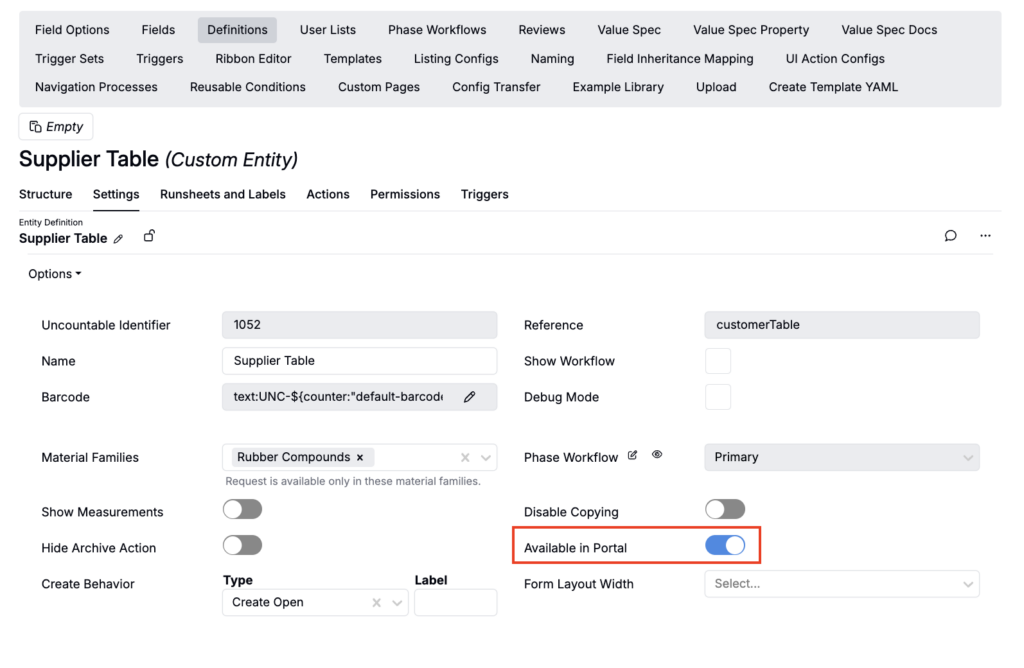
For an entity: Navigate to the entity’s definition on the Form Admin page. In the Settings tab, toggle the Available in Portal setting. The entity will now be available to add to your Portal Form definition.
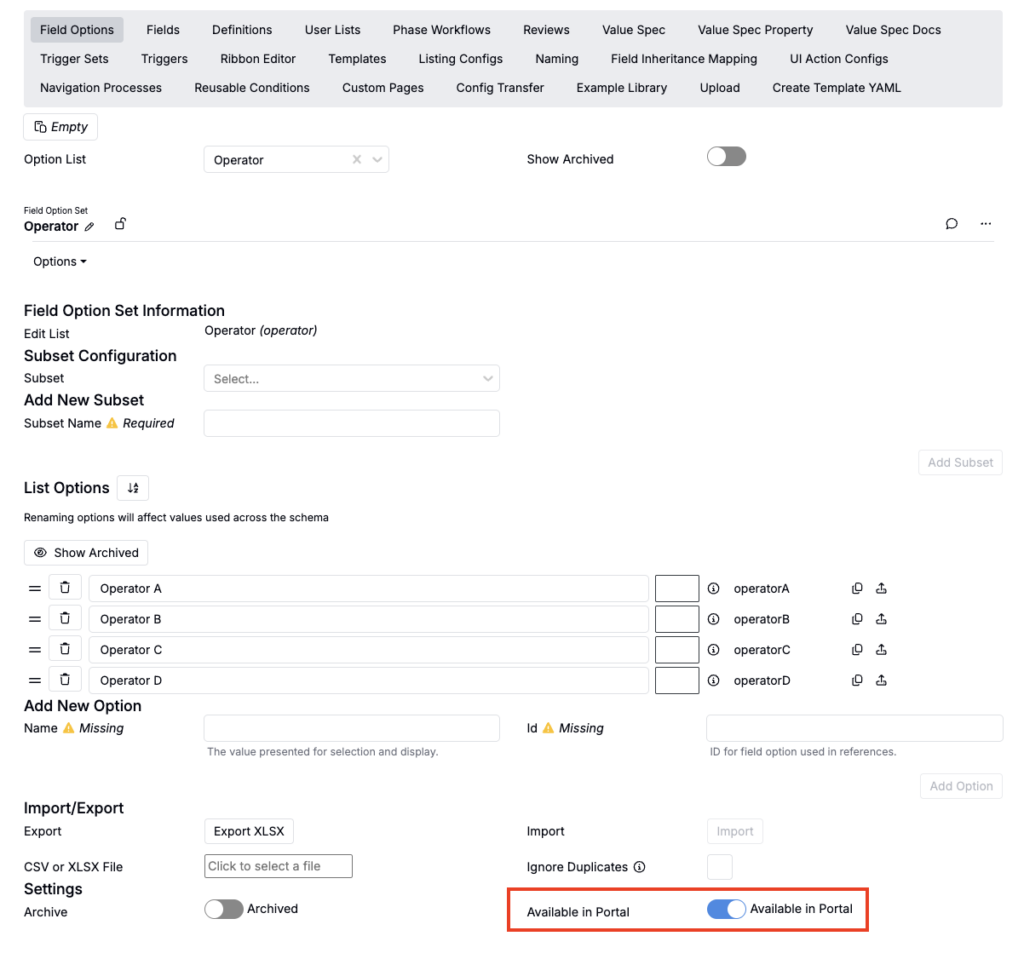
For an option set: Navigate to the Field Options tab of the Form Admin page and load your desired set. At the bottom of the page, toggle the Available in Portal setting. The option list will now be available to add to your Portal Form definition.
Using a Portal
- Once invited, portal users can log in at app.uncountable.com.
- After logging in, portal users can only see and use Portal page and permitted forms.
- Submitted forms flow into the standard workflows just like comparable in‑platform lab requests or approvals.