
We’ve added new Bar Orientation and Bar Mode options to bar charts in notebook dashboards. These settings let you display bar charts horizontally, stacked, or as horizontal stacked bars — giving you more flexibility in how entity data is visualized on a dashboard.
Bar Chart Orientation
A new Bar Orientation dropdown in the Bar Settings section of Configure Chart modal lets you switch between Vertical (default) and Horizontal orientations. When set to Horizontal, categories move to the y-axis and values extend along the x-axis.
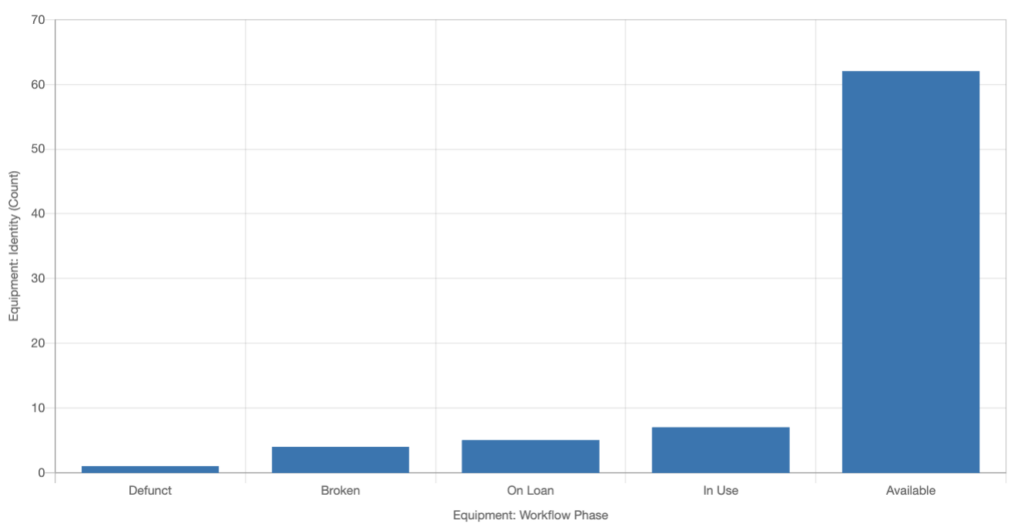

To change your chart’s orientation:
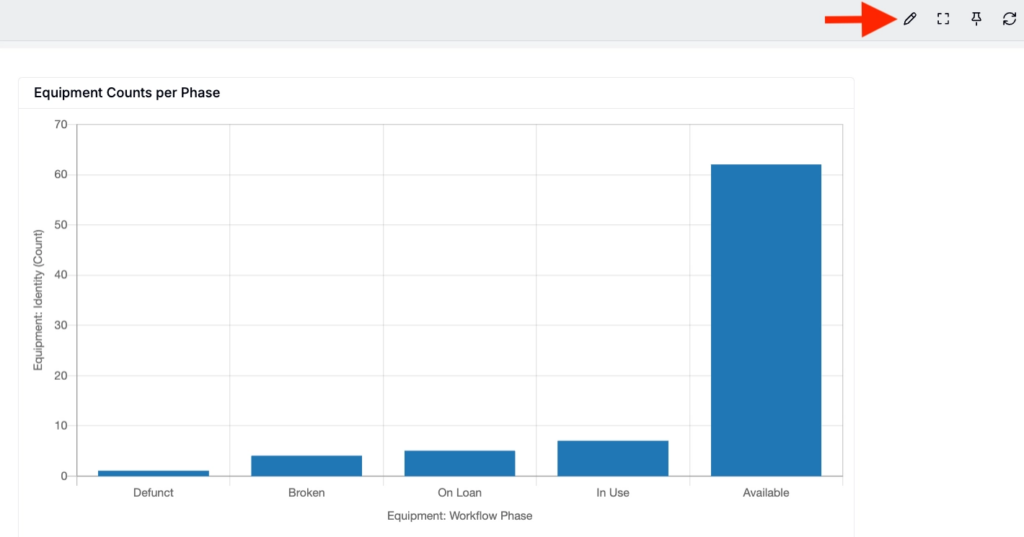
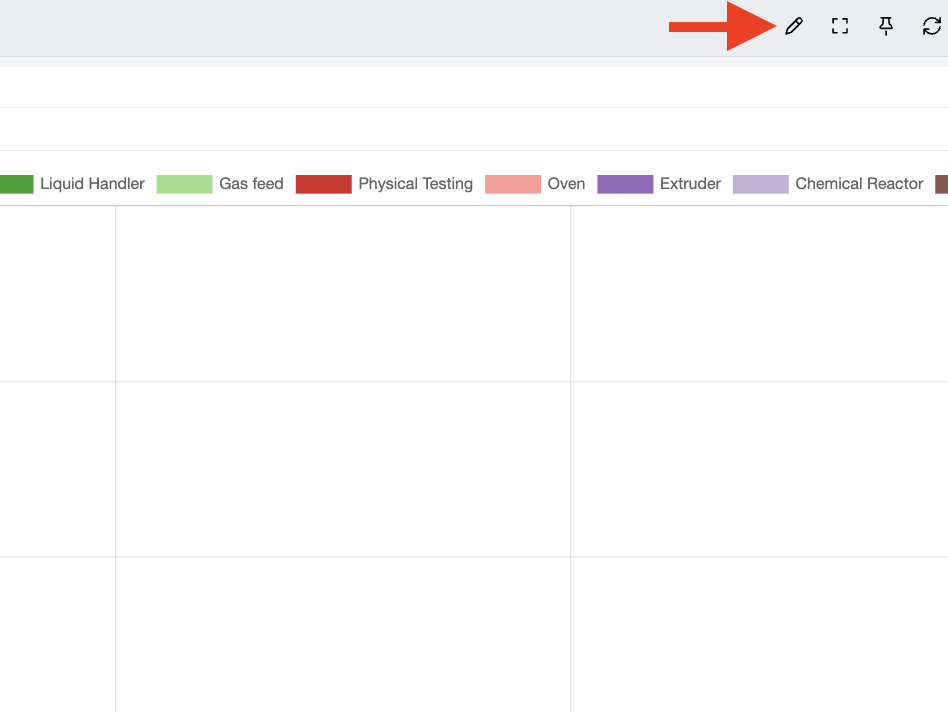
- Click the ✏️ in the top right corner of your notebook dashboard to edit.
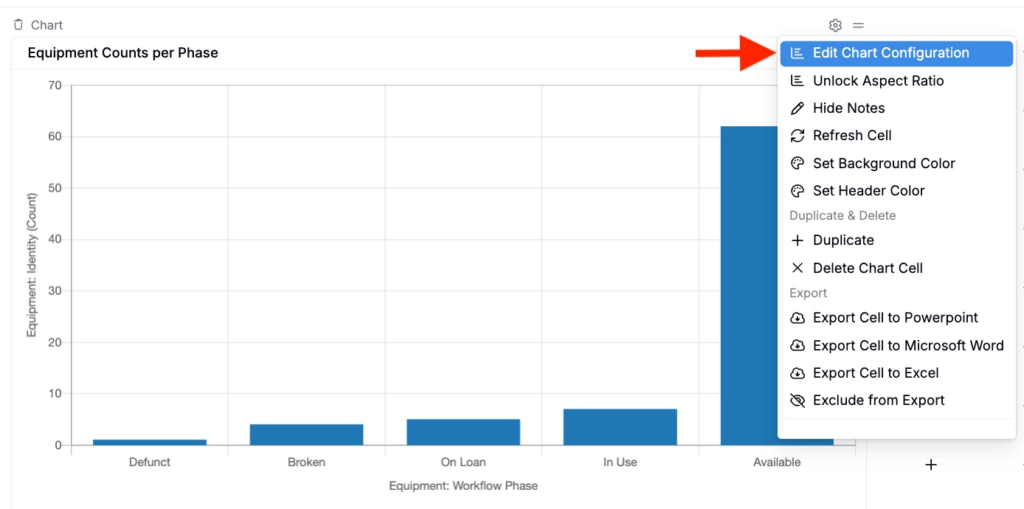
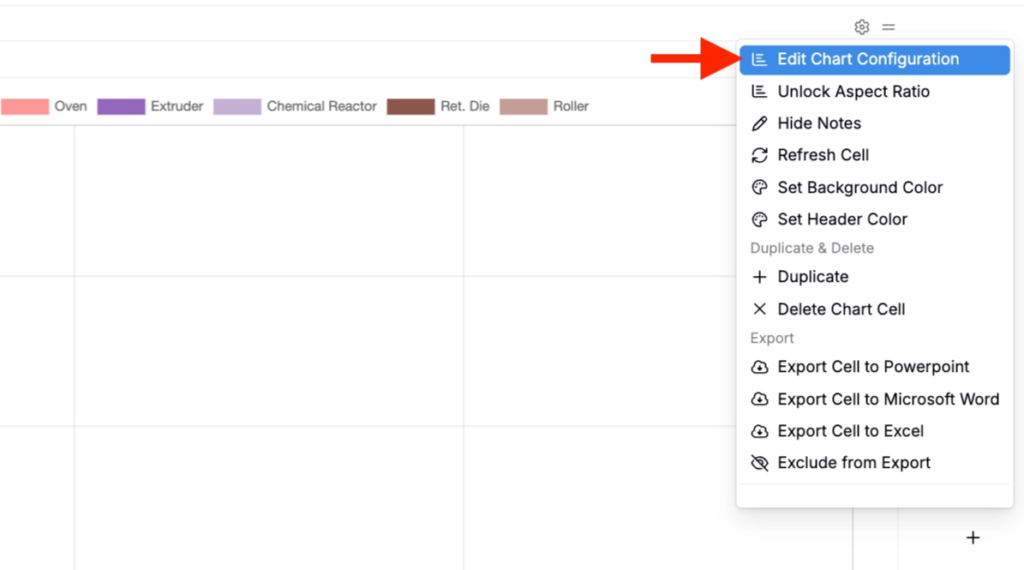
- Click the ⚙️ icon in the top right corner of the chart you want to edit and select Edit Chart Configuration from the menu.
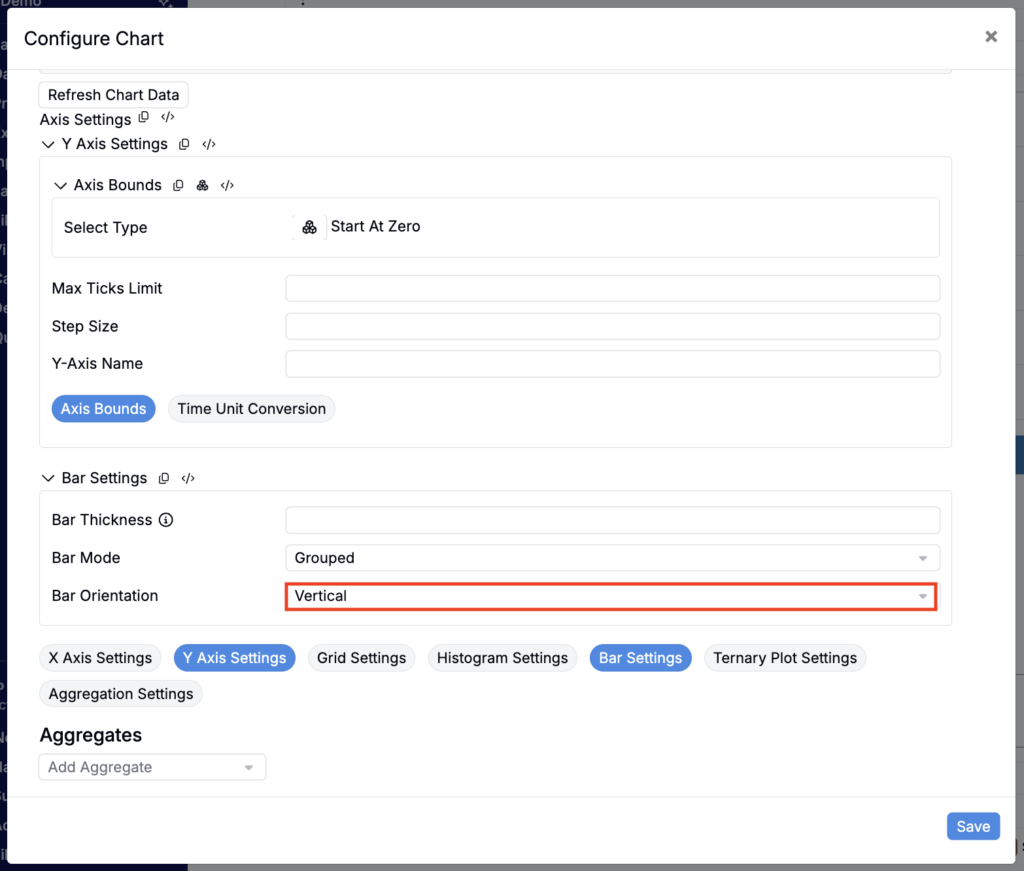
- In the modal, scroll to the Bar Settings section.
- Use the Bar Orientation field to select between Vertical and Horizontal.
Bar Chart Mode
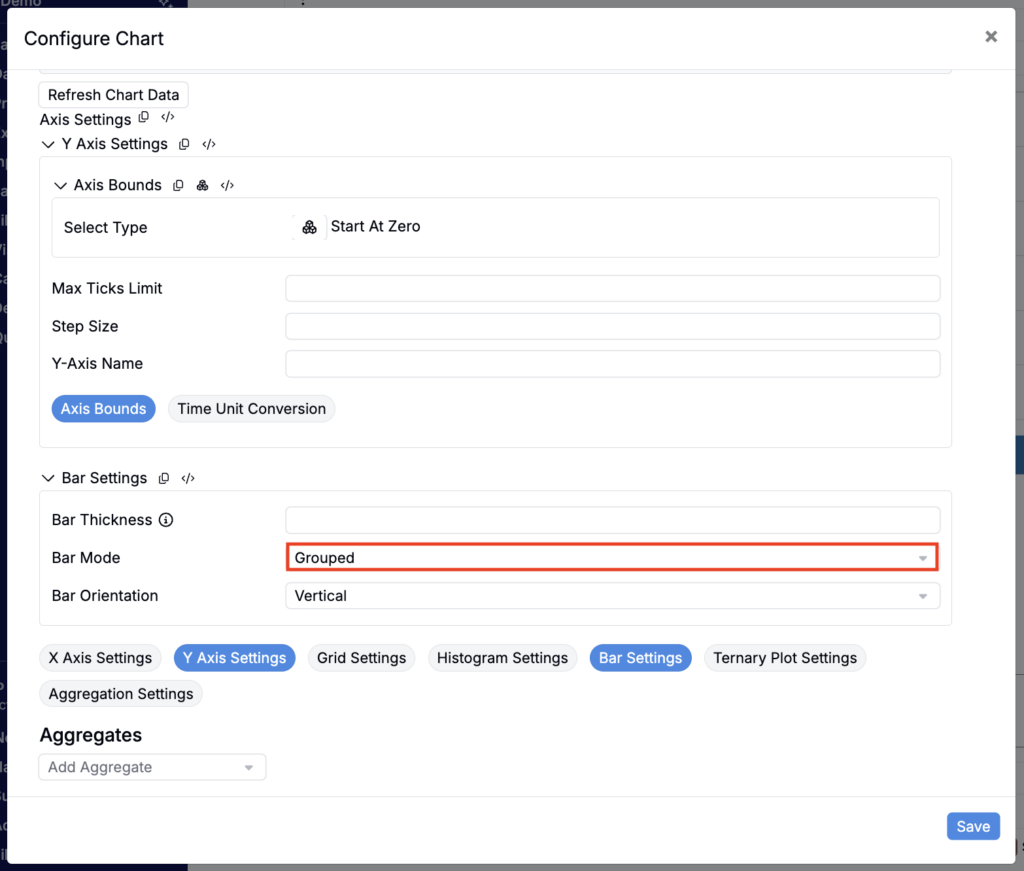
Teams can also use the new Bar Mode setting within the Configure Chart modal to choose between Grouped and Stacked layouts. Previously, bar charts only supported grouped (side-by-side) bar layouts when multiple series were present.
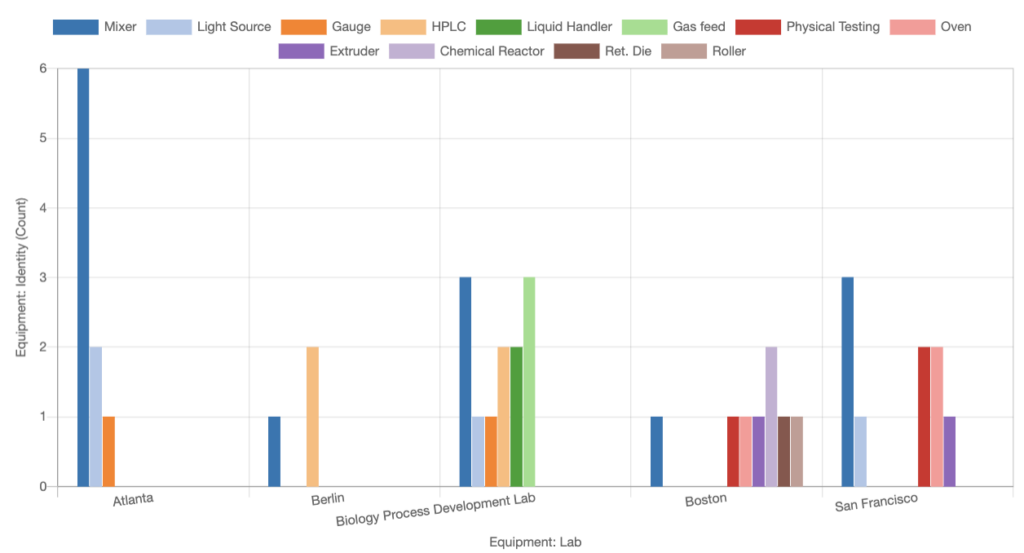
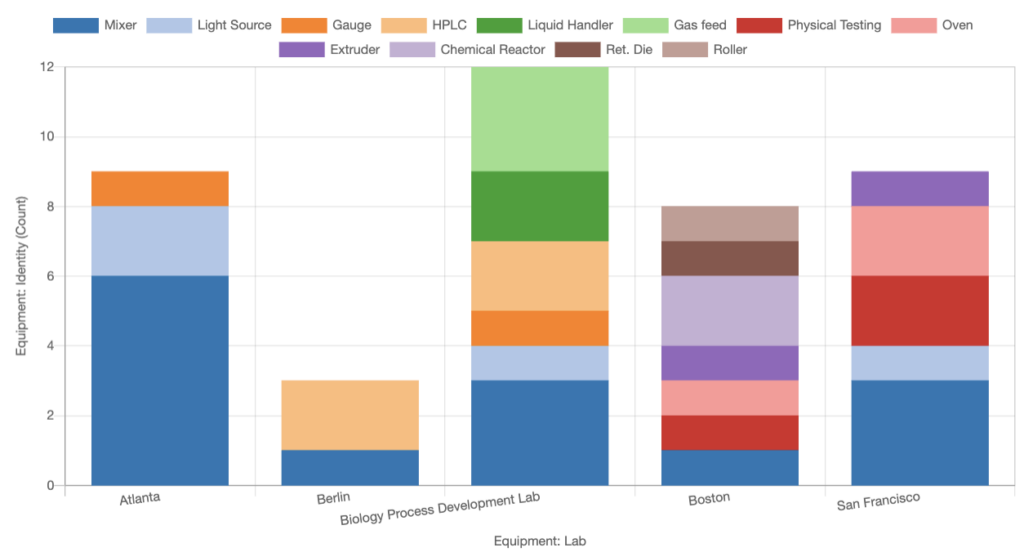
To change your chart’s mode:
- Click the ✏️ in the top right corner of your notebook dashboard to edit.
- Click the ⚙️ icon in the top right corner of the chart you want to edit and select Edit Chart Configuration from the menu.
- In the modal, scroll to the Bar Settings section.
- Use the Bar Mode field to select between Vertical and Horizontal.
Potential use cases
- Comparing long category lists — Horizontal bars make it easier to read category names (e.g., material family names, experiment tags, team labels) without label rotation or truncation.
- Showing composition breakdowns — Stacked bars reveal how a total value is distributed across sub-groups, useful for tracking how different material families or experiment types contribute to a total count.
- Compact dashboard layouts — Horizontal stacked bars combine both benefits in a single chart, ideal for dashboards where vertical space is limited.
Rollout
These options are now available in notebook dashboards. Bar Orientation and Bar Mode appear automatically in the Bar Settings section of the Configure Chart modal for any bar chart. No configuration flags required.