Equipment represents the physical tools, instruments, and machines used to conduct experiments, such as mixers, ovens, centrifuges, bioreactors, and analytical instruments. In Uncountable, equipment tracking allows you to document which tools were used in each experiment, supporting reproducibility, maintenance planning, and resource allocation.
Each equipment item can include:
- Identification — Name and unique identifiers
- Classification — Equipment type (e.g., mixer, light source, bioreactor, centrifuge, oven)
- Location — Lab assignment for physical tracking
- Documentation — Notes, manuals, maintenance records, and specifications
- Attributes — Additional properties or metadata
Equipment is managed centrally and can be linked to multiple recipes and experiments, providing visibility into equipment usage and supporting compliance requirements throughout your R&D process.
Parent and Child Equipment
Uncountable supports hierarchical equipment relationships through sub equipment, which allows you to track components of a parent item as separate records. For example, a UV bulb within a lighting system, or individual ports on a multi-port instrument.
When to Use Sub Equipment
Sub equipment is useful when:
- Multiple users can operate different parts simultaneously — If your equipment has multiple ports or components that can run experiments independently, tracking them as sub equipment helps manage availability and reservations accurately.
- Components require separate tracking — When individual parts have their own maintenance schedules, specifications, or usage records.
- Granular resource management is needed — To show that one part is in use while other parts remain available.
If the entire equipment is always occupied when any single part is in use, it’s simpler to treat it as one piece of equipment.
Creating Sub Equipment
- Navigate to the equipment’s detail page by clicking its name from the Equipment listing.
- Click + Sub Equipment.
- Fill out the same fields you would for any equipment item (name, type, location, documentation, etc.).
- The sub equipment will be automatically linked to its parent in a hierarchical relationship.
Each sub equipment record has its own fields, schedules, and can be tracked independently while maintaining the organizational connection to the parent.
Associating Existing Equipment as Sub Equipment
Admins can retroactively establish parent-child relationships:
- Go to the Equipment definition settings.
- Add a Parent Equipment field.
- Assign the parent equipment to existing equipment records.
To learn more, refer to Associating
Sub Equipment in Lab Requests and Recipes
By default, equipment dropdowns in lab requests typically show only parent equipment. However, this can be configured to display sub equipment as well, or to use separate fields for parent and child equipment selection. Contact your admin to adjust this based on your workflow needs.
Creating New Equipment
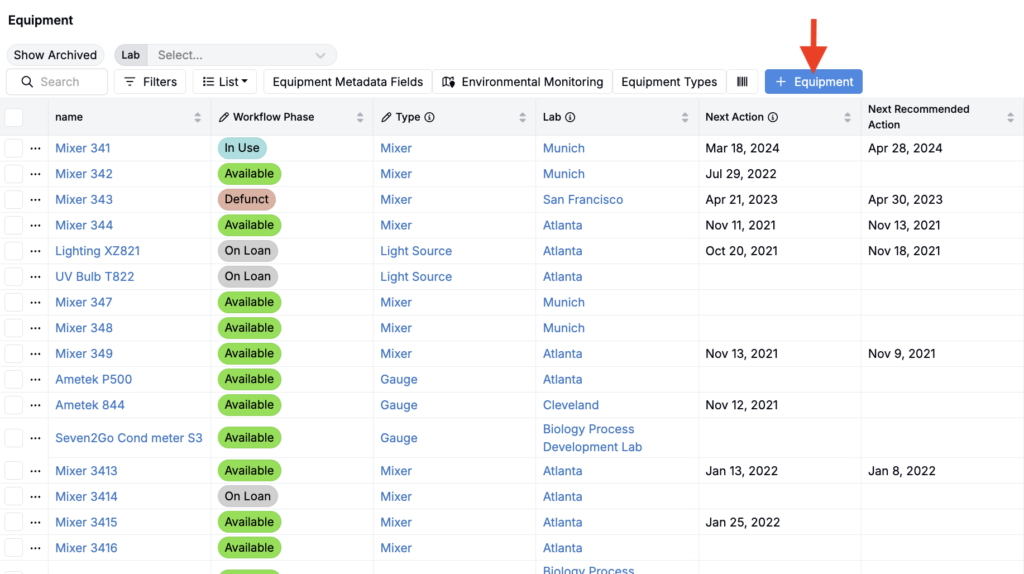
Equipment is created from the Equipment listing page.
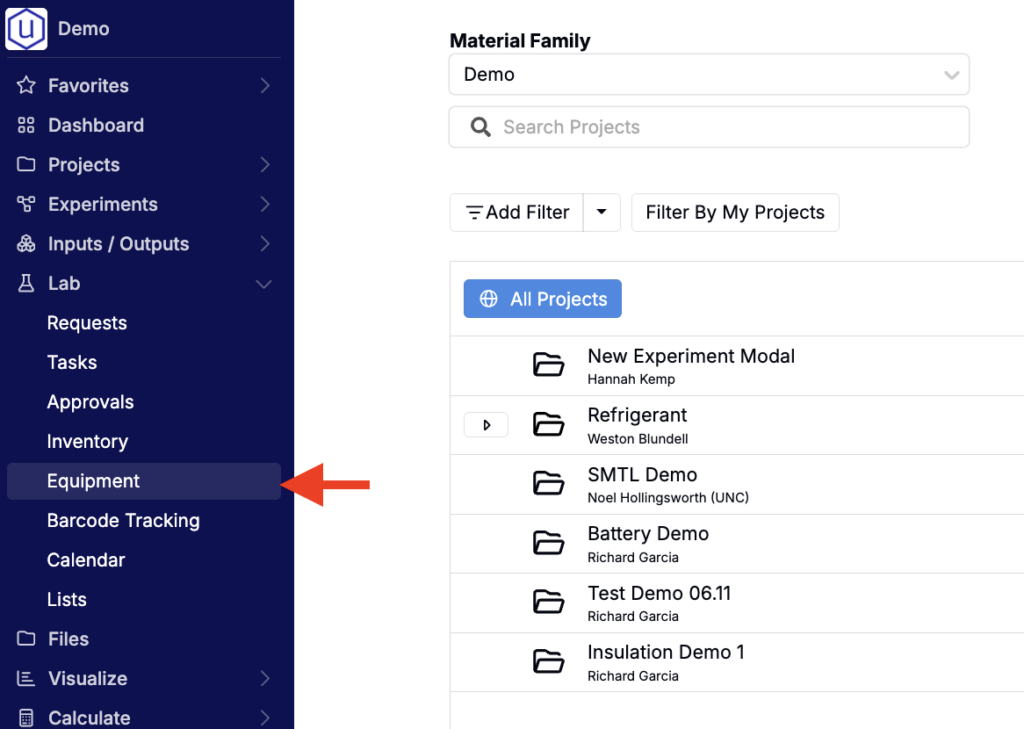
- Select Lab > Equipment from the navigation bar.
- Click the blue + Equipment button.
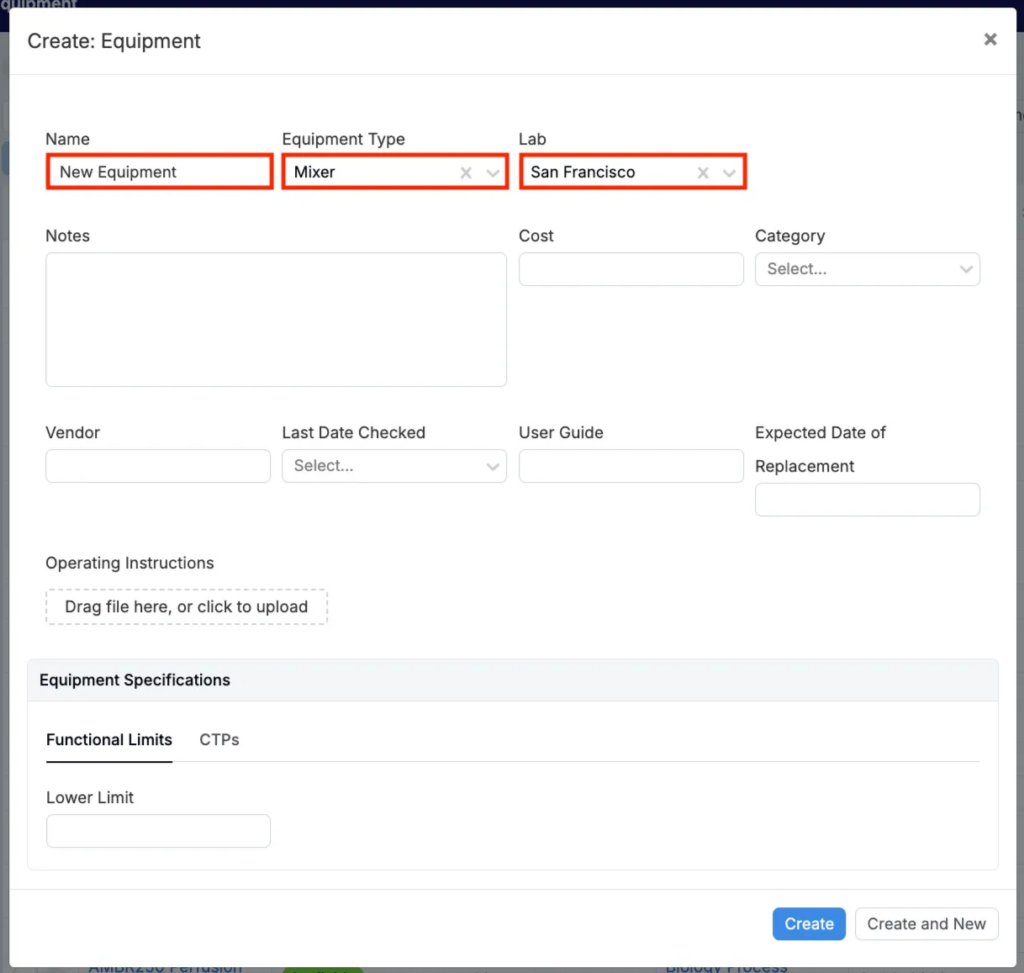
- In the modal, fill out:
- Name — Enter a clear, descriptive name for the equipment.
- Equipment Type — Choose the type (e.g., mixer, light source, bioreactor, centrifuge, oven).
- Lab — Select the lab where the equipment is located.
- Upload or enter additional information about the equipment, such as documentation, specifications, or notes.
Adding Equipment to a Recipe
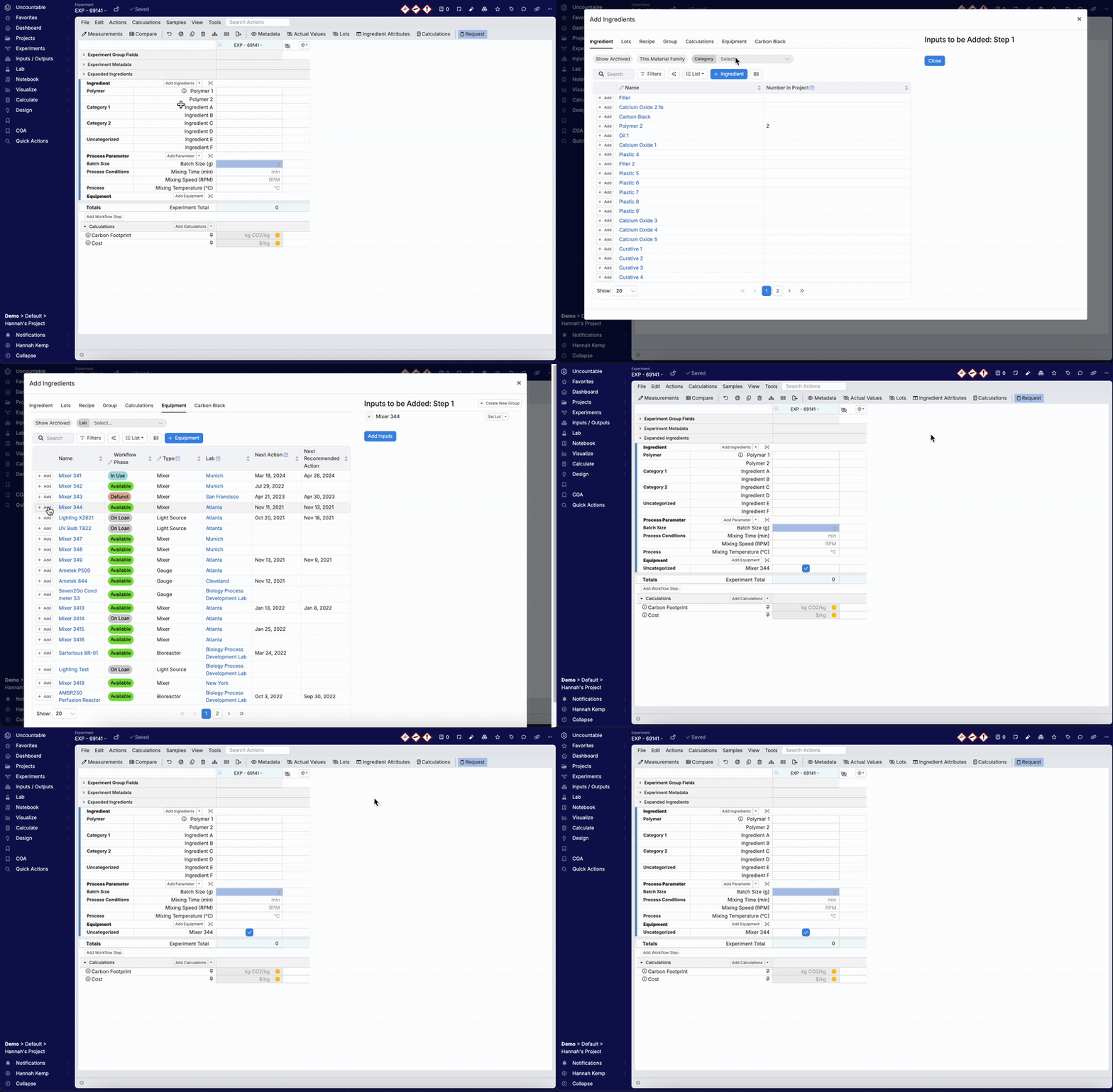
Unlike other inputs, equipment does not appear in the recipe view by default. Equipment must be explicitly added through the Add Inputs modal.
To add equipment to a recipe:
- Click Add Ingredients, Add Parameters, or Add Inputs.
- In the modal, select the Equipment tab.
- Search or filter the equipment listing and click + Add to select equipment. Selected items will appear in the Inputs to be Added panel.
- Click Add Inputs to confirm.
Working with Equipment in a Recipe
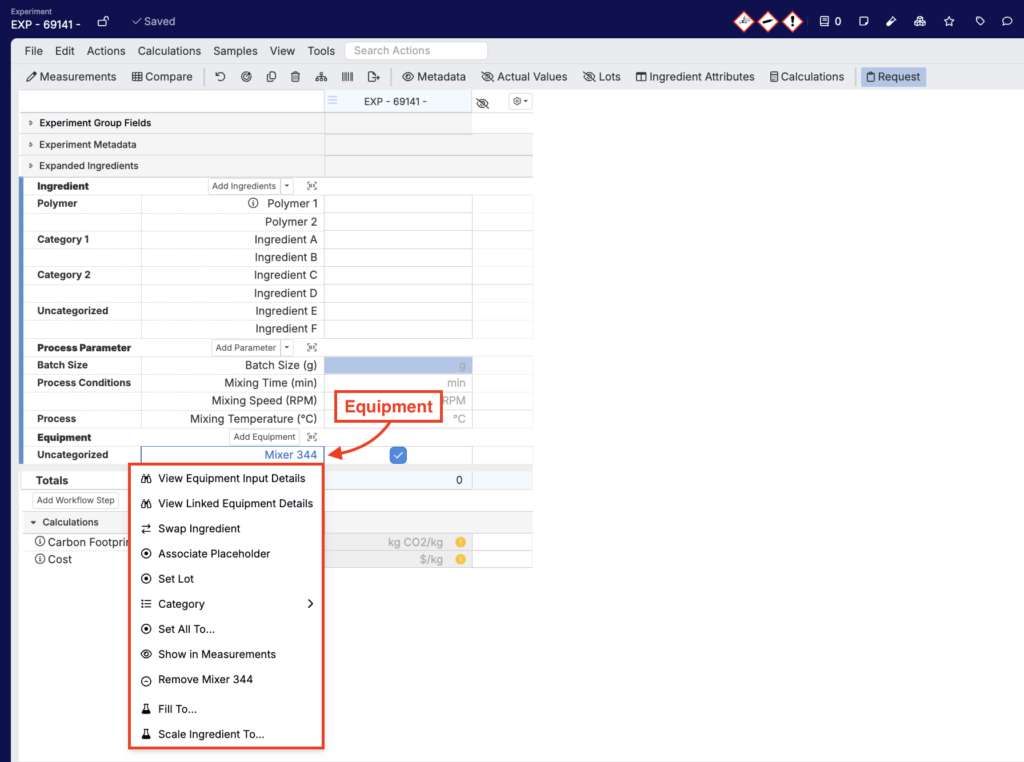
Once added, equipment appears in the Equipment section of the recipe.
Clicking an equipment name opens a dropdown with additional options:
- View Equipment Details — Navigate to the equipment’s detail page.
- Category — Change the equipment’s category directly from the recipe view.
- Remove — Remove the equipment from the recipe.
Troubleshooting Hidden Equipment
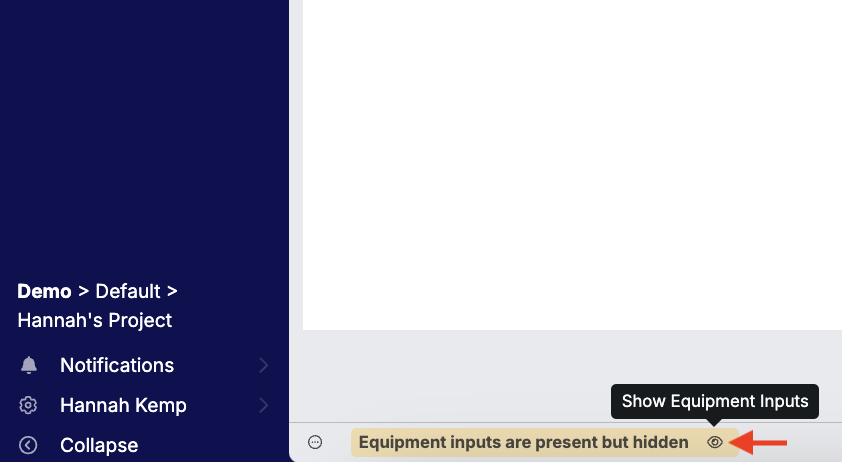
If equipment is not immediately visible in the Inputs section after being added, look for an error message at the top of the recipe. Click the eyeball icon to unhide the equipment inputs.
Equipment Details Page
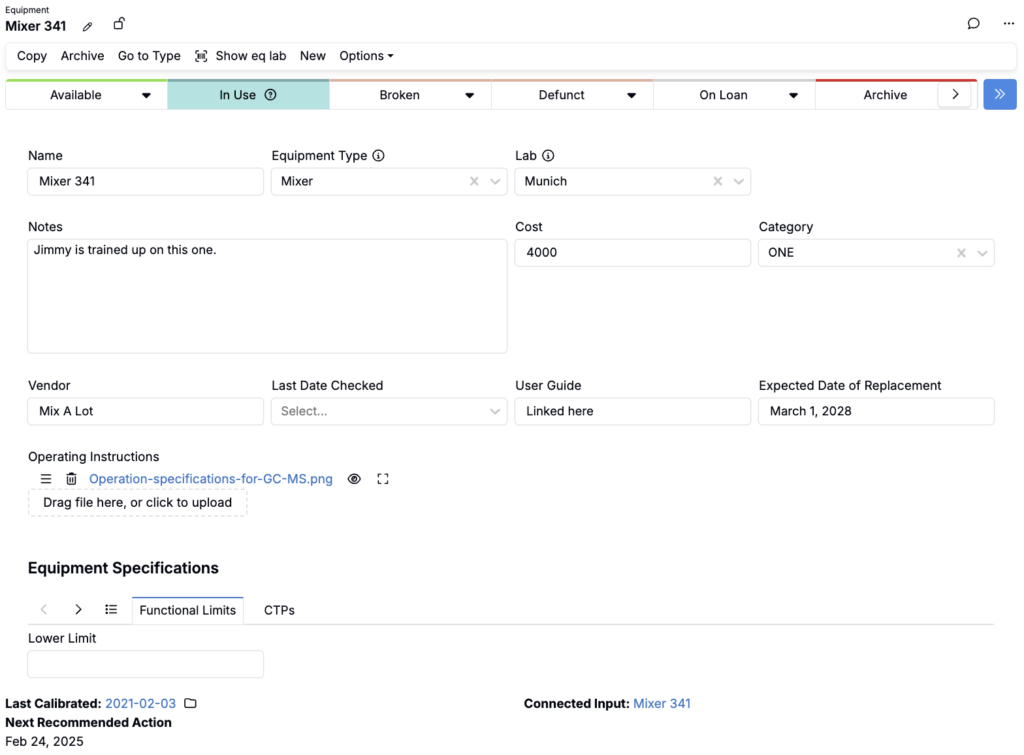
Each piece of equipment in Uncountable has its own Details page. It shows the equipment’s status, fields, maintenance schedules, and history, along with quick actions for updates.
- The phase workflow shows the equipment’s current state—Available, In Use, Broken, Defunct, On Loan, or Archived—and can be advanced with a click.
- Equipment fields can capture details such as cost, vendor, specifications, serial number, replacement date, attachments, and lab location.
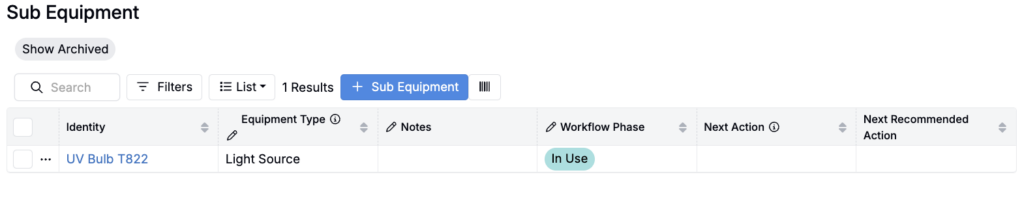
Sub Equipment
On an equipment’s details page, teams can also manage and create new sub equipment.
Equipment Action Types
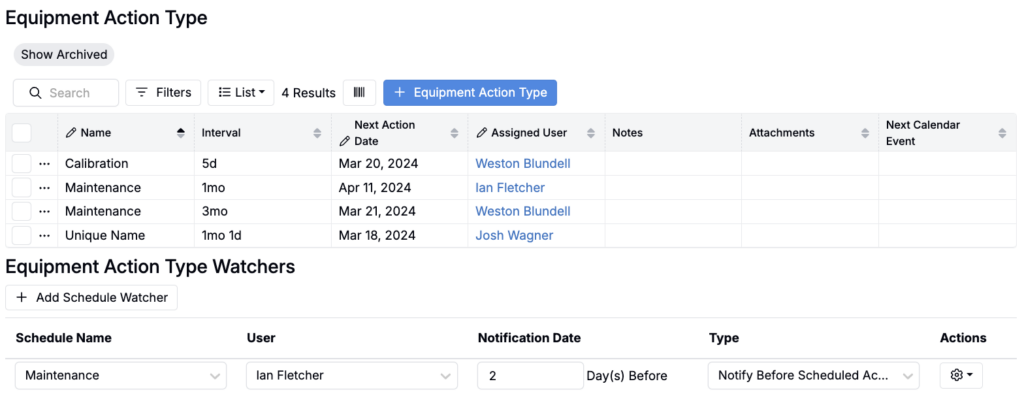
Beneath sub equipment is a section for defining equipment action types, such as maintenance or calibration. These scheduled actions remove the need for external tracking tools.
Click + Equipment Action Type to add one, and configure fields such as name, next action date, assigned user, interval, attachments, and whether the action repeats.
Action Type Watchers
Teams can also assign watchers to action types—users who receive notifications ahead of scheduled actions. Notifications can be configured for timing and whether they trigger before the next action or the next interval.
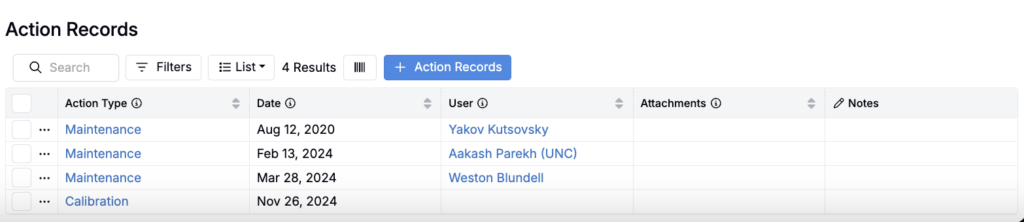
Action Records
Finally, the details page contains the Action Records table, which logs all past maintenance and calibration events. Records include the date, user, attachments, and associated action type, providing a complete service history.
Teams can add new entries with + Action Record.