Experiment Summary input calculations are designed for workflows where experiments are used as ingredients in other experiments (i.e., intermediates or components). Rather than displaying a numeric value, Experiment Summary calculations display the name of an intermediate experiment used in a recipe — making it easy to identify which specific intermediate was incorporated without needing to look it up separately.
What Is an Experiment Summary Input Calculation?
Experiment Summary calculations surface contextual information about intermediate experiments that are part of a recipe. Each category or product type can have one designated Experiment Summary calculation, and the calculation displays identifying information (typically the experiment name) for the intermediate of that type.
These calculations are especially useful for multi-layer or multi-component formulations where the identity of each intermediate matters as much as its quantity.
Example use cases
- Multi-layer coatings — Display the specific primer and topcoat experiments used in a coating system, rather than just the quantities
- Composite formulations — Identify which base resin batch, catalyst preparation, or filler masterbatch was incorporated into the final blend
- Sequential synthesis — Track which intermediate synthesis batch fed into each subsequent step
- Listing views — Add Experiment Summary calculations to experiment listings to quickly compare which intermediates were used across many experiments
How to Configure an Experiment Summary Input Calculation
Experiment summary calculations can be created from the Calculations listing page or directly in the Recipe view of a formulation. Both methods open the same creation modal.
In the modal:
- Enter a name for your calculation based on the intermediate type you want to identify (e.g., “Top Coat Used”, “Primer Used”, “Catalyst Batch”).
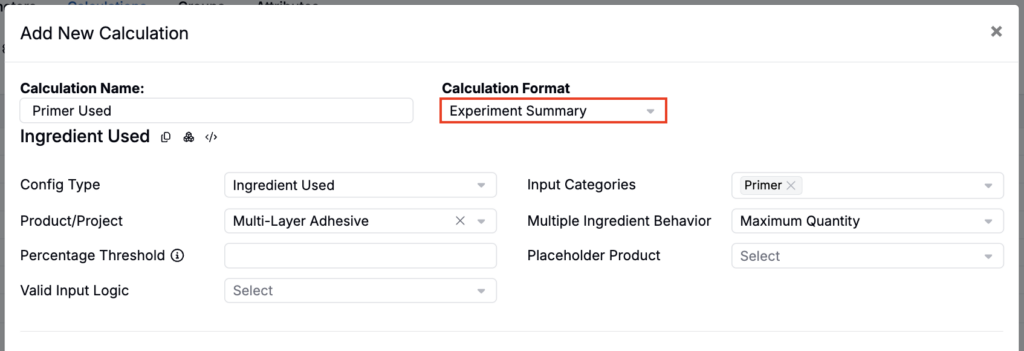
- Set Calculation Format to Experiment Summary.
Because the output is an experiment name rather than a number, units are not required.
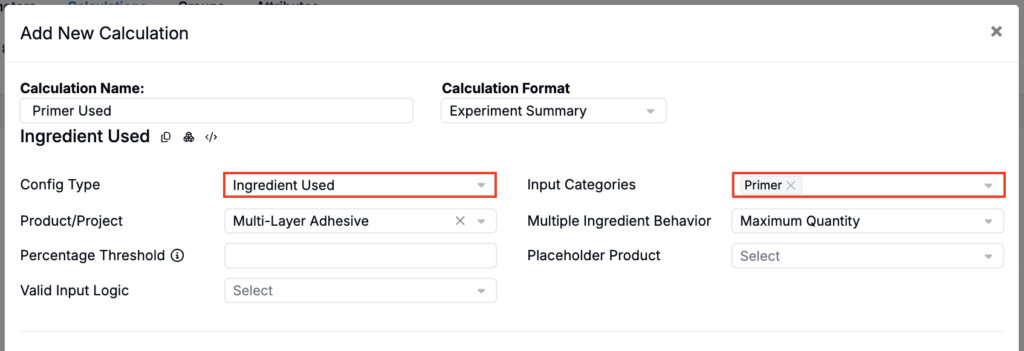
- Config Type — Select between:
- Ingredient Used — Designed for cases where only one intermediate of this type is expected per recipe (e.g., one topcoat, one catalyst).
- Multiple Ingredients Used — Designed for cases where multiple intermediates of the same type may be present (e.g., multiple solvents from the same category).
- Unique Attribute Value — Aggregates and deduplicates values from a selected single-select or multi-select ingredient attribute across all valid ingredients in the recipe, then displays the unique set of values (for example, all distinct allergens, classifications, or categorical properties present in the formulation).
- Select the input category — Choose the ingredient or intermediate category to summarize (for example, Primer). The calculation will only consider recipe inputs in this category.
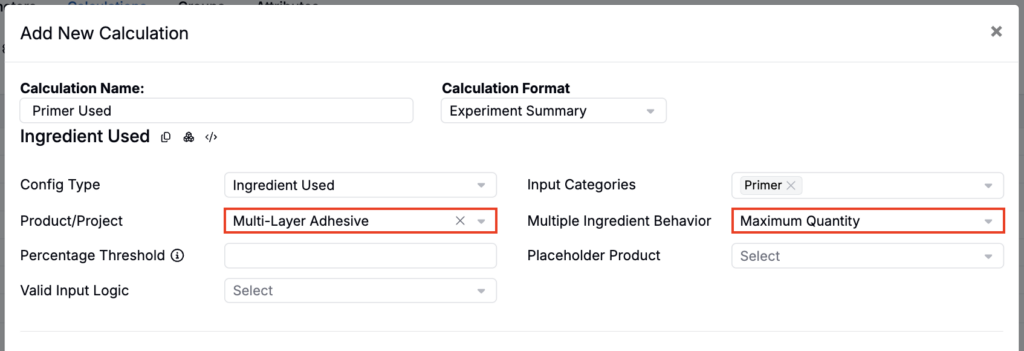
- Select the product or project — Use the dropdown to select the product or project that represents the type of intermediate you want to surface. The calculation will look for intermediates in the recipe that belong to this product/project type.
- Configure multiple ingredient behavior — If more than one matching ingredient is present, choose how the calculation should decide which value to display:
- First Match — Displays the first matching ingredient found in the recipe.
- Maximum Quantity — Displays the matching ingredient with the highest quantity.
- Set a percentage threshold — Optionally enter a minimum ingredient quantity threshold as a percentage of the total experiment quantity. Ingredients that make up less than this percentage of the total experiment quantity are ignored in the calculation.
- Select a placeholder product — Optionally scope the calculation to ingredients associated with a specific product placeholder. If specified, only recipe ingredients matching that placeholder product are considered.
- Choose valid input logic — Define which recipe inputs count as valid for the calculation:
- Allow Zero/Empty Quantity and Inclusion — Includes matching ingredients even when their quantity is zero or empty, as long as they meet the inclusion criteria.
- Only Non Zero Quantity and Inclusion — Includes only matching ingredients that meet the inclusion criteria and have a non-zero quantity.
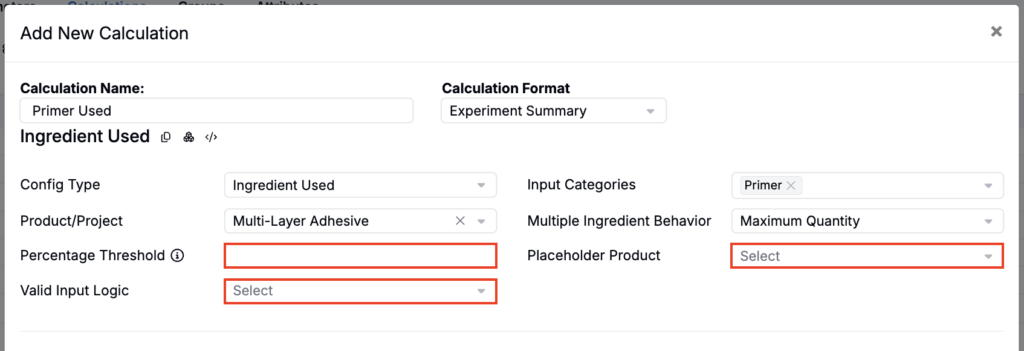
Once configured, the calculation will display the name or unique attribute values from the matching recipe inputs. If no matching input is present, the field will be blank.
Example: Multi-Layer Coating System
A coating formulation uses two intermediates: a Primer experiment and a Topcoat experiment. You want to display which specific primer and topcoat were used in each final coating experiment.
- Create an Experiment Summary calculation named “Primer Used” and select the Primers product as the source.
- Create an Experiment Summary calculation named “Topcoat Used” and select the Topcoats product as the source.
- Enable both calculations in the relevant project or workflow.
When viewing a coating experiment, the recipe will now display the names of the specific primer and topcoat experiments incorporated, alongside the standard ingredient amounts. These calculations can also be added to the experiment listing view for easy cross-experiment comparison.
Calculation Settings
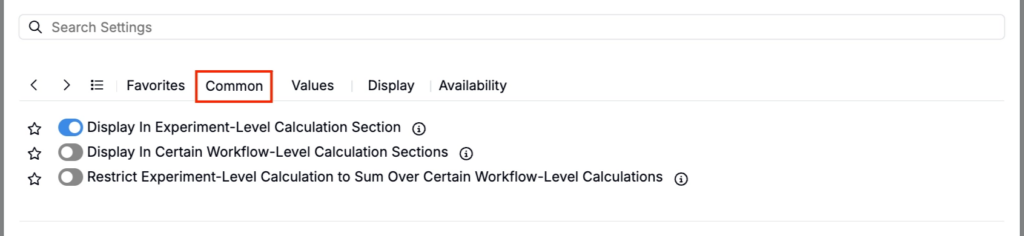
Common
- Display in Experiment-Level Calculation Section — Shows the value at the bottom of the full recipe
- Display in Certain Workflow-Level Calculation Sections — Shows the value only at selected workflow steps
- Restrict Experiment-Level Calculation to Sum Over Certain Workflow-Level Calculations — Limits the experiment-level total to selected workflow steps
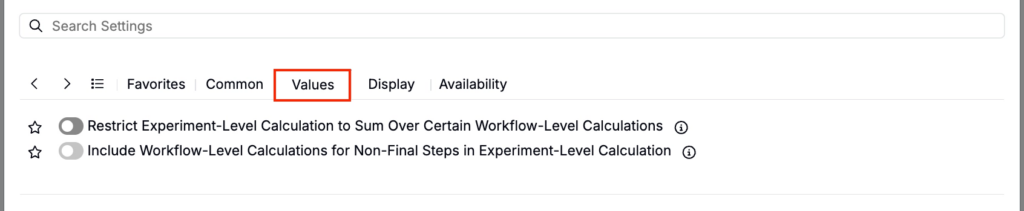
Values
- Restrict Experiment-Level Calculation to Sum Over Certain Workflow-Level Calculations — Limits the experiment-level total to selected workflow steps
- Include Workflow-Level Calculations for Non-Final Steps in Experiment-Level Calculation — Controls whether non-final step values roll up into the experiment-level calculation
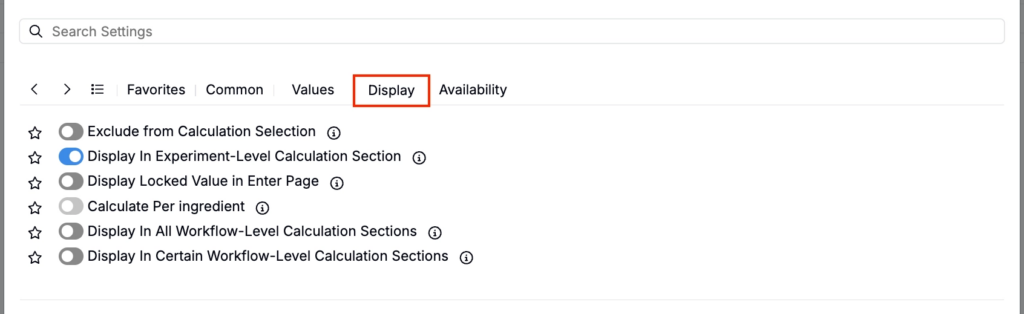
Display
- Exclude from Calculation Selection — Hides the calculation from view (useful for intermediary calculations)
- Display in Experiment-Level Calculation Section — Shows the value at the bottom of the full recipe
- Display Locked Value in Enter Page — If enabled, all cells for this calculation are locked on the Enter Recipe page (behaving like they are in Solve mode), preventing manual edits.
- Calculate Per Ingredient — When enabled, the calculation is computed separately for each ingredient (rather than only as a single rolled-up recipe-level value).
- Display in All Workflow-Level Calculation Sections — Shows the calculation at the end of every workflow step.
- Display in Certain Workflow-Level Calculation Sections — Shows the calculation only at the end of selected workflow steps.
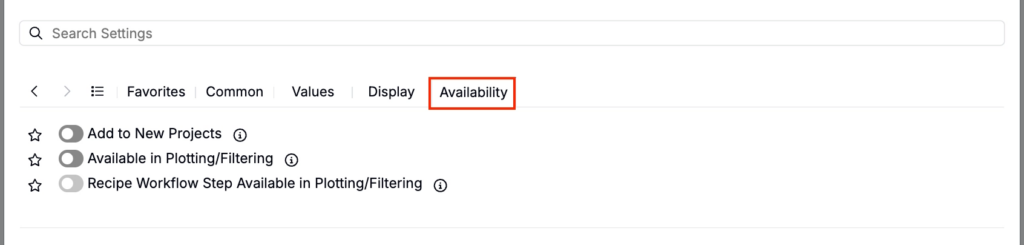
Availability
- Add to New Projects — Automatically includes this calculation in new projects in the material family
- Available in Plotting/Filtering — Makes the calculation value available as a filter or plot axis
- Recipe Workflow Step Available in Plotting/Filtering — Makes the calculation’s workflow-step-level values available to use as filters or plot axes (so you can analyze how the value changes by workflow step, not only at the overall experiment level).
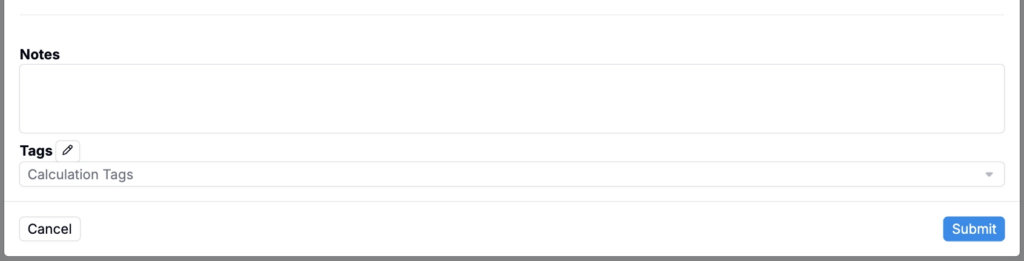
- Notes — Free-text shown on hover over the calculation in the recipe view
- Tags — Group calculations together. Tags let you toggle visibility of related calculations as a set.