
Let’s say you have a single-select field pulling from an Inventory Id Source, and the items in that source can be identified by either an ingredient name or a recipe name. You’d like the dropdown to show the ingredient name when one is available, and fall back to the recipe name when it isn’t.
Instead, the dropdown is showing the raw identity string (”[Ingredient name] — [Recipe name]”) even though you’ve already added a Coalesce: Ingredient, Recipe layout column under the Select Control tab.
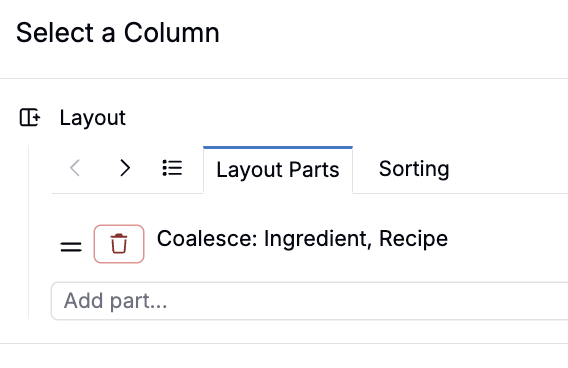
Solution: Use Coalesce in the Label Join Value Spec
The fix is to add two separate layout columns — one for each field you want to coalesce — and then reference them with a coalesce expression in the Label Join.
Step 1: Add separate layout columns
In the Select Control tab of the Id Source, under Layout Parts, add two individual columns:
- One mapped to the ingredient name (this becomes column
c0) - One mapped to the recipe name (this becomes column
c1)
Column indices (c0, c1, etc.) are assigned left-to-right based on position in the Layout Parts list, starting at c0.
Step 2: Set the Label Join Value Spec
Click Add Label Join Value Spec and enter:
(coalesce ref:columns.c0 ref:columns.c1)
This tells the dropdown to use the ingredient name (c0) if it has a value, and fall back to the recipe name (c1) if it doesn’t — producing a clean, human-readable label instead of the raw identity string.