
Admins can use listing configurations to customize not only listing pages but also the dropdown menus that appear throughout Uncountable. By applying filters to dropdowns, you can determine what users see, making menus more relevant to their role or project.
This is done using sub-scopes, which target specific dropdown menus in the platform. Each sub-scope applies only to the menu it’s tied to, ensuring that changes in one place don’t affect dropdowns elsewhere.
For example, on all recipes, you might want to:
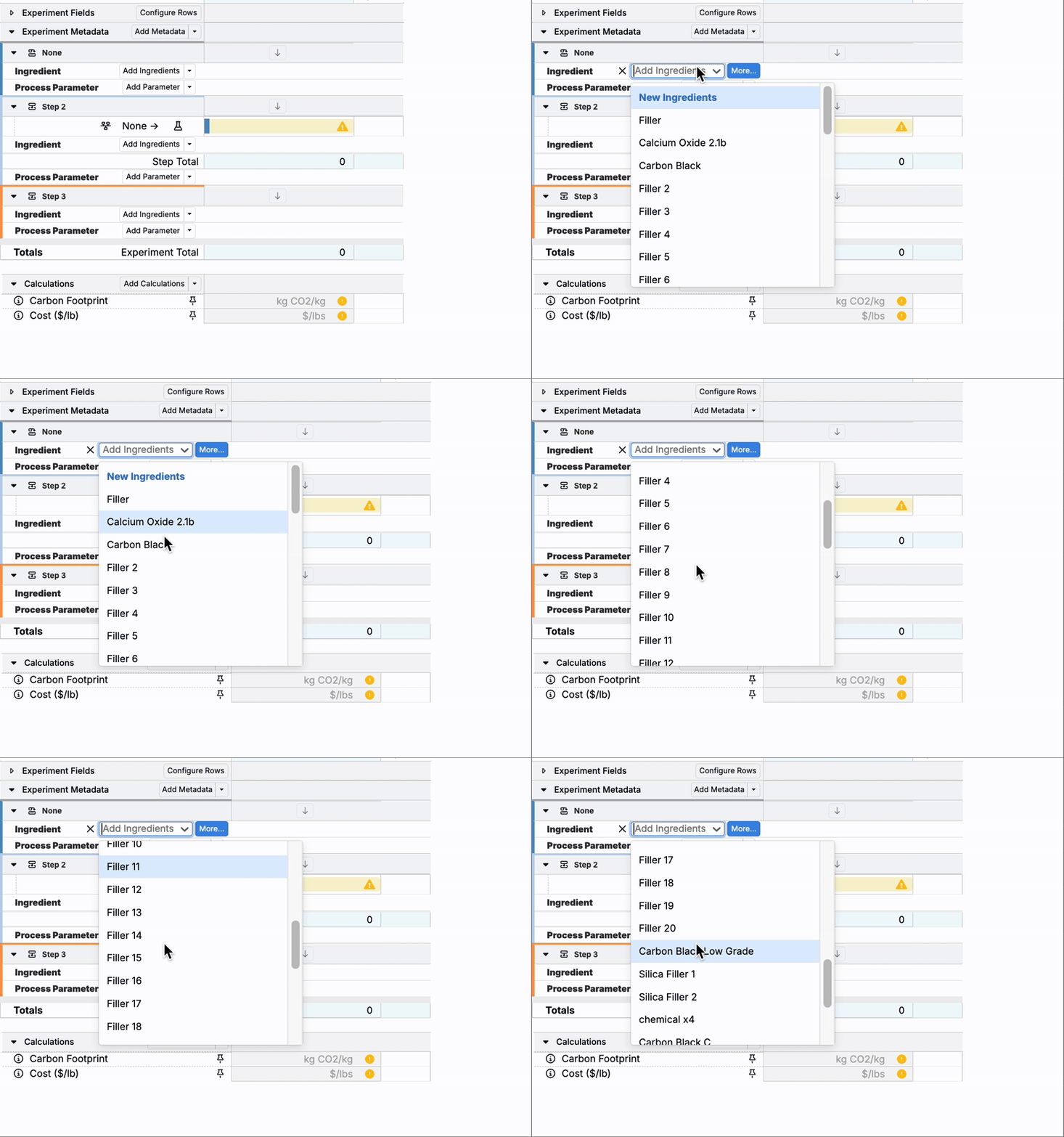
- Limit the Select Inventory dropdown to only items that are available for a project.
- Filter the Add Inputs dropdown to show only a subset of ingredients.
- Customize search behavior in dropdown menus without changing other listings.
This article uses the Add Inputs dropdown on a recipe as an example. However, this concept can be used for other pages and menus across the platform.
Recipe Menu Configuration
On the recipe view of an experiment, sub-scopes can be used to target menus such as Add Inputs, Select Lots, Select Inventory and Unstructured Input Rows.
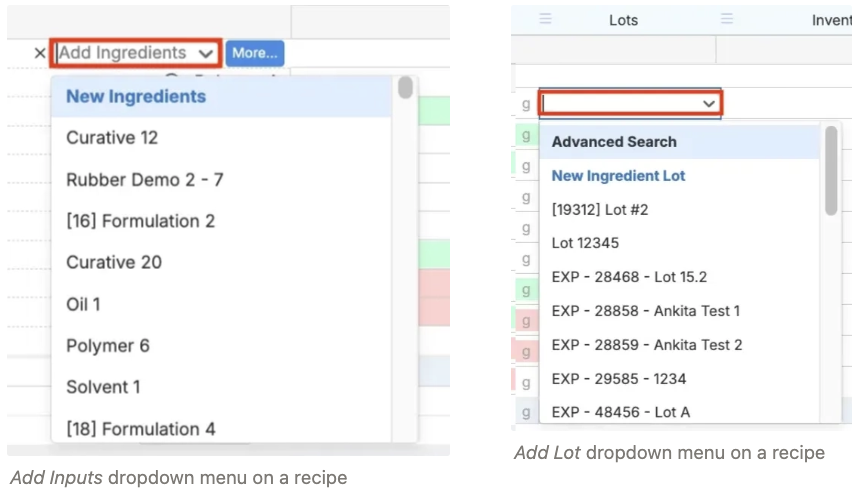
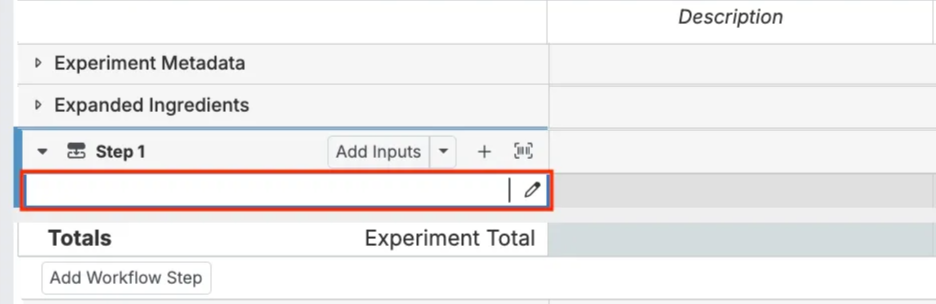
Recipe Menu Sub-Scopes
| Menu | Sub-scope |
|---|---|
| Add Inputs dropdown | enter_recipe_add_inputs |
| Select Lots dropdown | enter_recipe_add_lots |
| Select Inventory dropdown | enter_recipe |
| Add Products dropdown and Placeholder dropdown | enter_recipe_add_products |
| Add Inputs using Unstructured Rows search | ingredient-draft-row |
How to Configure
To create a listing configuration for a dropdown menu:
- Navigate to the Listing Configs tab in Form Admin.
- Click Add Config.
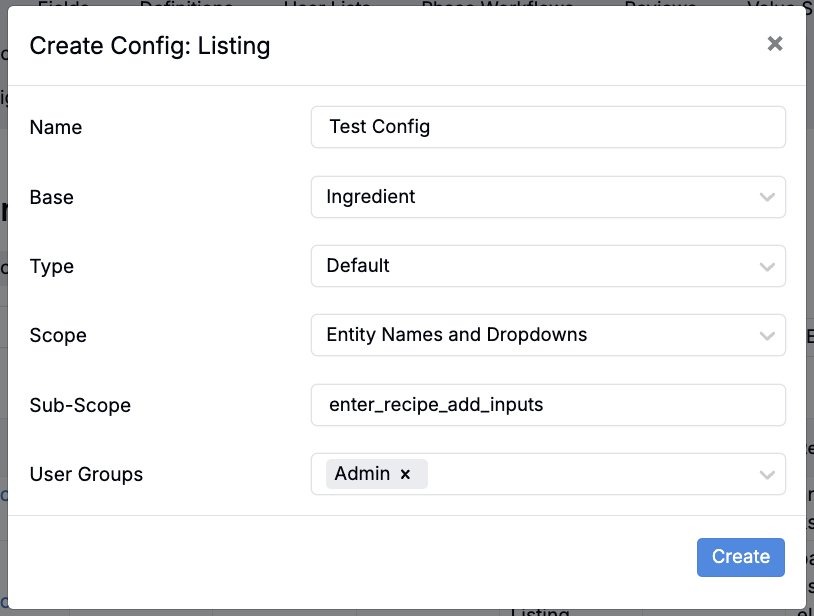
- In the modal, enter the following:
- Name — Give the config a descriptive name.
- Base — Select the relevant base (e.g., Ingredient, Lot, Inventory).
- Type — Set to Default.
- Scope — Set to Entity Names and Dropdowns.
- Sub-Scope — Enter the value for the specific dropdown you want to customize (e.g.,
enter_recipe_add_inputs).
- Assign the config to the relevant user groups.
- Save and submit your configuration.
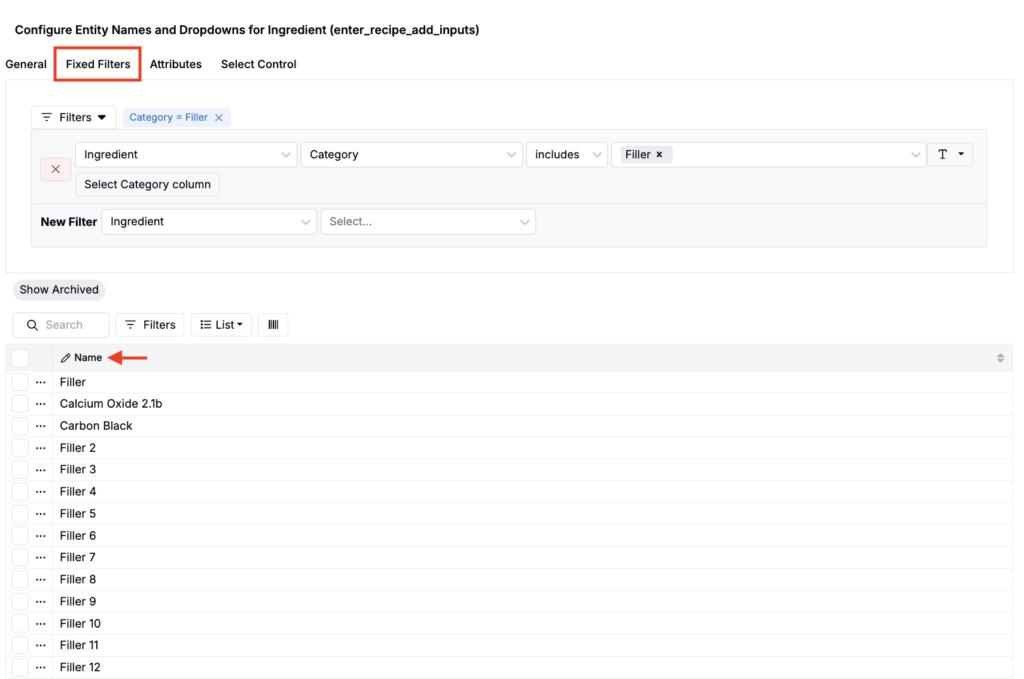
- On the config page, use Fixed Filters to restrict what appears in the dropdown. For example, you could filter the Add Inputs menu so it only displays ingredients from the Filler category. This final step is essential, overrides will not work using standard filters. To properly display ingredient names, make sure you also add a Name column to the config (List > Set Columns).
Once saved, the targeted dropdown will only display the filtered set of options.
Making a Column Searchable Without Showing It in the Menu
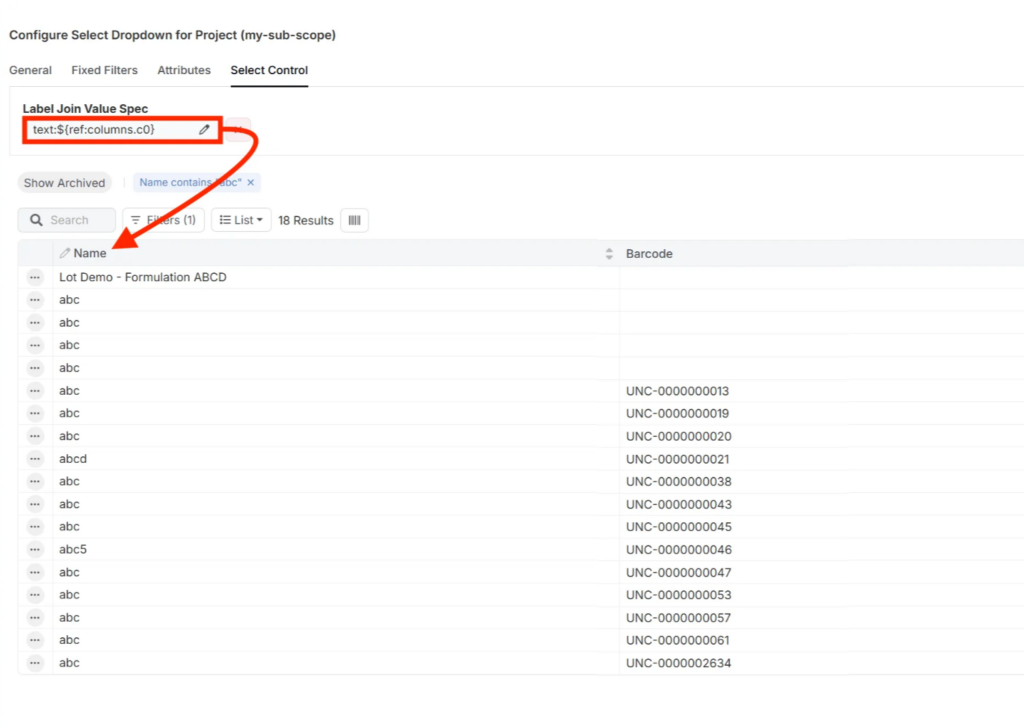
If you want users to be able to search by a column (like an ingredient field in the Add Inputs menu on Enter Recipes) without showing that column in the dropdown, you can:
- Add the field as a column in the listing config.
- Only reference the columns you want to show in the value spec.
Example
Add two columns to your listing config:
columns.c0= Namecolumns.c1= Barcode
But in the value spec, only reference the Name column:
text:${ref:columns.c0}
This way:
- Both the name and barcode are searchable.
- But only the name appears in the dropdown.
Beyond Recipes
The example above focuses on the recipe view of an experiment, but the same approach applies anywhere Uncountable uses dropdown menus with sub-scopes.
By creating listing configs for different bases and menus, admins can ensure users always see the most relevant options, no matter where they work in the platform.